Electronic door handle with fingerprint, RFID card, PIN and Tuya app, SecureEntry-HL200
GTIN: 5907614668792 · SKU: SecureEntry-HL200
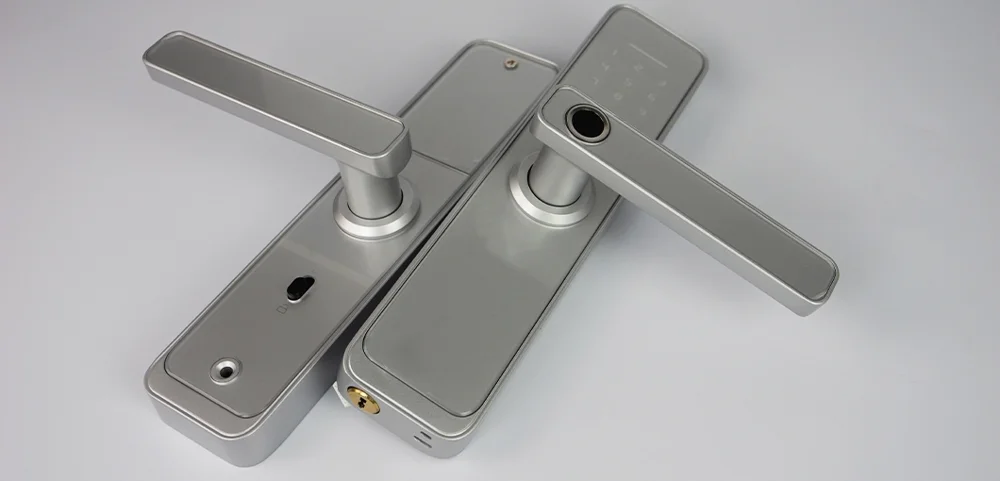
The SecureEntry-HL200 is an electronic door handle with a lock and access control, in an aluminium alloy housing. The door can be opened with a fingerprint, a 13.56 MHz RFID card, a PIN code typed on the touch keypad, the mechanical key or from the Tuya Smart app. Users are managed from the keypad menu with voice prompts. The handle runs on four AA batteries and can be set up for doors opening to the left or to the right, inwards or outwards.
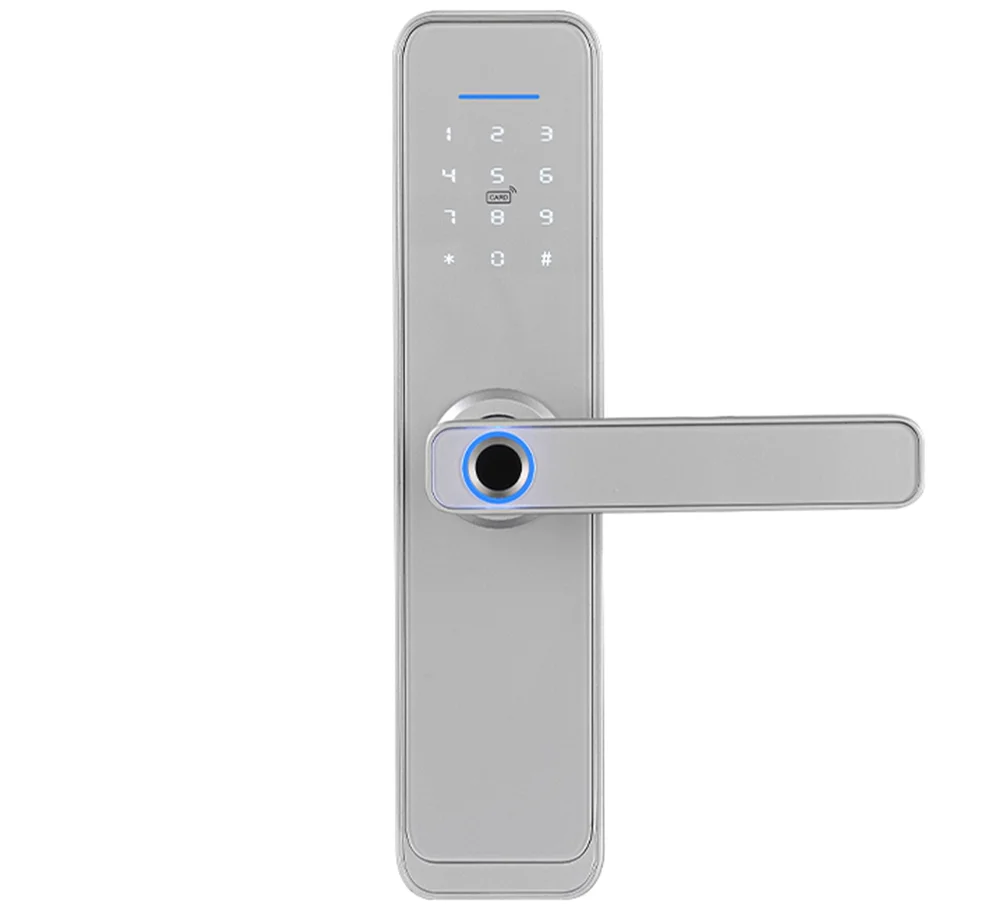
Table of contents
Specifications
- Device type: electronic door handle with lock and access control
- Material: aluminium alloy
- Verification types: password, fingerprint, RFID card, Tuya app, key
- Supported RFID cards: 13.56 MHz, MIFARE Classic 1K-compatible
- Lock body: two latches or a single latch
- Fingerprint sensor: semiconductor FPC
- Fingerprint identification angle: 360°
- Fingerprint comparison time: up to 0.6 s
- False rejection rate: ≤ 0.1 %
- False acceptance rate: ≤ 0.0001 %
- Administrators: 9
- User capacity: 300 in total (fingerprints, passwords, cards)
- Voice prompts: yes, for easy setup
- Keypad: standard 12-key touch keypad
- Additional functions: tamper alarm, touch keypad, Tuya app support
- Password length: 4–8 digits
- Dummy password: up to 32 digits
- Working voltage: 6 V, 4 × AA 1.5 V alkaline batteries, or an external USB emergency power supply
- Emergency power supply: 5 V DC
- Low battery alarm: 4.6 V
- Static current: ≤ 50 µA
- Dynamic current: ≤ 180 mA
- Reaction time: ≤ 0.1 s
- Unlocking time: ≤ 1 s
- Suitable door types: stainless steel, security, copper and wooden doors
- Suitable door thickness: 35–50 mm
- Application: home, apartment, modern office, campus, dormitory
- Lock size: 250 × 60 × 28 mm
- Operating temperature: −24 to 60 °C
- Operating humidity: 20–90 %
- Package dimensions: 33 × 17.5 × 12 cm
- Product weight: 2 kg
Kit contents
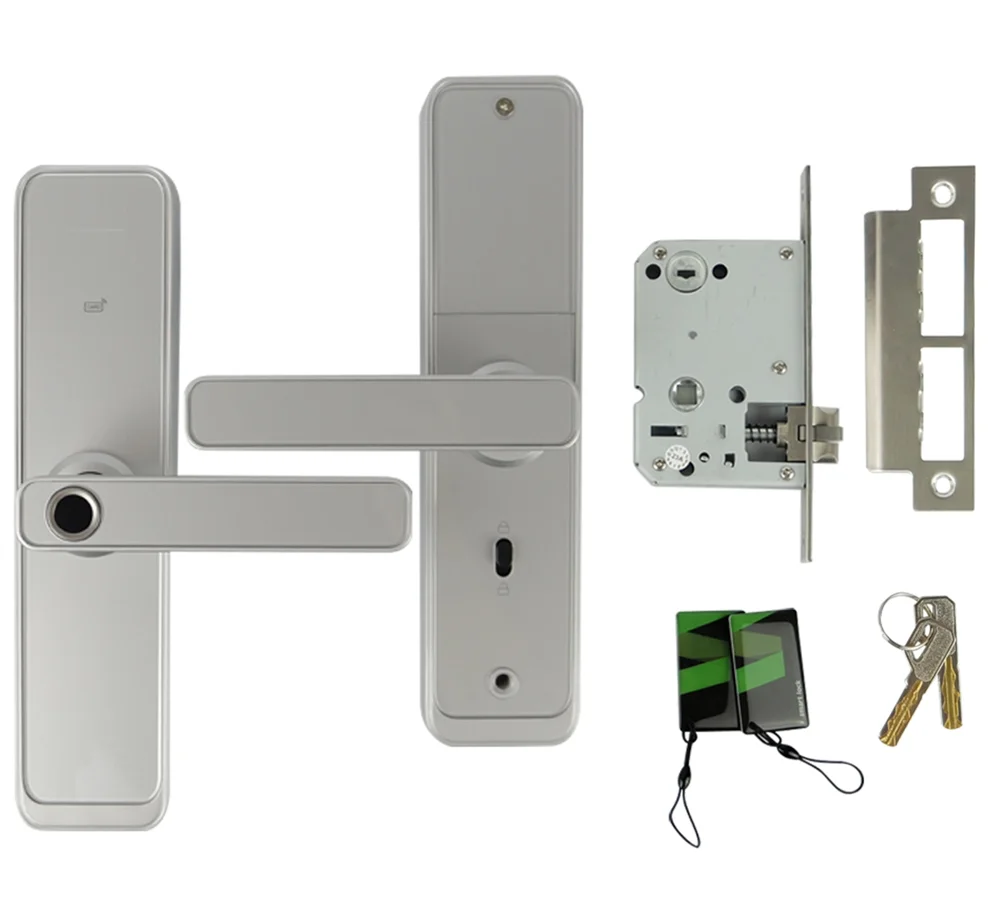
- Front lock
- Back plate (rear lock)
- Connecting pillars 30/35 mm
- Double latch mortise lock
- Battery cover
- Spindle 80 mm
- Screws M4 × 30 / 45 mm
- Strike box (wooden doors only)
- Strike plate
- Screws 4.2 × 25 mm (wooden doors only)
- Batteries
- Mechanical key
- RFID card compatible with MIFARE Classic 1K
Door opening direction
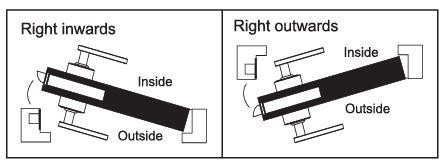
- Right-hand opening
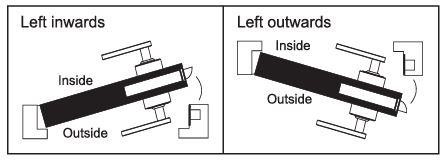
- Left-hand opening
Changing the handle side
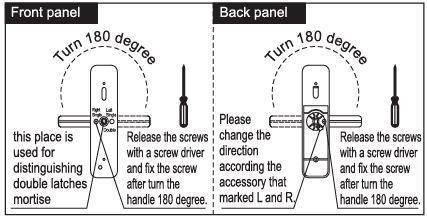
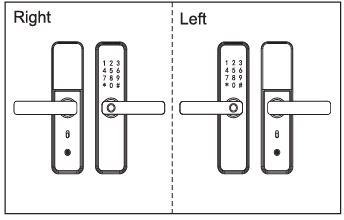
Adjust the handle to the left or right side as needed with a screwdriver: loosen the screw, turn the handle by 180 degrees and fix the screw again.
Do not unscrew the screw in the handle hole completely; only loosen it.
Front panel and back panel:
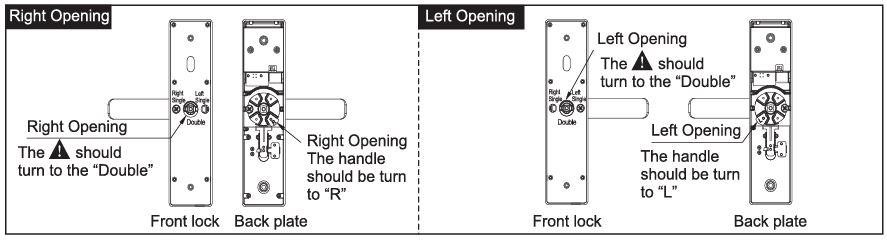
- This place is used to distinguish double-latch mortise locks.
- Loosen the screws with a screwdriver, turn the handle by 180 degrees and fix the screw.
- Change the direction according to the accessories marked L and R.
- Loosen the screws with a screwdriver, turn the handle by 180 degrees and fix the screw.
Adjusting the latch direction
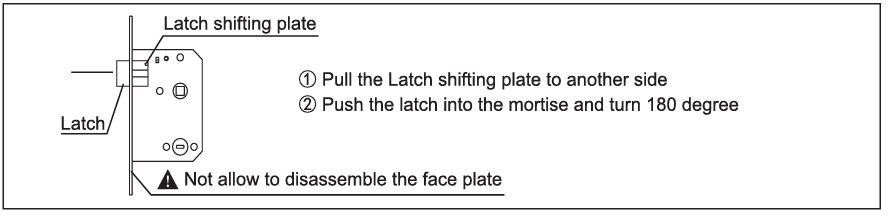
Adjust the direction of the latch as needed: pull the latch shifting plate to the other side, then push the latch into the mortise and turn it by 180 degrees. Do not disassemble the face plate.
Accessories for different door thicknesses
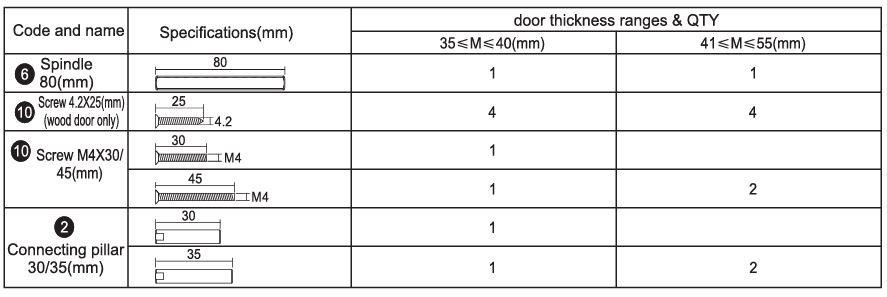
Choose the accessories that match the thickness of your door, as shown in the table.
Before installation
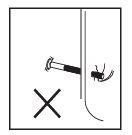
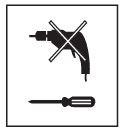
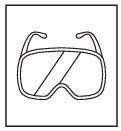
- Do not use excessive force during installation, to avoid damaging the lock.
- Use suitable installation tools.
- Wear safety goggles when drilling holes.
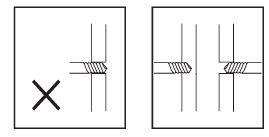
- Drill the holes from both sides of the door to avoid damaging the door panel.
Installation
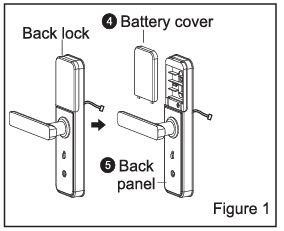
(1) Figure 1: separate the back lock into the battery cover and the back panel.
(2) Figure 2: pass the cable through the door and fix the mortise lock with 2 screws.
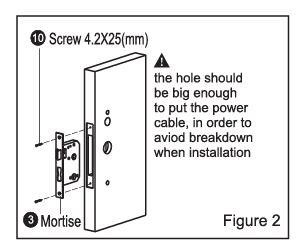
The hole must be big enough for the power cable, to avoid damaging it during installation.
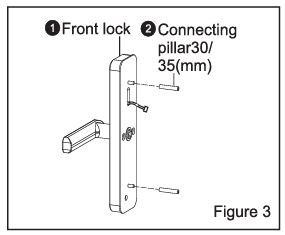
(3) Figure 3: fix the two connecting pillars on the front panel.
(4) Figure 4:
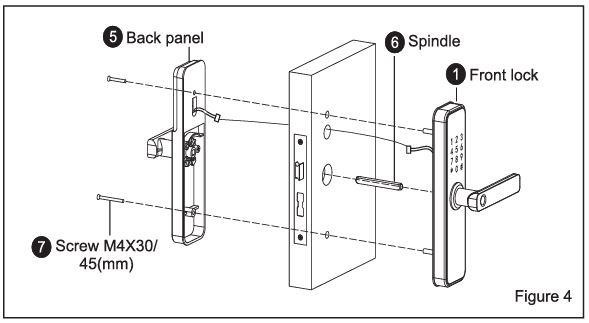
- Put the spindle into the mortise lock.
- Lead the cable from the front panel through the door to the back panel.
- Fix the front panel and the back panel with the two screws.
(5) Figure 5: insert the batteries correctly and fit the battery cover.
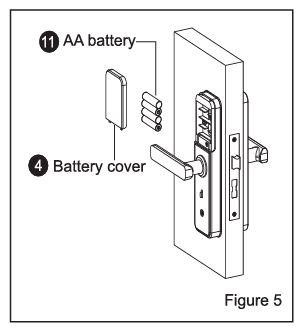
(6) Figure 6:
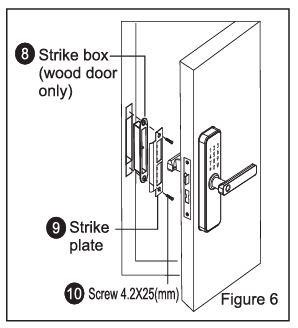
- Fix the strike box and the strike plate on the door frame with 2 screws.
- Check that the lock works properly.
Drilling dimensions
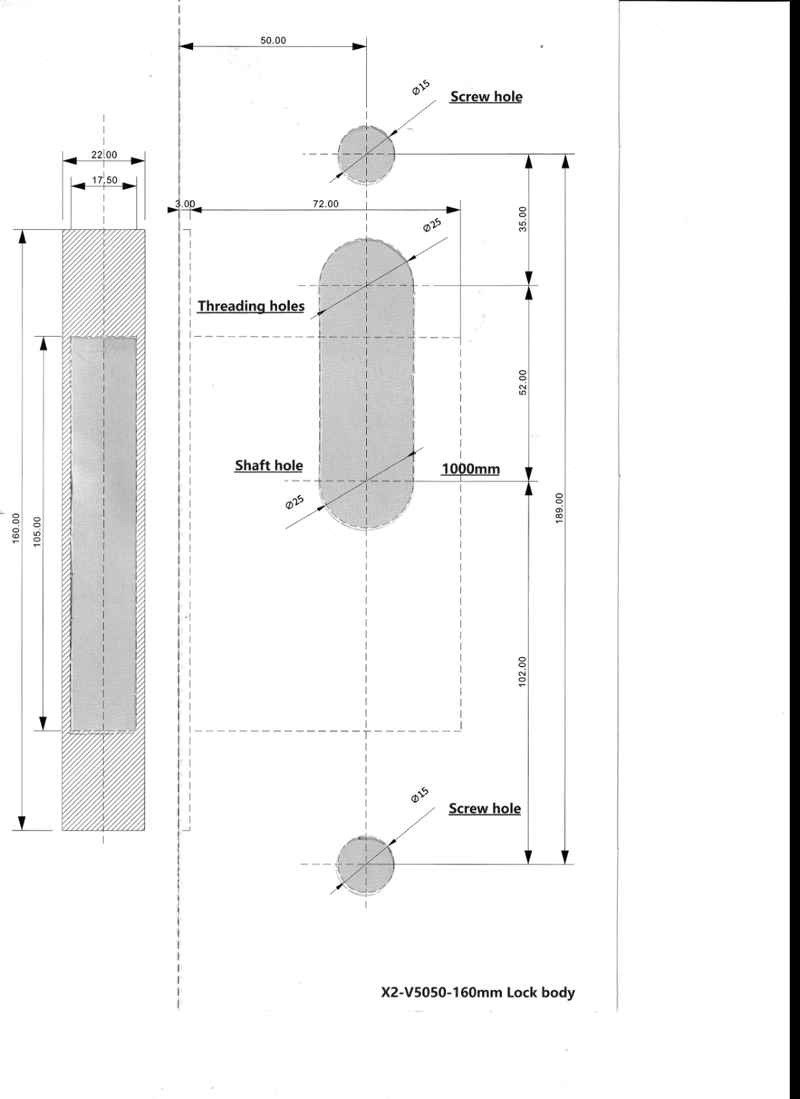
The drawing gives the positions of all holes in millimetres. The shaft hole is 1000 mm above the floor and the backset is 50 mm.
Checks after installation
- The face plate is level with the door.
- The latch bolt, dead bolt and safety bolt move smoothly and freely.
- The front lock is vertical and stable.
Keys and factory state
- Administrator information: the administrator's fingerprint, password or RFID card.
- Unlocking information: any registered fingerprint, password, remote control or RFID card (of administrators and normal users).
- * key: clear key / back key. While typing a password, it deletes the last entry; press it three times in a row to clear the whole entry.
- # key: confirmation key or menu function key.
Factory state: the factory (initial) administrator password is 123456. In the factory state, any fingerprint, RFID card or password opens the lock. Once administrator information has been added, unregistered fingerprints, cards and passwords no longer open it.
Menu
To open the lock function management, press *, then #. After the voice prompt, enter the administrator information (for example 123456#). The lock then announces: press 1 for administrator settings, 2 for user settings, 3 for system settings, 4 to restore factory settings.
Administrator settings (1)
- Add administrator — press 1: enter the fingerprint 4 times, a 4–8 digit password twice (for example 8888#) or the RFID card once. After a successful entry, press * to go back and add or delete another administrator.
- Delete administrator — press 2: enter the administrator number and confirm with # (for example 002#). Press * to go back.
- Network configuration — press 3: see the Tuya Smart app section below.
User settings (2)
- Add user — press 1: enter the unlocking information — the fingerprint 3 times, a 4–8 digit password twice (for example 6666#) or the RFID card once.
- Delete user — press 2: press 1 to delete by number or 2 to delete all users. For example, press 1 and enter 010# to delete user 010.
System settings (3)
Press 1 for voice settings, 2 for the unlock mode, 3 for the language, 4 for the time.
- Voice — press 1: press 1 to switch voice prompts on or 2 to switch them off.
- Unlock mode — press 2: press 1 for single mode, 2 for combination mode, 3 to enable passage mode or 4 to cancel passage mode.
- Language — press 3: press 1 for Chinese or 2 for English.
- Time — press 4: the lock announces the current time (for example 1908080808); press #, enter the new time in the format year-month-day-hour-minute (for example 1903041153) and confirm with #.
Restoring factory settings (4)
Press 4, enter the administrator information (for example 123456) and confirm with #. The lock announces successful initialisation.
Tuya Smart app
Using the app is optional.
- Search for Tuya Smart in the App Store or Google Play, download and install it.
- Register with your mobile phone number and log in.
- Tap Security & Sensors, find Lock (Wi-Fi) and add the device as instructed.
Adding a network:
- Press * and # to authenticate as administrator, then press 1 for administrator settings. The voice prompt asks you to press 3 for network configuration.
- Press 1 for hotspot connection or 2 for smart connection.
- When the network is added successfully, the 1st, 2nd, 3rd and 4th lights on the keypad come on in turn and a voice prompt confirms it.
- If adding the network fails, the 1st, 2nd, 3rd and 4th lights do not come on and a voice prompt reports the failure after a timeout.
Add an administrator before setting up the network.
Remote unlocking: wake up the screen and press 9 and then #. A voice prompt announces the remote unlocking request, which you can allow or refuse in the app.
App functions
1. Registration and login
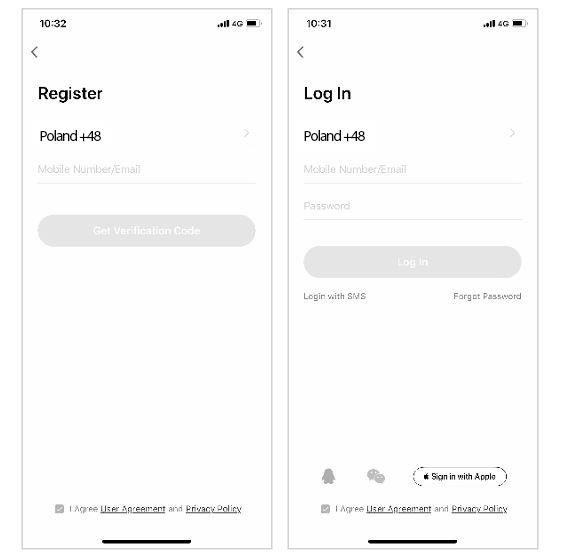
- If you do not have an account, register or log in with an SMS verification code.
- Tap Create a new account to open the registration page, get the SMS verification code and set a password.
- If you already have an account, log in with it. Password, verification code and social account login are supported.
2. Creating homes and rooms
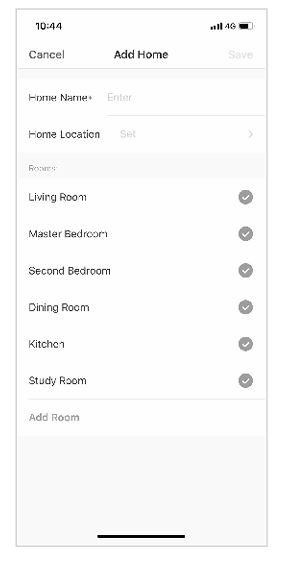
- After registering and logging in, add the place where the lock is installed, so you can control it.
- Each account can create and add several homes, and devices can be grouped by room.
3. Adding the WiFi lock
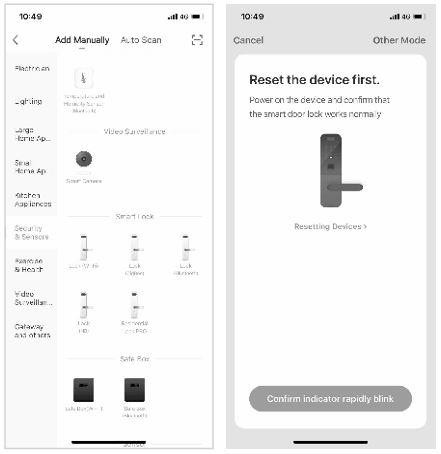
- On the My Home tab, tap + in the top right corner, choose the WiFi door lock in the security sensor section and continue to the next page.
- When the lock enters connection mode, follow the instructions and prompts in the app.
4. Home page
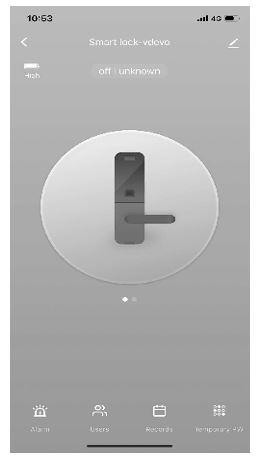
- The home page offers remote unlocking, alarm messages, user management, records, temporary passwords and other functions.
- Remote unlocking: start the request on the lock; in the app you can allow or refuse opening the door.
5. Dynamic password
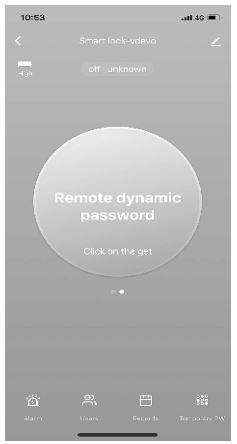
- Tap Dynamic password and copy the password text.
6. Message centre
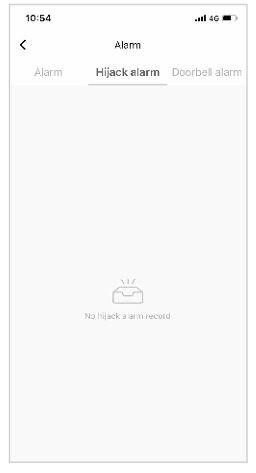
- The message centre shows alarm, doorbell and tamper alarm messages.
7. User management
- Users can be added, deleted and edited on the User management tab. Only the app administrator can make changes.
8. Records
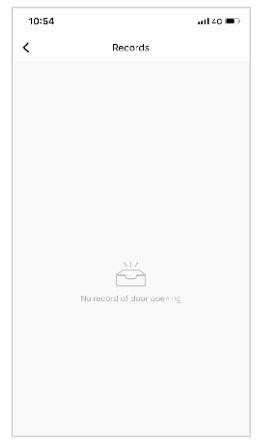
- Records are kept around the clock, in reverse chronological order. An unlocking ID linked to a user name shows the name; an ID without a linked name shows the unlocking ID.
9. Temporary password
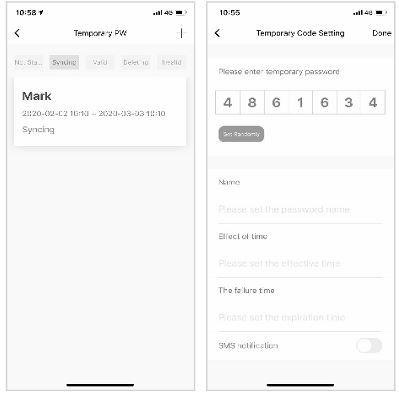
- Temporary passwords can be created and deleted in the app. After each change, the lock must synchronise with the server.
- When creating a password, you can choose whether to send it by SMS. SMS messages are supported worldwide.
10. Hijack alarm
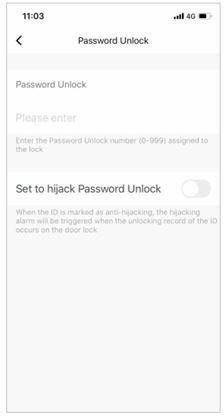
- After the hijack alarm is activated for an unlocking method, using it to open the lock is reported and the app raises a hijack alarm.
11. Restoring factory settings
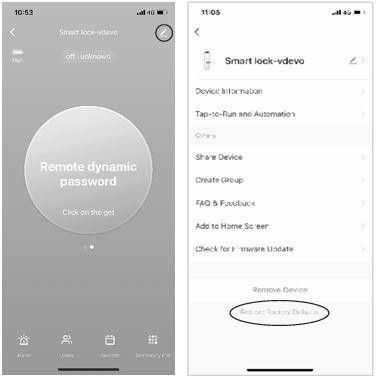
- Tap the icon in the top right corner of the main screen, find Factory Data Reset and tap it.
- Factory settings can also be restored on the lock itself, in the menu (press 4).
Other notes
- After a wrong password is entered more than 5 times in a row, the keypad locks for 30 seconds and does not respond to any operation.
- Anti-peeping password: when opening the door with a password, you can type extra digits before and after it (XXX password XXX) and confirm with #. The real password must be contained in what you type.
- If no operation is performed for more than 10 seconds, the system exits automatically.
- When the voltage drops below 4.6 V, the lock gives a low battery alarm each time it is opened. After the alarm, the lock can still be opened about 200 times.
- Remove the battery cover and press the Set key for 6 seconds to restore the factory mode.
- In the factory mode, entering 333666999# quickly changes the language.
- While unlocking, press * to hear the user number.
- While unlocking, enter 5# to enter passage mode (effective once).
- When the electronic dead lock is engaged, only an administrator can open the lock.
Frequently asked questions
Which RFID cards does the SecureEntry-HL200 support?
What happens when the batteries run out?
Can I use the lock without the Tuya app or the internet?
How many users can be registered?
What is the default administrator password?
How do I restore the factory settings?
Downloads
The manuals and datasheets as PDF, in case an offline copy is needed. Everything in them is also on this page.