Smart door lock with fingerprint, RFID card, PIN and Tuya app, SecureEntry-HL300
GTIN: 5907614668945 · SKU: SecureEntry-HL300
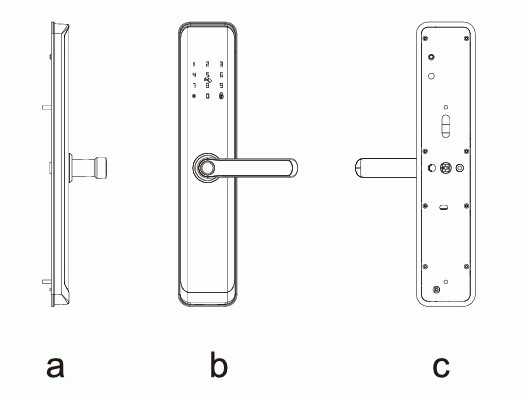
The SecureEntry-HL300 is a smart door lock in the form of an electronic door handle, with an aluminium alloy housing. The door can be opened with a fingerprint, a 13.56 MHz RFID card, a PIN code typed on the touch keypad, the mechanical key or remotely from the Tuya Smart app. It fits stainless steel, security, copper and wooden doors 35–120 mm thick and can be mounted for doors opening to the left or to the right.
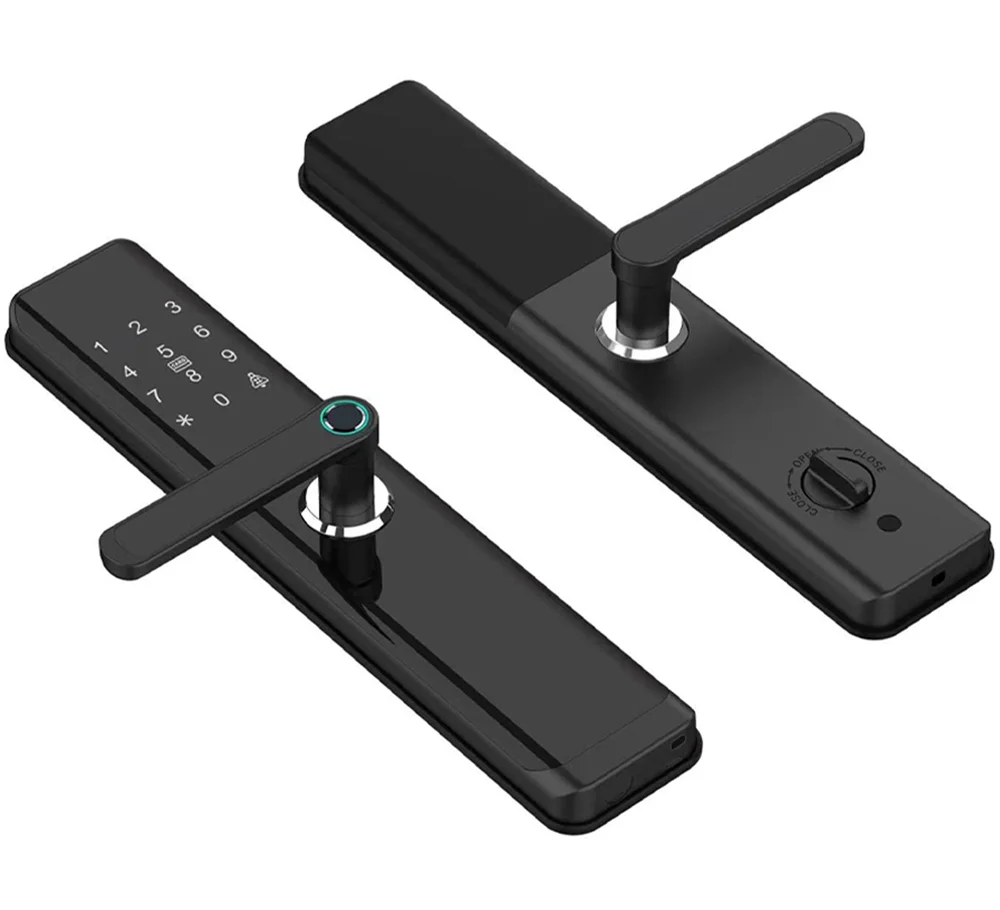
Table of contents
Specifications
- Device type: electronic door handle with lock and RFID access control
- Verification types: password, fingerprint, RFID card, Tuya app, mechanical key
- User capacity: 300 in total (fingerprints, passwords, cards)
- Administrators: 9
- Supported RFID cards: 13.56 MHz, MIFARE Classic 1K-compatible
- Fingerprint sensor: semiconductor FPC
- Compatible app: Tuya Smart
- Material: aluminium alloy
- Mortise lock: 60 × 68 mm
- Suitable door types: stainless steel, security, copper and wooden doors
- Suitable door thickness: 35–120 mm
- Keypad: touch keypad
- Voice prompts: yes, for easy setup
- Additional functions: tamper alarm, low battery alarm, touch keypad, Tuya app support
- Password length: 6–8 digits
- Power supply: 12 V, 8 × AA 1.5 V alkaline batteries (not included); an external USB emergency power supply can be used
- Standby current: 50–56 µA
- Operating current: above 250 µA
- Operating temperature: −10 to 60 °C
- Operating humidity: 20–93 %
- Lock size: 368 × 75 × 24 mm
- Package dimensions: 22.5 × 44.7 × 14 cm
- Product weight: 1 kg
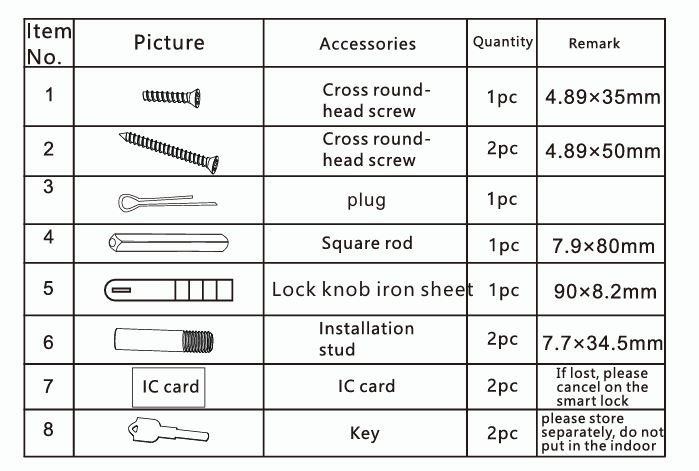
Kit contents
- Outdoor (front) lock panel with handle
- Indoor (rear) lock panel with handle
- Connecting post
- Lock body
- Lock cylinder
- Plastic insert
- 2 × mechanical key
- Mounting screws
- 2 × RFID card compatible with MIFARE Classic 1K
- User manual
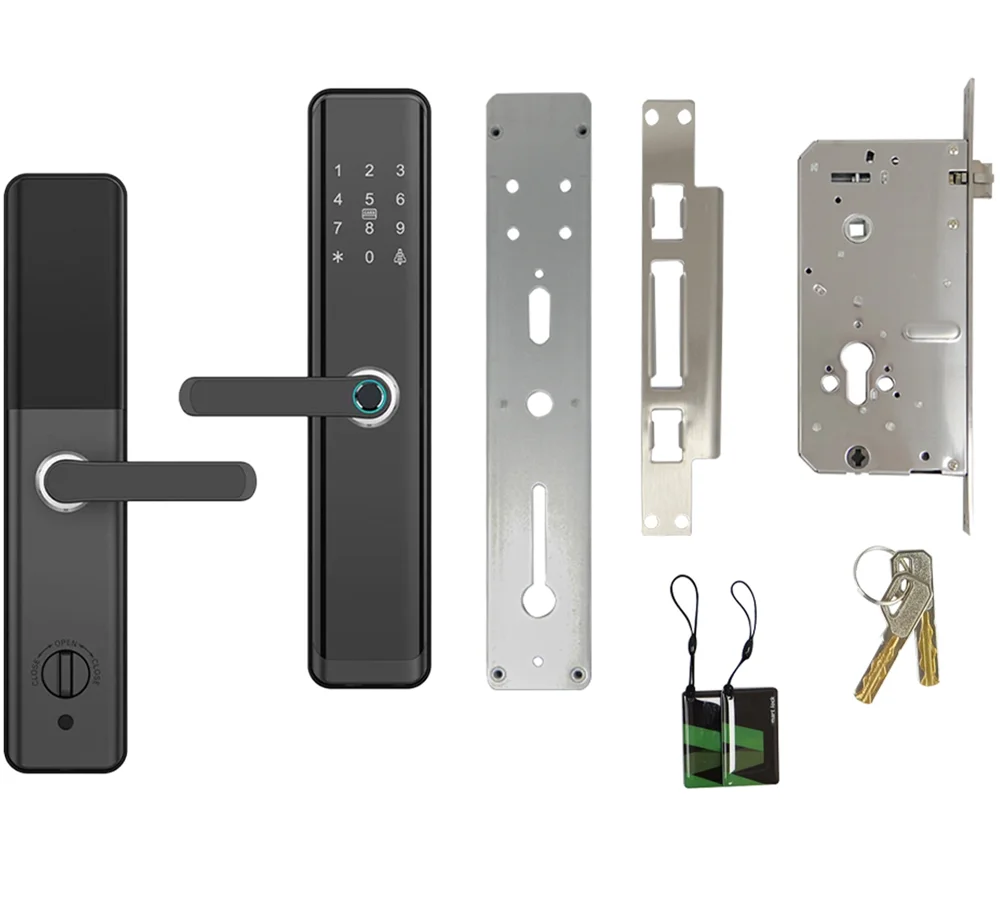
Batteries are not included.
Safety and precautions
- The smart door lock is a technologically advanced product. Correct or incorrect installation directly affects how the lock works and how long it lasts. Installation by a qualified installer is recommended.
- Do not use the lock in environments with strong radiation, strong magnetic fields, high temperature or corrosive substances; they can reduce the performance and life of the lock.
- After installing the lock, initialise it and restore it to the factory state. Immediately after initialisation, set up your own credentials so that nobody else can open the door.
- Use 8 alkaline AA 1.5 V batteries of the same brand. Do not mix old and new batteries — replace all of them at once to avoid damaging the lock.
- Read this manual carefully before use. If you have any doubts, contact our customer service.
Functions
The lock opens after a successful verification with a fingerprint, RFID card, password or mechanical key, and also supports a random security combination of fingerprint + password + RFID card. The door locks again 5 seconds after opening (the time can also be set to 3 seconds).
Supported unlocking methods:
- Fingerprint
- RFID card
- App
- Password
- Mechanical key
- The door can be unlocked with a fingerprint, an RFID card, a one-way unlocking password or any combination of the three verification methods, and optionally through the app. If electronic verification does not work, use the mechanical key from the kit.
- The lock stores up to 300 users in total (fingerprints, passwords and cards), including up to 9 administrators.
- The product uses a standard up-down mortise lock body.
- Depending on how the handle is mounted, the door can open to the left or to the right.
- The lock supports only cards with MIFARE Classic 1K-compatible chips and does not recognise other card types.
- The lock does not support a dual ID card mode.
Installation diagram
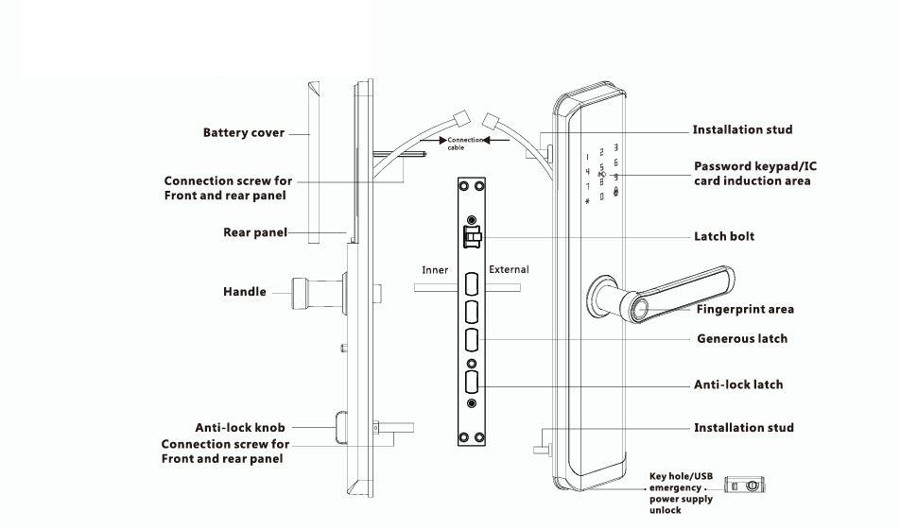
Installation step by step
Stand outside the door to determine its opening direction, then adjust the direction of the handle and the mortise latch.
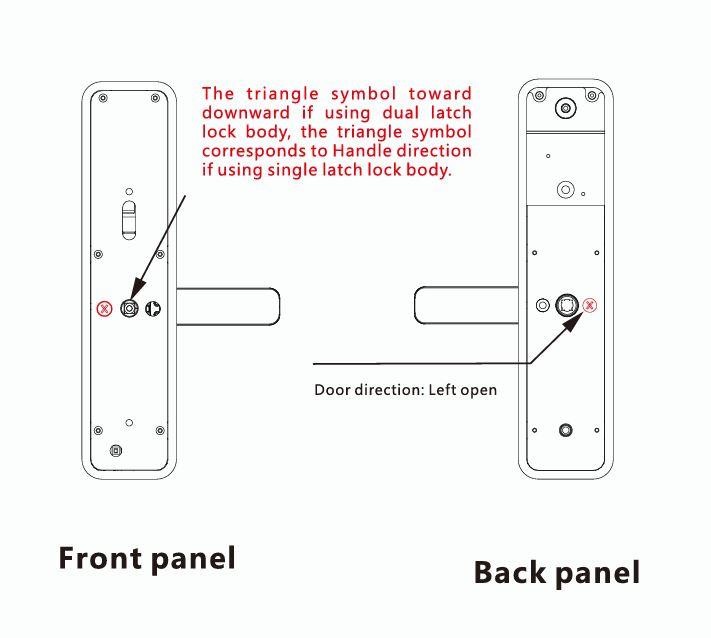
Before installation, check that the arrow on the rotating rod of the front panel is parallel to the line of the handle. If it is not, do not insert the key into the lock and do not turn it.
- With a screwdriver, loosen the screw in the handle hole at the bottom of the lock panel.
- Fit the handle loosely, set its direction within 180 degrees, then tighten the handle screw.
- The direction of the arrow on the rotating rod at the bottom of the lock must match the direction of the handle.
- When the direction of the mortise latch is set correctly, install the mortise lock and fix the plate with 4 screws. Then install the front and rear panels and the fixing screws.
- Install the door strike plate and adjust the position of the lock latch against the strike plate so that the door opens smoothly after locking.
- After installation, try unlocking and locking the door, then check and tighten all screws.
Latch bolt direction
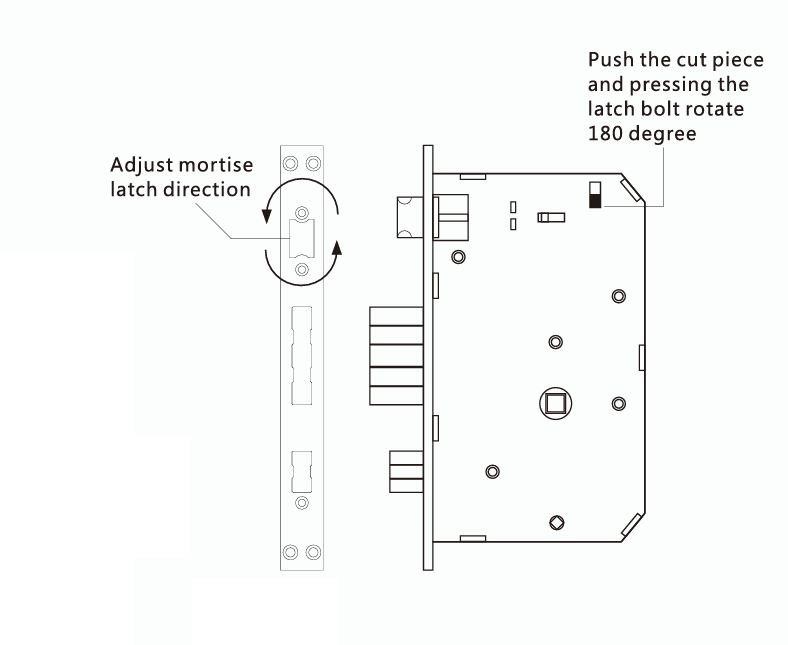
Pay attention to the direction of the latch bolt. Once the door opening direction is set, if the mortise latch bolt needs to face the other way, push the cut piece and, while pressing the latch bolt, rotate it by 180 degrees.
Door opening to the right
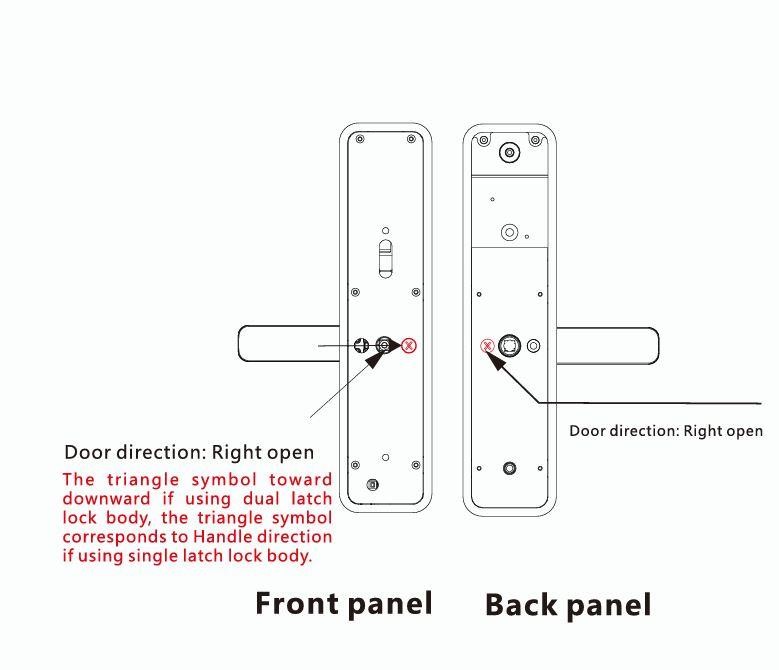
Door opening to the left
Drilling dimensions
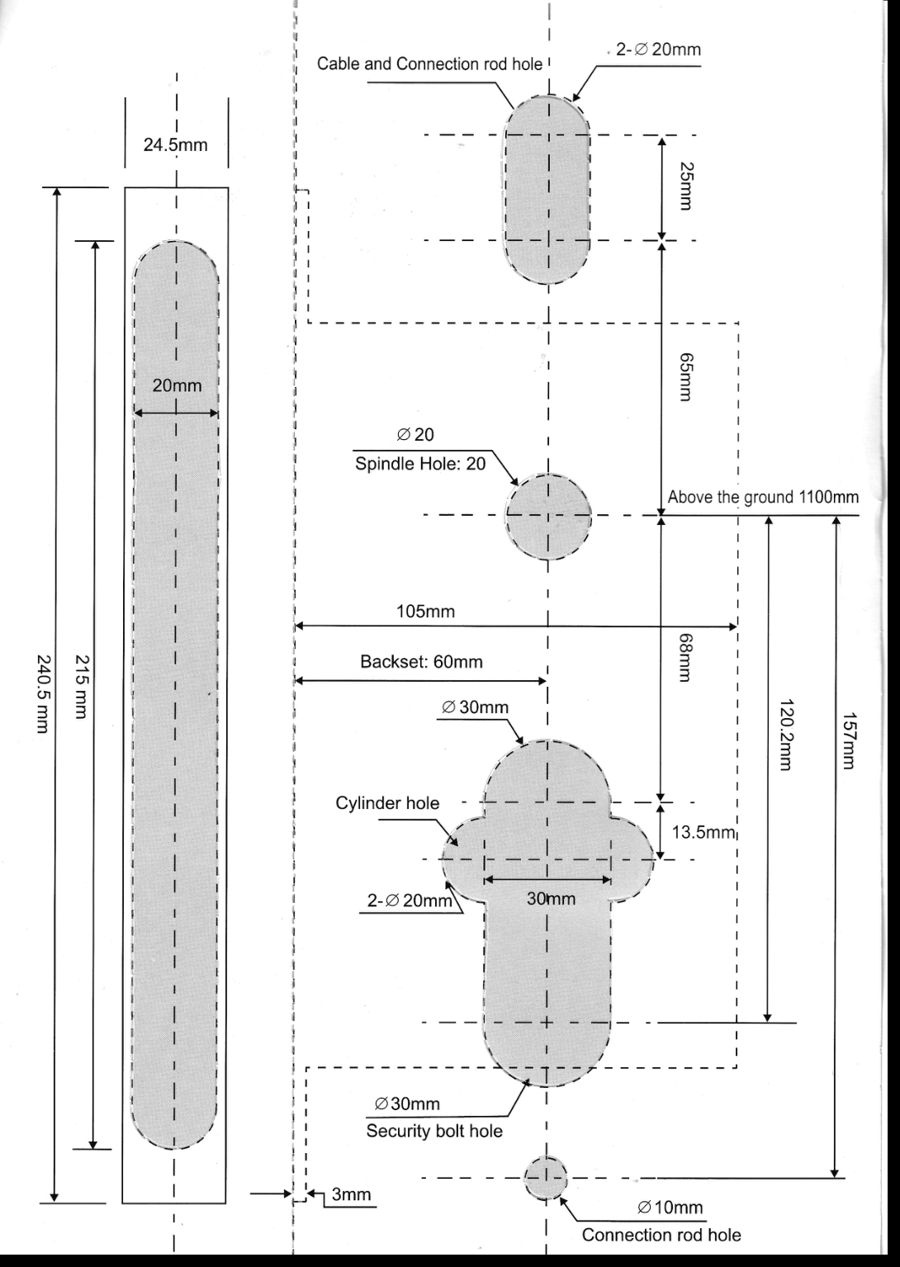
The drawing gives the positions of all holes in millimetres, measured from the spindle hole, which is 1100 mm above the floor. The backset is 60 mm.
Keys and factory state
- Unlocking information: any registered fingerprint, password or RFID card (of administrators and normal users).
- * key: clear key / back key.
- # key: confirmation key or menu function key.
Factory state: the factory administrator password is 123456. In the factory state, any fingerprint, RFID card or password opens the lock.
Menu
To open the menu, press * and then #. After the voice prompt, enter 123456# (or your administrator information). The lock then announces: press 1 for administrator settings, 2 for user settings, 3 for system settings, 4 to restore factory settings.
Administrator settings (1)
- Add administrator — press 1: enter the administrator information — the fingerprint 4 times, a 6–8 digit password twice (for example 888888#) or the RFID card once.
- Delete administrator — press 2: enter the administrator number and confirm with # (for example 002#). Not all administrators can be deleted; the first one always remains.
- Add network — press 3: press 1 for hotspot connection or 2 for smart connection (Tuya app).
User settings (2)
- Add user — press 1: after the voice prompt, enter the user information — the fingerprint 4 times, a 6–8 digit password twice or the RFID card once. After a successful entry you can add the next user.
- Delete user — press 2: press 1 and enter the number to delete (for example 010#), or press 2 to delete all users.
System settings (3)
Press 1 for sound settings, 2 for the unlock mode, 3 for the language, 4 for the time, 5 for the room number.
- Unlock mode — press 2: press 1 for single unlock or 2 for combined unlock.
- Language — press 3: press 1 for Chinese or 2 for English.
- Time — press 4: the lock announces the current time, for example 1903041153. Enter the new time in the format year-month-day-hour-minute (for example 1903031153) and confirm with #.
- Room number — press 5: the default room number is 8888. Enter 4 digits and confirm with #.
Restoring factory settings (4)
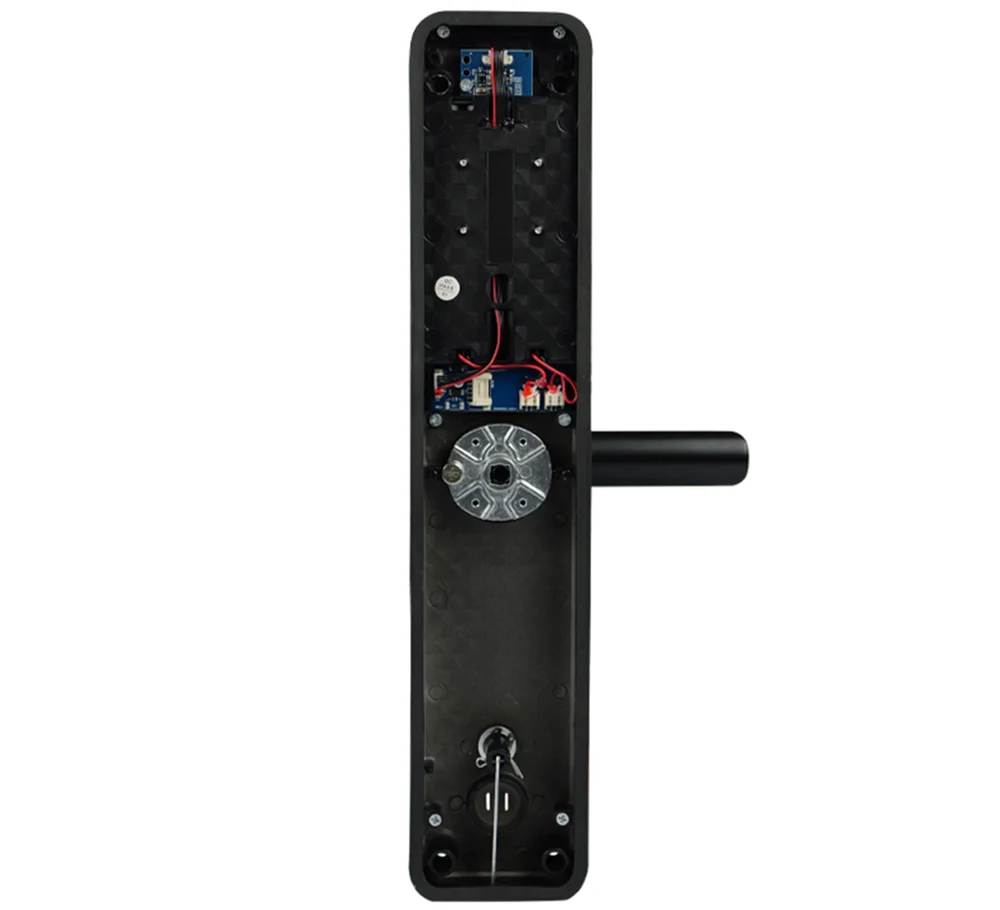
Press and hold the factory reset key under the battery cover on the rear panel for about 6–8 seconds. A beep confirms that the factory settings have been restored.
Tuya Smart app
The lock connects to the Tuya Smart app over WiFi. Download the app from Google Play or the App Store, then add the lock:
- In the lock menu, open Administrator settings → Add network and press 2 for smart connection (or 1 for hotspot connection).
- In the app, go to Add device → Security & Sensors → Lock (Wi-Fi).
- Enter the password of your WiFi network.
- Follow the prompts in the app: the lock indicator flashes fast (every 0.5 seconds) while the device is being added.
When the network is added successfully, the keys *, 5, 1 and 2 light up in turn and a voice prompt confirms it. If adding fails, these keys do not light up and the voice prompt reports a failure.
Remote unlocking: wake up the screen and press 9 and then #. A voice prompt announces the remote unlocking request.
Other notes
- After more than 5 wrong verifications within 5 minutes, the lock enters the blocked state for 90 seconds.
- When the batteries run low, the lock gives a low battery alarm each time it is opened. After the alarm, the lock can still be opened 200 times; after that, every unlocking is delayed by 5 seconds. Replace the batteries before reaching that number.
- Anti-peeping password: when opening the door with a password, you can type extra digits before and after it (XXX password XXX) and confirm with #. The real password must be contained in what you type.
- If no operation is performed for more than 10 seconds, the system exits automatically.
- Initialisation: pressing the factory reset key under the battery cover for about 6–8 seconds deletes all unlocking information and records. Use this operation with care.
- Normally open mode (door closed): press 5#, enter the unlocking information when prompted; the lock announces normally open mode.
- Normally open mode (door open): press 5#; the lock announces that normally open mode is switched off.
- Anti-lock function: after pressing the locking knob again, the voice prompt announces that the door is locked. In this mode, normal users cannot open the door and only administrators can unlock it.
- In the factory state, entering 555666888 switches the voice prompt language between English and Chinese.
Frequently asked questions
Which door types is the SecureEntry-HL300 compatible with?
How many users can be registered?
What happens when the batteries run out?
Does the SecureEntry-HL300 work without the Tuya app?
What is the default administrator password?
How do I restore the factory settings?
Downloads
The manuals and datasheets as PDF, in case an offline copy is needed. Everything in them is also on this page.