Door access keypad with display, fingerprint, PIN and RFID 13.56 MHz, WiFi, SecureEntry-AC200S
GTIN: 5906935203026 · SKU: SecureEntry-AC200S
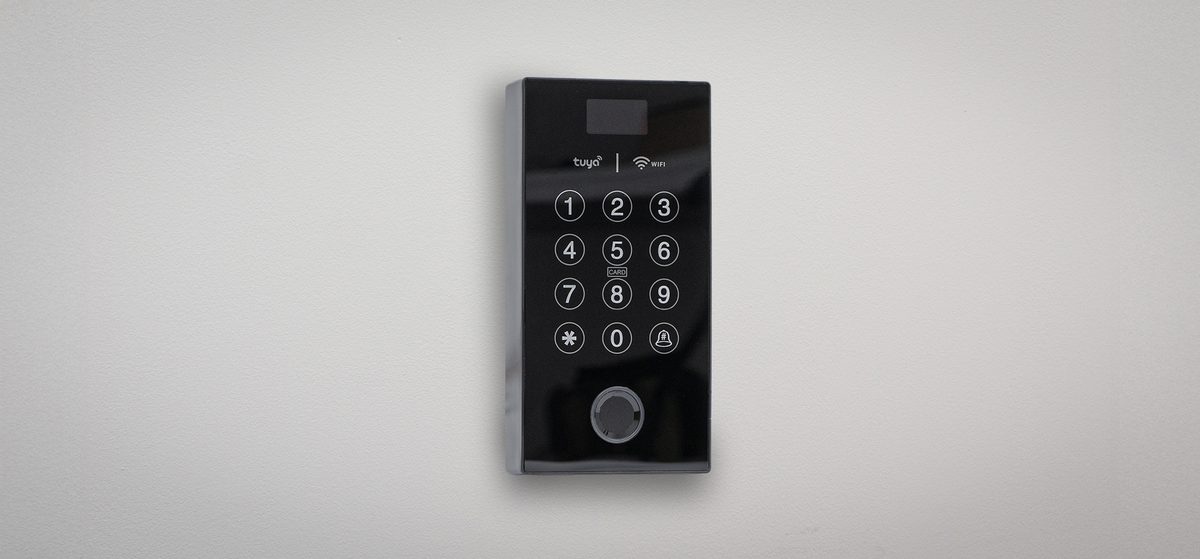
The SecureEntry-AC200S is a wall-mounted access keypad that releases an electric strike or electromagnetic lock after the user is verified by fingerprint, PIN code or a 13.56 MHz RFID card or fob. It has a small display that shows the menu, a touch keypad with 12 keys, a capacitive fingerprint sensor and a WiFi module. Through the Tuya Smart app on a smartphone you can open the door remotely, hand out temporary passwords and see who opened the door. The device stores up to 999 users and 9 administrators.
Table of contents
Specifications
- Device type: access control system with RFID card, password and fingerprint verification
- Verification type: fingerprint, RFID card, password
- Supported RFID cards: 13.56 MHz
- Fingerprint sensor: capacitive sensor (7-pin, KFP112BA01)
- Max. number of employees in the database: 999
- Max. number of administrators in the database: 9
- Max. number of fingerprints in the database: 120
- Number of buttons: 12
- Supported languages: English and others
- Wireless communication: WiFi (2.4 GHz band only)
- Access control: yes
- Wiegand input/output: no
- CPU: EN-1093
- Voltage: DC 9–12 V (current below 1 A)
- Current consumption: 300 mA
- Reading distance: 1.5 cm
- Operating temperature: −10 to +60 °C
- Operating humidity: 20–80 %
- Product dimensions: 13.5 × 7 × 1 cm
- Package dimensions: 15.3 × 9.6 × 4 cm
- Product weight: 200 g
- Weight with packaging: 400 g
Kit contents
- Access keypad with the cable harness
- Wall plugs and mounting screws
- Printed user manual
Panel and keys
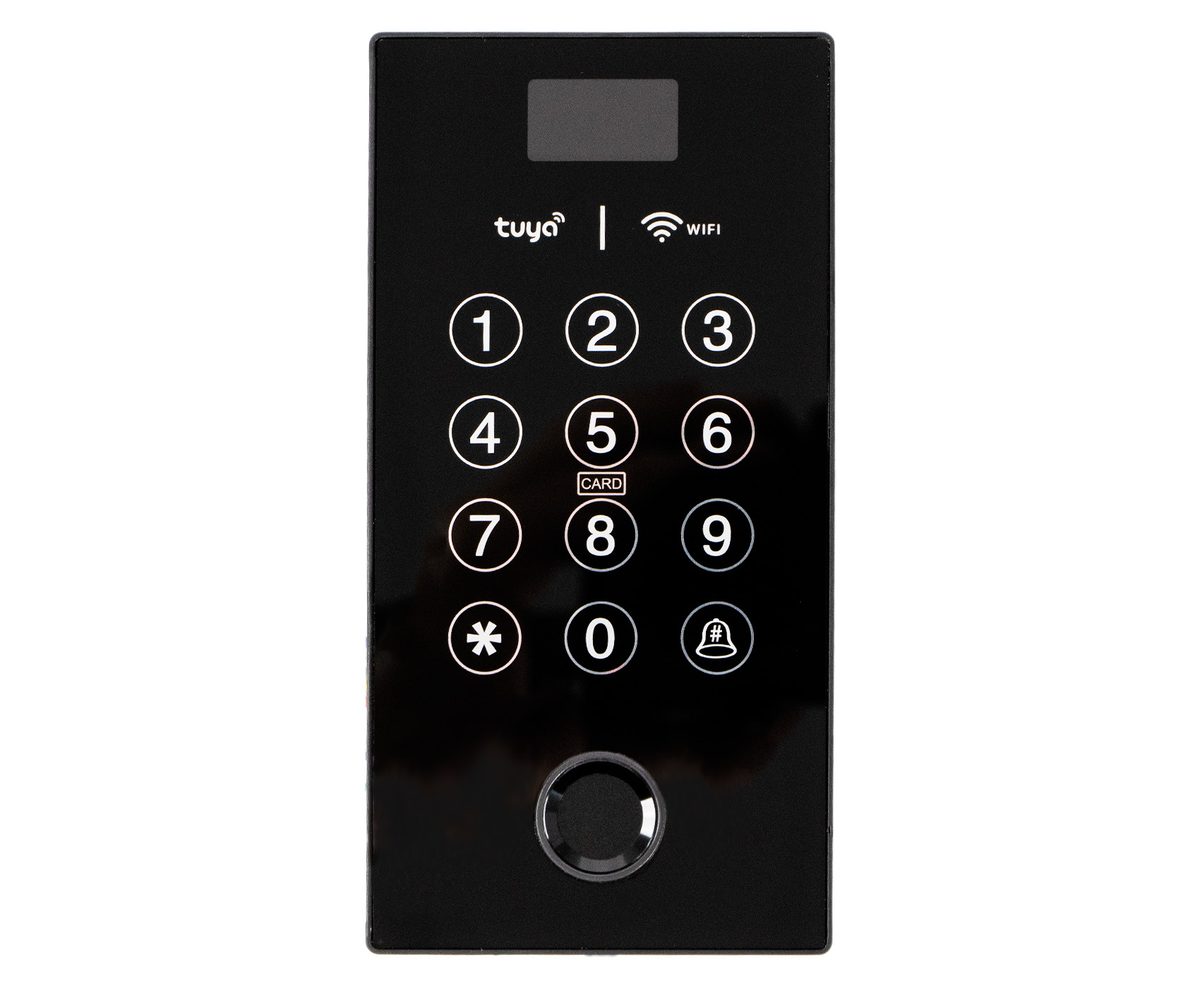
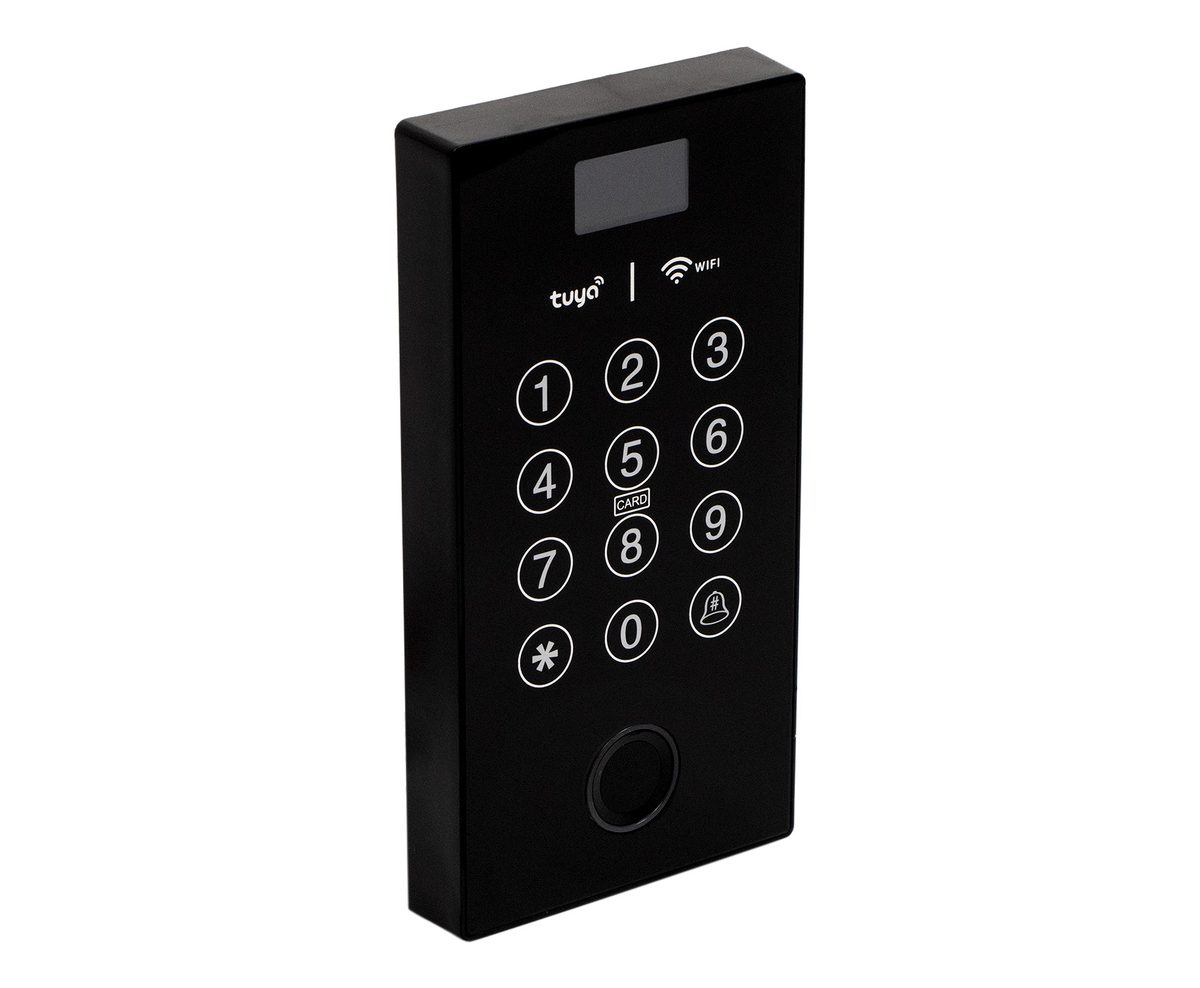
- Display at the top of the panel shows the menu and the prompts; it goes to sleep when the keypad is not used
- Touch keys 1–9, 0, * and # are the keypad. The * key starts the menu sequence, the # key confirms an entry and in standby also rings the doorbell
- The CARD mark under key 5 shows where to hold an RFID card or fob
- The fingerprint sensor is the round window at the bottom of the panel
- The keypad confirms every action with a voice prompt; the volume is set in the system settings
Wiring
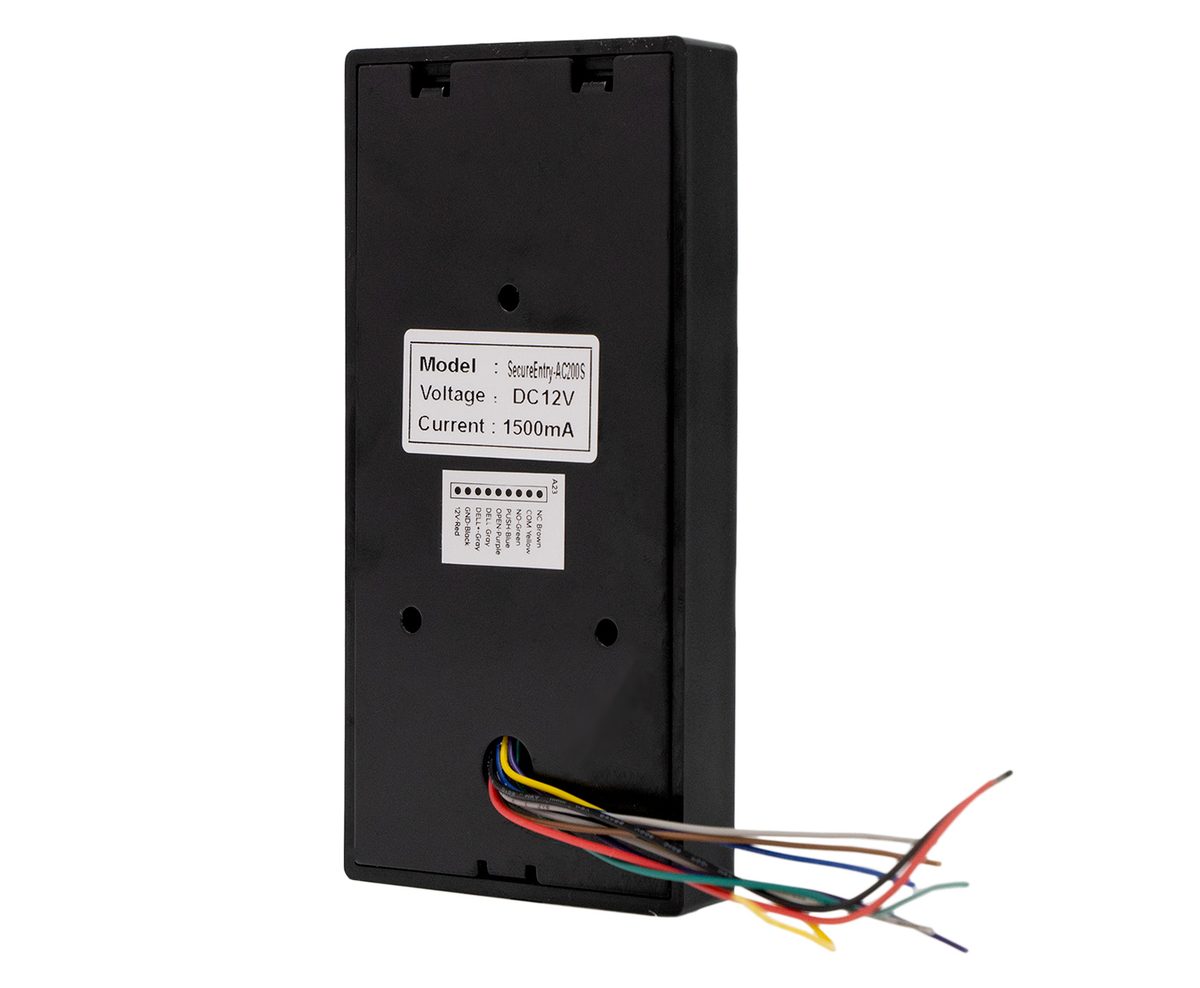
The cable harness leaves the back of the housing. Each wire has one function; the colours are printed on the label on the back of the unit.
| Wire | Function |
|---|---|
| NC | Lock relay, normally closed contact |
| COM | Lock relay, common contact |
| NO | Lock relay, normally open contact |
| PUSH | Push output signal |
| EXIT | Exit button input: a push button between EXIT and GND releases the lock |
| DBELL+ | Doorbell, positive |
| DBELL− | Doorbell, negative |
| GND | Ground |
| +12V | DC 12 V power supply |
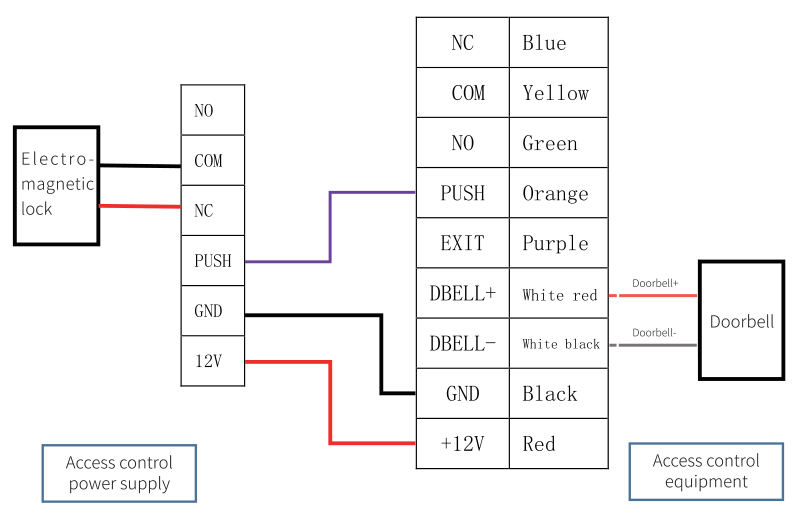
- The diagram shows an electromagnetic lock, which is held closed by power, on the COM and NC contacts. An electric strike that locks without power is wired to COM and NO instead
- The lock is powered from the access control power supply, not from the keypad. The keypad only switches the relay contacts
- The doorbell must share the ground with the keypad, and the polarity of its signal line must be observed; a reversed doorbell will not ring
- The rating label on the back of the unit states DC 12 V and 1500 mA; size the power supply accordingly, especially when it also powers the lock
The wire colours in the printed manual and on the label of the unit do not match in every case. Always follow the function names printed on the label of your unit, not the colours.
Mounting
- Choose a place next to the door at a comfortable height for the keypad and the fingerprint sensor.
- Lead the cable harness through the wall or the mounting surface behind the keypad and connect it as described above. Keep the power off until the wiring is finished.
- Fix the keypad to the wall with the supplied wall plugs and screws.
- Switch the power on. The keypad starts and asks for an administrator.
First start-up: adding the administrator
Right after the first power-up the keypad has no administrator and the menu is open to anyone, so add one straight away.
- Press * and then # to open the main menu.
- Press 1 for the administrator settings and 1 again for Add administrator.
- Verify the new administrator in the way you want to use later: hold an RFID card at the CARD mark, place a finger on the sensor, or type a password.
- For a password, type it and confirm with #, then type it again and confirm with # once more.
- To add another administrator, press 1 again and repeat the verification.
From now on the menu opens only after an administrator is verified by card, finger or password.
Write down the administrator password or keep the administrator card in a safe place. If all administrators are lost, the only way back into the menu is a factory reset, which deletes all users.
Menu structure
Press * and then #, verify as an administrator, and pick an item with its number key.
- 1 Administrator setting
- 1 Add administrator: fingerprint, password or card
- 2 Remove administrator: enter the number of the administrator to delete
- 3 WeChat applet password: a function for the Chinese WeChat app, not used with the Tuya Smart app
- 2 User setting
- 1 Add user: fingerprint, password or card
- 2 Remove user: 1 delete by number, 2 delete all
- 3 System setting
- 1 System setting: 1 time setting, 2 device number (0001–9999), 3 voice volume (0–7, default 5), 4 reset
- 2 Access control mode: 1 single mode, 2 combination mode, 3 lock release time (2–9 s)
- 3 Sleep setting: 1 display sleeps, 2 display does not sleep
- 4 Information inquiry
- 1 time query
- 2 number query
- 3 log query: shows the registration status of the users
- 5 Network setting
- 1 Connect: pairs the keypad with the Tuya Smart app
- 2 Disconnect / restore network
- 3 Sync time: sets the clock from the network
To set the time, open 3 System setting › 1 › 1. The keypad reads out the current time; enter the new one as 12 digits in the form YYYYMMDDhhmm and confirm with #. For example 202309091600 sets 9 September 2023, 16:00.
Adding and deleting users
- Open the menu with * and # and verify as an administrator.
- Press 2 for the user settings and 1 for Add user.
- Hold the user's card at the CARD mark, place the user's finger on the sensor, or type the user's password and confirm with #. The keypad assigns the user a number; note it down together with the name, because users are deleted by number.
- Repeat for the next credential or user.
A user can have any combination of a password and a card. Passwords are 6 to 10 digits long. The capacity is 999 users in total, of which up to 120 fingerprints.
To delete a user, open 2 User setting › 2 Remove user, then press 1 and enter the user number, or press 2 to delete all users at once.
Opening the door
- Card or fob: hold it at the CARD mark; the relay releases the lock for the set time
- Fingerprint: place the registered finger flat on the sensor window
- PIN: type the password and confirm with #. You may type random digits before and after the password to hide it from onlookers, as long as the whole entry is no longer than 20 digits
- Exit button: a push button wired between EXIT and GND releases the lock from the inside
- Combination mode: when 3 System setting › 2 Access control mode › 2 is active, the user must present two different credentials, for example card and PIN, before the lock releases. 1 Single mode accepts any one credential
- Lock release time: set between 2 and 9 seconds in 3 System setting › 2 › 3
- Normally open mode: in the administrator menu, 5# holds the door released until the mode is cancelled; use it when the door should stay open, for example during office hours
Tuya Smart app
The keypad connects to a 2.4 GHz WiFi network and is managed from the Tuya Smart app on a smartphone. In the app you can open the door, see who opened it or rang the bell, create temporary passwords and synchronise the time.
Pairing the keypad with the app
- Install Tuya Smart from Google Play or the App Store and sign in or create an account.
- Connect the phone to the 2.4 GHz WiFi network that the keypad will use. The phone and the keypad must both be within range of the router. Switch on Bluetooth and location services on the phone.
- In the app tap + in the top right corner to add a device.
- On the keypad press * and #, verify as an administrator, press 5 for the network settings and 1 for Connect.
- After a moment the app finds the keypad, listed as an EBKN Economic Access Control device. Tap it and confirm; the keypad is added after a few seconds.
If pairing fails, make sure the network is 2.4 GHz. The keypad does not support the 5 GHz band. To pair the keypad with a different network, use 5 Network setting › 2 first.
Remote opening
Remote opening works as a request from the door: a visitor presses # on the keypad, which rings the doorbell and sends a door-opening request to the app. The app shows the request; after you confirm it, the door opens. The door cannot be opened from the app without this request from the keypad.
Temporary password
- In the app generate a temporary password for the keypad.
- On the keypad, in standby, press 9999#. The voice prompt asks for the temporary password.
- Type the temporary password from the app and confirm with #.
The temporary password only works when the clock of the keypad agrees with the app, so synchronise the time in 5 Network setting › 3 Sync time after pairing.
Open-door log
The app records each opening and each doorbell press with the time, so you can check who entered and when, without any additional software.
Shortcut codes
| Code | What it does | When |
|---|---|---|
| 05# | Reads out the current time | After waking the keypad |
| 09# | Reads out the device number | After waking the keypad |
| 5# | Switches normally open mode on or off | In the administrator menu |
| 9999# | Starts the entry of a temporary password from the app | In standby |
| # | Rings the doorbell and sends a remote-opening request | In standby |
| 84110# | Factory reset: deletes all users and settings | Within 60 seconds after switching the power on |
Troubleshooting
- Lost administrator password or card. Switch the keypad off, switch it on again and within 60 seconds enter 84110#. This clears all users and administrators and restores the factory settings, so you have to add the administrator and all users again.
- The keypad does not appear in the Tuya app. Check that the phone is on a 2.4 GHz network, that Bluetooth and location are on, and that you pressed 5 › 1 Connect on the keypad while the app was searching. Reset the network with 5 › 2 and try again.
- The door does not open from the app. Remote opening needs a request from the keypad first: the visitor presses #, the app shows the request, and only then can you open.
- The temporary password is rejected. The clock of the keypad differs from the app. Run 5 Network setting › 3 Sync time and generate a new temporary password.
- The lock does not release, or releases when the keypad is idle. The relay contacts are swapped. An electromagnetic lock goes on COM and NC, a fail-secure electric strike on COM and NO.
- The doorbell does not ring. The doorbell needs a common ground with the keypad and the correct polarity on DBELL+ and DBELL−.
- A fingerprint is not recognised. Clean the sensor window, dry the finger and place it flat and still on the sensor. Register the same finger again, or register a second finger for the user.
Frequently asked questions
Which RFID cards does the SecureEntry-AC200S read?
How many users can it store?
Can it be installed outdoors?
Do I need a separate controller?
Can I open the door from my phone?
What happens if I forget the administrator password?
Downloads
The manuals and datasheets as PDF, in case an offline copy is needed. Everything in them is also on this page.
- SecureEntry-AC200S user manual — English (PDF)
- SecureEntry-AC200S user manual — Polish (PDF)
- SecureEntry-AC200S user manual — German (PDF)
- SecureEntry-AC200S first start-up guide — English (PDF)
- SecureEntry-AC200S first start-up guide — Polish (PDF)
- SecureEntry-AC200S first start-up guide — German (PDF)
- SecureEntry-AC200S datasheet — English (PDF)
- SecureEntry-AC200S datasheet — Polish (PDF)
- SecureEntry-AC200S datasheet — German (PDF)