Multi-currency banknote counter with counterfeit detection HDWR FiscalFlow-5012
GTIN: 5906935201411 · SKU: FiscalFlow-5012
Table of contents
- Table of contents
- Introduction
- Specifications
- Set contents
- Machine overview
- Installation and location of use
- Display and control panel
- Operation
- Counting function options
- Counting details
- Menu settings
- Firmware update
- Maintenance
- Error codes
- Banknote jam
- Adjusting the feed gap
- Currency update — missing PLN and additional currencies
- Frequently asked questions
- Downloads
Introduction
The FiscalFlow-5012 is a professional banknote counter with an external customer display. It counts banknotes of a single currency or a mix of several currencies, recognises denominations and totals their value, reads serial numbers and checks every banknote for authenticity with two CIS image sensors plus magnetic, infrared and ultraviolet detection. It works in three counting modes (MDC, SDC, CNT) at 800 to 1500 notes per minute.
Specifications
- Colour: white, black
- Counting speed: 800, 1000 notes/min (MDC and SDC mode), 800, 1000, 1200, 1500 notes/min (CNT mode only)
- Hopper capacity: 500 banknotes
- Stacker capacity: 200 banknotes
- Countable banknote size: 50 × 110 – 90 × 190 mm
- Countable banknote thickness: 0.075 – 0.15 mm
- Counterfeit detection: image (2 CIS sensors), magnetic, infrared, ultraviolet
- Error detection: double notes, half notes, chained notes
- LCD display: 3.5" TFT LCD, 320 × 480
- Interface: RS232, 2 × USB, RJ11
- Power consumption: ≤ 80 W
- Power supply: AC 100–240 V, 50–60 Hz
- Dimensions: 27 × 24.5 × 28.8 cm
- Package dimensions: 37 × 24 × 31.5 cm
- Net weight: 6.5 kg
- Weight with packaging: 7 kg
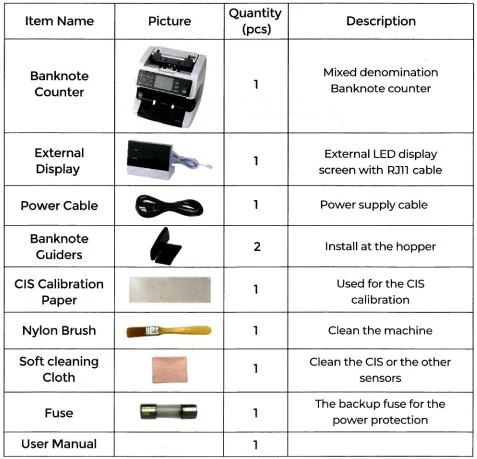
Set contents
- Banknote counter
- External display
- Power cord
- Banknote guides
- CIS calibration paper
- Nylon brush
- Soft cleaning cloth
- Fuse
- User manual
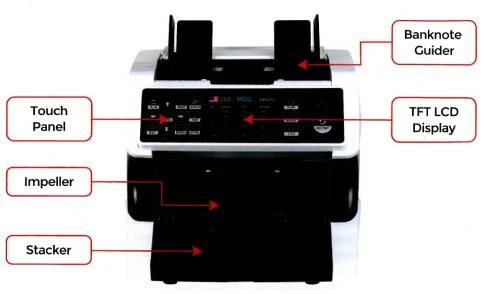
Machine overview
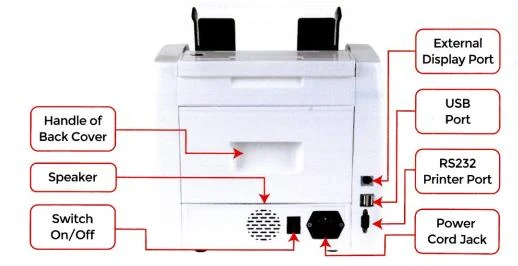
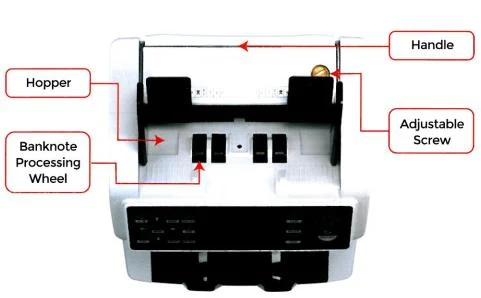
Installation and location of use
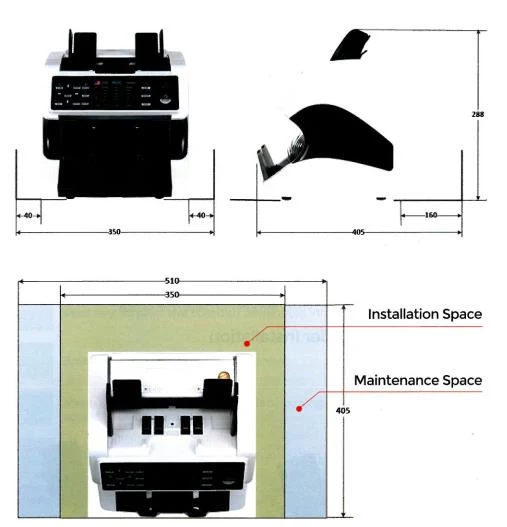
Keep a distance from the surrounding walls and leave enough space for placing banknotes, opening and closing the cover and for maintenance, as shown in the figure.
Installation warnings
- The machine is intended for indoor use only. Do not install or use it outdoors.
- Do not install the machine in places that cannot support its weight or that are inclined or uneven.
- Do not use or store flammable materials, chemicals or explosives near the machine.
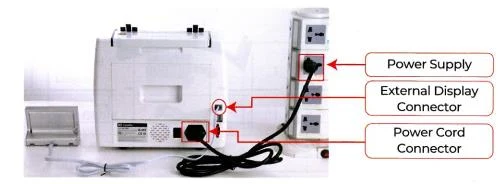
Connecting the power supply
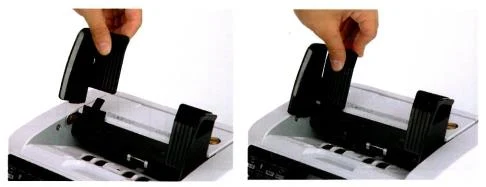
Installing the banknote guides
Display and control panel
Display layout
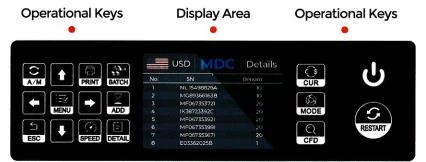
Function keys
- A/M — automatic counting after banknotes are placed. Manual counting requires the RESTART button.
- Arrows — direction keys.
- PRINT — prints information about the counted banknotes.
- BATCH — selects the batch quantity.
- MENU — enters the menu (long press).
- ADD — turns the adding function on and off.
- ESC — returns to the previous screen.
- SPEED — selects the counting speed.
- DETAIL — shows the details of the counted amounts.
- CUR — selects a currency, automatic recognition or multi-currency mode.
- MODE — selects the CNT, SDC or MDC counting mode.
- CFD — selects the counterfeit detection sensitivity level.
- RESTART (shown as START in device messages) — starts counting or other operations.
- Power button — a long press switches the machine to standby or back to operating mode.
Display interface
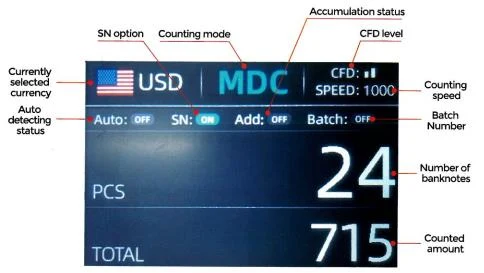
Operation
Start-up
After connecting the machine to the power supply, turn on the power switch. The counter first enters the self-test screen. Wait about 20 seconds — the machine turns the banknote processing wheel several times and then shows the main screen.
Single-currency counting mode
After start-up, a flag and currency icon appears in the upper left corner of the screen — the counter is in single-currency counting mode. The default mode is MDC. The MODE button cycles through the three counting modes in the order MDC → CNT → SDC.
MDC mode — the counter counts banknotes of all denominations of the selected currency and records detailed information about them: the total amount and the total number of banknotes from the hopper. Two counting speeds are available (800 / 1000 notes/min).
SDC mode — the counter counts banknotes of a single denomination of the selected currency, using the first banknote as the reference. It records detailed information about the counted banknotes, including the total amount and the total number of banknotes. Two counting speeds are available (800 / 1000 notes/min).
CNT mode — counts the number of banknotes only, without any currency restriction. It works with double-note detection only and does not support the other counterfeit detection functions. Four counting speeds are available (800 / 1000 / 1200 / 1500 notes/min).
In MDC and SDC mode the counter uses image analysis, magnetic detection, ultraviolet detection and double-note detection. In CNT mode only double-note detection is available.
Automatic currency recognition mode
The counter uses the first banknote passing the sensor as the reference and recognises banknotes of all denominations of the same currency. When it detects a banknote of another currency, it sounds an alarm and stops — remove that banknote and the counter resumes counting. Only the currencies shown on the currency selection screen are recognised.
Press the CUR button to open the currency selection screen. Use the direction keys to move the cursor to AUTO (selected by default) and press MENU. The display returns to the main screen.
Example: put a stack of USD banknotes into the hopper. After counting, USD is shown as the recognised currency in the upper left corner of the screen.
Multi-currency counting mode
In this mode banknotes of different currencies are mixed and counted together. The counter recognises the first 4 currencies shown on the currency selection screen.
On the currency selection screen press ▲ to select MULT and press MENU. The display returns to the main screen.
In multi-currency mode only the MDC mode works.
Example: put a stack of USD, EUR, CAD and MXN banknotes into the hopper. After counting, the screen shows the result for each currency.
Currency mode memory
The currency mode setting is kept after power-off. If you set, for example, multi-currency mode before switching the counter off, it starts in the same mode next time — there is no need to select the currency again every time.
Counting function options
Automatic counting
On the main screen the A/M button turns automatic start of counting on and off. Automatic counting is on by default and returns to this setting after every reset. When automatic counting is off, press RESTART each time you place banknotes in the hopper to start counting.
Serial number (SN) reading
The ▲ button on the main screen turns serial number reading on and off. Reading is on by default and returns to this setting after every reset.
Batch setting
Press BATCH on the counting screen to select the batch quantity. The MODE button cycles it in the order 100 → 50 → 0. The ▲ key increases the quantity by 10 and ▼ decreases it by 10 (down to 0). The ▶ key increases it by 1 and ◀ decreases it by 1. To confirm the batch quantity and return to the main screen, press RESTART.
The stacker holds up to 200 banknotes, so the batch quantity should be 200 or less.
Adding function
In any counting mode the adding (accumulation) of banknote counts is turned on and off with the ADD button.
Speed setting
Four counting speeds are available: 1500, 1200, 1000 and 800 notes/min (1500 and 1200 in CNT mode only). The default speed in all three modes is 1000. Press SPEED in any counting mode to select another speed.
Counting details
In MDC or SDC mode, after counting is finished press DETAIL to view the counting details.
Detailed counting screen
The screen shows the number of banknotes (PCS), denominations (Denom) and the total amount (Amount) — broken down by denomination with the grand total.
Serial number check
If serial number (SN) reading is on, press DETAIL again — the serial numbers of the banknotes are shown on the screen.
Printing information
Connect an external printer and prepare it for printing. After counting is finished, press PRINT to open the printing screen and then RESTART to start printing.
CFD level
Three adjustable CFD (counterfeit detection sensitivity) levels are available. The CFD button changes the level shown graphically in the upper right corner of the screen.
CFD level 0 means counterfeit detection is off. The strictest detection works at level 3.
Menu settings
To enter the menu, hold the MENU button until you hear a beep.
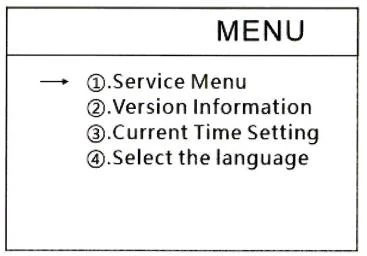
Service menu
Select Service Menu and press MENU. The counter asks for a password — the default password is 9999.
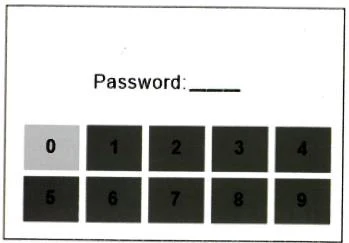
After you enter the password, the list of submenus appears. Use the cursor to select a submenu, confirm with MENU and exit with ESC.
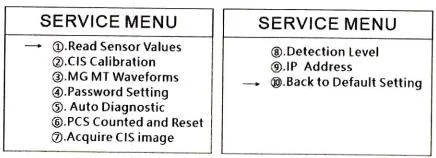
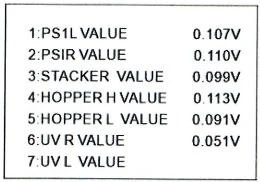
Reading sensor values
Sensor values are used by service engineers to check whether any sensor is malfunctioning. If the counter does not work correctly, take a photo of this screen and contact us.
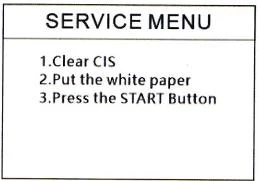
CIS calibration
If banknote detection errors occur, calibrate the CIS: clean the CIS sensors, insert the white calibration paper and press START, as shown on the screen.
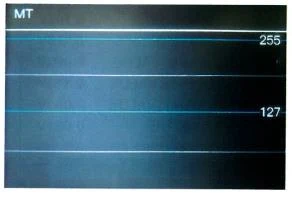
MG/MT waveforms
Password setting
The password cannot currently be changed.
Self-diagnosis
This function is intended for production and professional servicing.
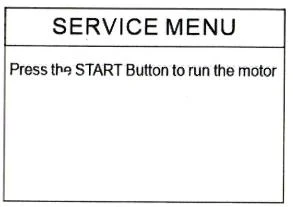
PCS count and reset
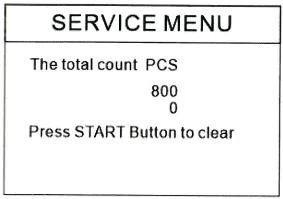
Shows the total number of banknotes counted by the machine since the last reset. Press START to clear the counter.
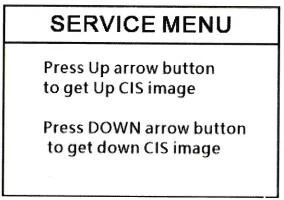
Acquiring a CIS image
The up arrow acquires an image from the upper CIS sensor and the down arrow from the lower one.
Detection level
Use ◀ / ▶ to select an item and ▲ / ▼ to change the sensitivity level. The currency code on the right shows which currency the setting applies to.
Do not change these settings without consulting us first.
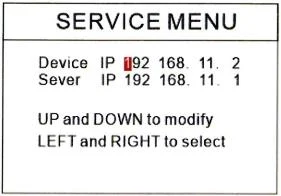
IP address
This setting is intended for service engineers only.
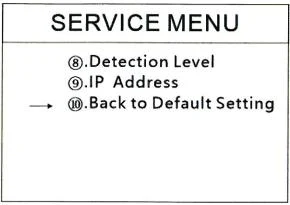
Back to default settings
Select Back to Default Setting and press MENU to restore all previously changed settings to factory values.
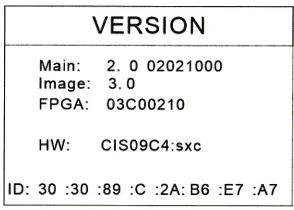
Version information
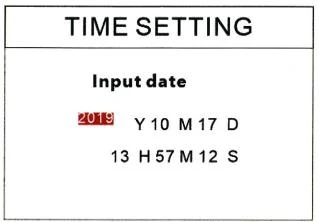
Time setting
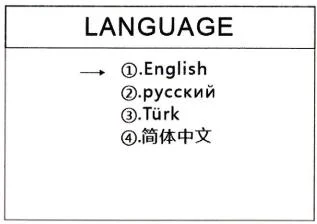
Language selection
Firmware update
The counter firmware is updated from a USB flash drive. You can download the current update file in the Currency update — missing PLN and additional currencies section.
- Copy the update file to the root directory of an empty USB flash drive. Do not change the name or format of the file and make sure there is only one update file in the root directory.
- With the counter switched off, insert the flash drive into the USB port at the rear of the machine — on the FiscalFlow-5012 use the port closest to the edge of the housing.
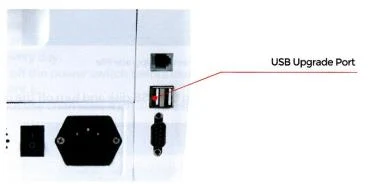
- Switch the counter on with the flash drive inserted — the machine recognises the file automatically and reads it first.
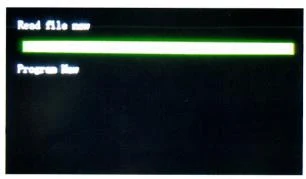
- The counter programs the file.
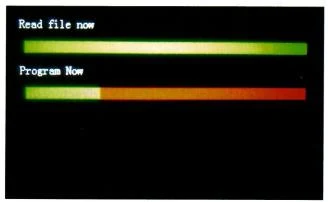
- When programming is complete, remove the flash drive and switch the machine off. The whole update takes about 1–2 minutes.
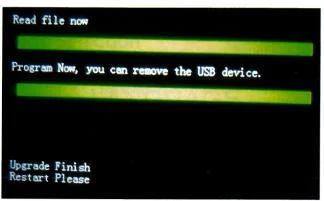
- Switch the counter on again — once the main screen appears, the update is complete.
Maintenance
After start-up the counter automatically runs a self-diagnosis. If an error code or a message asking you to clean the sensors appears, the usual cause is dust on the sensors or a sensor blocked by a banknote. Remove the dust with the brush or a soft cloth, remove any obstructions and restart the machine.
Cleaning the machine
Dust, dirt and other substances on the sensors can disturb their operation and cause wrong counting results. Clean the sensors and rollers with the included tools daily or as needed.
Switch the machine off before cleaning to avoid electric shock or other accidents. Do not use chemicals such as benzene, solvents or water.
Cleaning the hopper
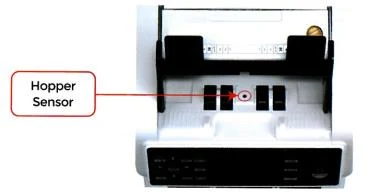
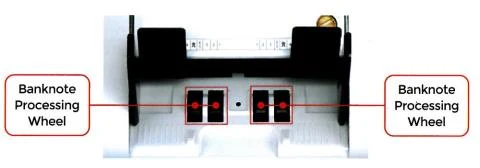
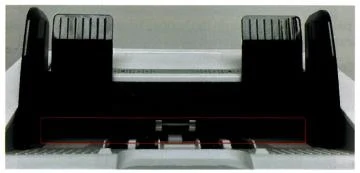
There are 3 parts in the hopper that need cleaning: the hopper sensor, the banknote processing wheel and the banknote inlet.
Hopper sensor — clean it with the nylon brush or the cleaning cloth.
Banknote processing wheel — clean it with the nylon brush or the cleaning cloth.
Banknote inlet — clean it with the nylon brush.
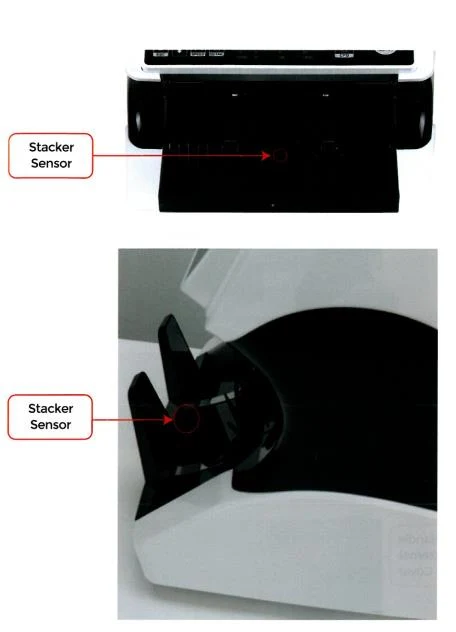
Cleaning the stacker sensors
Clean the stacker sensors with the nylon brush or the cleaning cloth.
Cleaning the internal sensors
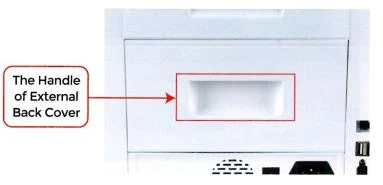
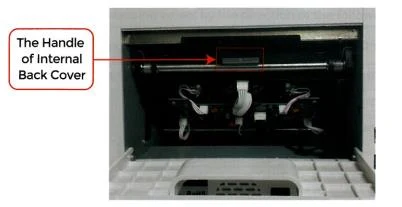
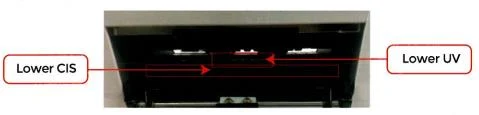
Clean the internal sensors with the nylon brush or the cleaning cloth after opening the rear covers.
- Pull the handle of the back cover in the direction shown in the figure to open it.
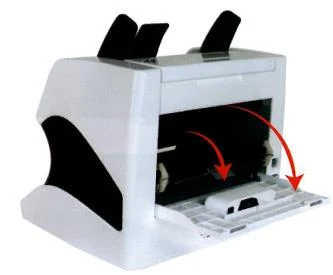
- Pull the handle of the internal back cover in the direction shown in the figure to open it.
- Clean the lower CIS sensor and the UV sensor with the cleaning cloth or the nylon brush.
- Clean the upper CIS sensor with the cleaning cloth.
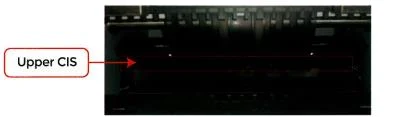
A cloth is recommended for cleaning the CIS sensors.
Error codes
During operation the counter may detect an abnormal state and show an error code. The table lists the codes and the recommended actions.
| Code | Error description | Recommended action |
|---|---|---|
| E1 | UV sensor error | Remove the banknote and clean the UV sensor. |
| E2 | Double note | If the error occurs often, turn the adjusting screw anticlockwise to reduce the feed gap. |
| E3 / E8 | Chained notes error | As for E2 — adjust the feed gap. |
| E4 | Half note error | Remove the banknote. |
| E10 | Image error | Clean the CIS sensor and calibrate the CIS. |
| E11 / E12 | Denomination recognition error | Remove the banknote. Clean the CIS sensor and calibrate the CIS. Collect the banknote data. |
| E13 | Portrait recognition error | As for E11 / E12. |
| E14 | Size recognition error | As for E11 / E12. |
| E15 | Orientation error | As for E11 / E12. |
| E20 | MT error | Remove the banknote, clean or replace the MG sensors. |
| E21 | MG1 error | As for E20. |
| E22 | MG2 error | As for E20. |
| E23 | MG3 error | As for E20. |
| E24 | MG4 error | As for E20. |
| E30–E61 | IR error | Remove the banknote, clean the CIS sensor and calibrate the CIS. Collect the banknote data. |
Banknote jam
If banknotes get stuck inside the machine, switch the counter off and turn the banknote processing wheel in the direction shown in the figure to remove the jammed banknotes.
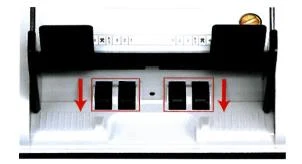
The most common causes of banknote jams:
- The banknote size is outside the range given in the counter specifications.
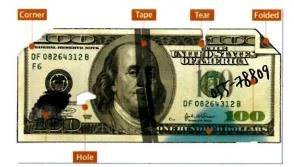
- The banknotes are damaged — missing corners, tape, holes, tears or folds. Counting such banknotes is not recommended.
- The feed gap is too small and the banknote cannot pass smoothly. Turn the adjusting screw clockwise — see Adjusting the feed gap.
- There is a foreign object inside the counter or another fault. Open the back cover, check and clean the internal sensors.
Adjusting the feed gap
The adjusting screw sets the width of the feed gap.
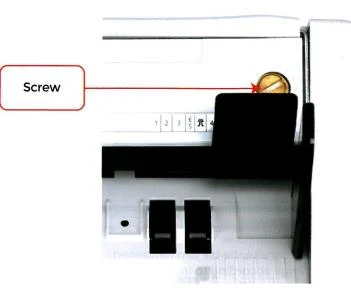
- The gap gets smaller when you turn the screw towards the smallest dot.
- The gap gets larger when you turn the screw in the opposite direction.
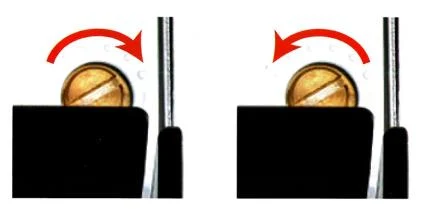
To fine-tune the feed gap:
- Turn off automatic counting.
- Insert one banknote into the gap between the rollers and check whether it slides in smoothly.
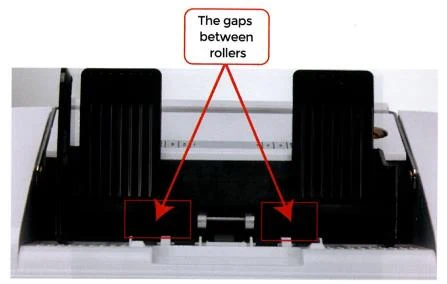
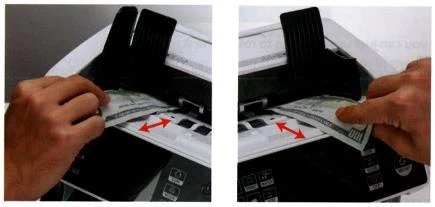
- If the banknote is hard to insert, the gap is too small — turn the screw clockwise until the banknote slides in smoothly. If the gap is too large and takes two or more banknotes at once, turn the screw anticlockwise until only one banknote fits.
- Check both sides of the gap between the rollers with a banknote to make sure it slides in smoothly on both sides.
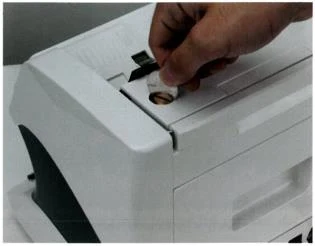
You can turn the screw with a coin. A correctly set feed gap ensures smooth counting and trouble-free operation — make a few trial runs before the final setting.
It is also worth adjusting the feed gap when:
- banknotes do not pass smoothly through the machine,
- double note, chained notes or half note errors appear,
- you count new or nearly new banknotes,
- you count poor-quality or damaged banknotes,
- you count polymer and paper banknotes together.
Currency update — missing PLN and additional currencies
If the Polish zloty (PLN) is missing from the counter's list of currencies, install the update — it adds the PLN currency. The same update also increases the number of supported currencies, so use it as well when you want to count currencies that are missing from the currency selection screen.
Download the update file cds_HDWR_AL-920_20261015_173057B.CWU (9 MB)How to install the update:
- Copy the update file to an empty USB flash drive (root directory). Do not change the file name or extension.
- With the counter switched off, connect the flash drive to the USB port at the rear of the machine that is closest to the edge of the housing.
- Switch the counter on with the flash drive connected — the update starts automatically after start-up.
- Wait for the update to finish — it takes about 1–2 minutes.
- Remove the flash drive and restart the counter.
The update progress on the counter screen is described in the Firmware update section.
Frequently asked questions
Which currencies does the FiscalFlow-5012 support?
PLN is missing from the list of currencies — what should I do?
How does the counterfeit detection work?
Can I connect the counter to a printer?
Downloads
Original PDF manuals kept available as a legacy reference. Everything from them is already covered on this page — use the PDFs only if you need an offline copy.
- User Manual — English (PDF)
- Data sheet — English (PDF)
- Instrukcja obsługi — polska (PDF)
- Karta katalogowa — polska (PDF)
- Bedienungsanleitung — Deutsch (PDF)
- Datenblatt — Deutsch (PDF)
- Návod k obsluze — čeština (PDF)
- Návod na obsluhu — slovenčina (PDF)
- Használati útmutató — magyar (PDF)
- Інструкція з експлуатації — українська (PDF)