Banknote counter and sorter with UV, IR, MG and dual CIS HDWR FiscalFlow-9020
GTIN: 5906935203033 · SKU: FiscalFlow-9020
Table of contents
- Table of contents
- Introduction
- Specifications
- Features
- Set contents
- Safety precautions
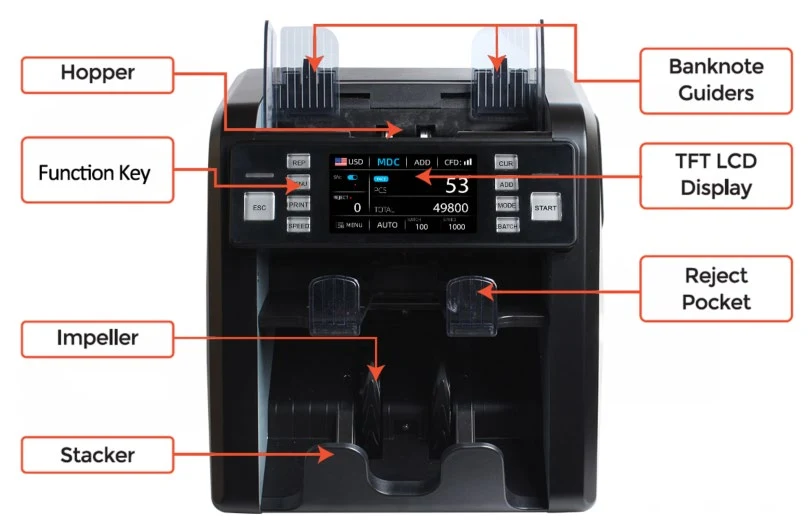
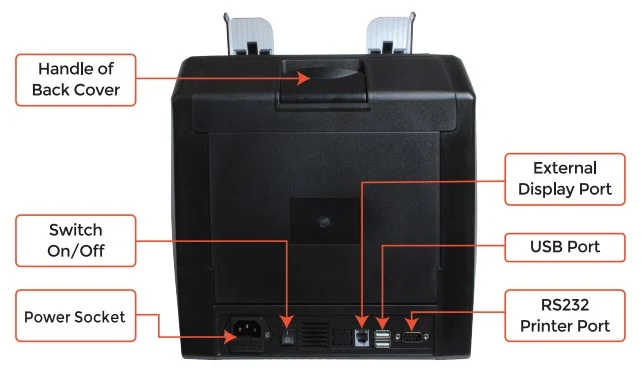
- Machine overview
- Getting started
- Function keys and touch display
- Operating modes and functions
- User menu
- Adjusting the feeding gap
- CIS calibration
- Firmware update
- Collecting image data
- Error messages
- Maintenance
- Currency update — missing PLN and additional currencies
- Frequently asked questions
- Downloads
Introduction
The FiscalFlow-9020 is a multi-currency banknote counter and sorter for fast, accurate and reliable cash counting. It has a user-friendly interface with a touch screen, a variety of counting and sorting modes and strong built-in counterfeit detection. It is an invaluable aid in banks, casinos, supermarkets, cinemas, retail shops and anywhere large amounts of banknotes are handled.
Specifications
- Counterfeit detection: UV (ultraviolet), MG (magnetic), IR (infrared), dual CIS (two image sensors)
- Counting speed: selectable 800, 1000, 1200 notes/min; 800, 1000 notes/min in MDC and SDC mode
- Hopper capacity: max. 500 notes
- Stacker capacity: max. 200 notes
- Reject pocket capacity: approx. 50 notes
- Feed system: roller friction
- Countable note size: 50 × 110 – 90 × 190 mm
- Supported currencies: PLN, EUR, USD, GBP, RUB, CHF, MOP, THB, CAD, HKD, JPY, KRW, SGD and more
- Countable note thickness: 0.08 – 0.12 mm
- Display: 4.5" touch screen
- Power supply: AC 100–240 V, 50/60 Hz
- Power consumption: ≤ 80 W
- Interface: USB, RS-232, RJ-11
- Additional functions: scanning both sides of the note at once (top and bottom), serial number recognition, damaged note detection, automatic currency identification, banknote sorting, ADD, MDC, SDC, SDCV and BATCH functions
- Operating temperature: 15–35 °C
- Operating humidity: 30–80%
- Dimensions: 26.5 × 27 × 32.5 cm
- Net weight: 9.5 kg
- Weight with packaging: 12 kg
Features
- UV, MG, IR and 2 CIS (image) detection
- 4.5" touch screen
- Non-stop counting with a reject pocket
- High-capacity hopper, stacker and reject pocket
- Serial number recognition
- Multi-language interface
- Half-note, double-note and chained-note detection
- Automatic currency identification and mixed multi-currency counting
- Sorting by face, orientation, version and denomination
- Fully opening note channel for easy maintenance and jam removal
- ADD and BATCH functions, reporting and printing
- USB port, printer port and external display port
- Banknotes can be processed in all four orientations
- Easy firmware upgrade via the USB port
- Suitable for most currencies in the world
Set contents
When opening the box, check that all the items described below are included. If any item is damaged or missing, contact the dealer where you bought the machine.
| Item | Picture | Quantity | Description |
|---|---|---|---|
| Banknote counter | 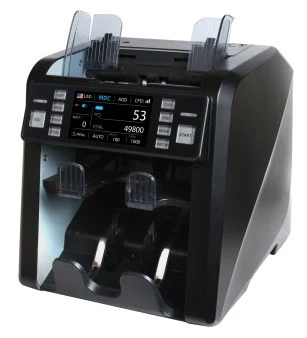 | 1 | 2-pocket banknote sorter |
| External display | 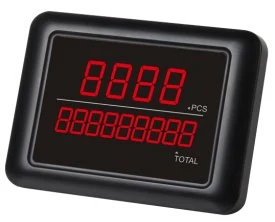 | 1 | External LED display with RJ11 cable |
| Power cable | 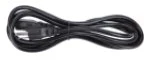 | 1 | Power supply cable |
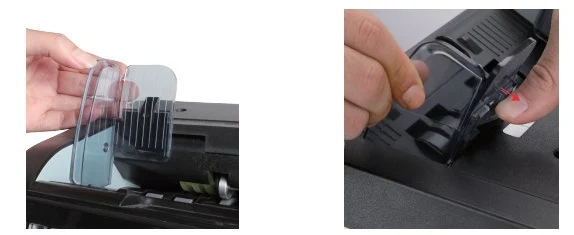
| Banknote guides | 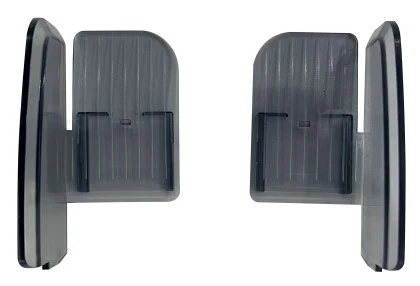 | 2 | Installed at the hopper |
| CIS calibration paper |  | 1 | Used for CIS calibration |
| Nylon brush | 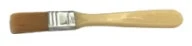 | 1 | For cleaning the machine |
| Soft cleaning cloth |  | 1 | For cleaning the CIS and other sensors |
| Fuse | 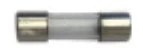 | 1 | Spare fuse for power protection |
| User manual | — | 1 |
Safety precautions
When using the machine, always follow basic safety precautions to reduce the risk of fire, electric shock or injury:
- Place the machine on a flat and stable surface.
- Do not place the machine in a dusty or dirty environment.
- Do not place the machine in direct sunlight or near heat sources.
- Always disconnect the power cord before maintenance.
- Always connect the machine to an earthed socket.
- Use only the supplied power cord.
- Operating temperature: 15–35 °C (59–95 °F).
- Operating relative humidity: 30–80%.
- Do not use the machine outdoors.
- Do not expose the machine to liquids.
- The machine contains rotating parts — never touch moving parts while the machine is switched on.
- Keep jewellery, long hair, ties and other loose items away from the machine while it is operating.
- Never disassemble the machine.
- The machine contains moving parts and sharp edges — be careful and do not touch components inside the machine while it is running.
- Make sure no foreign objects such as coins or staples get inside the machine — they may damage it.
Machine overview
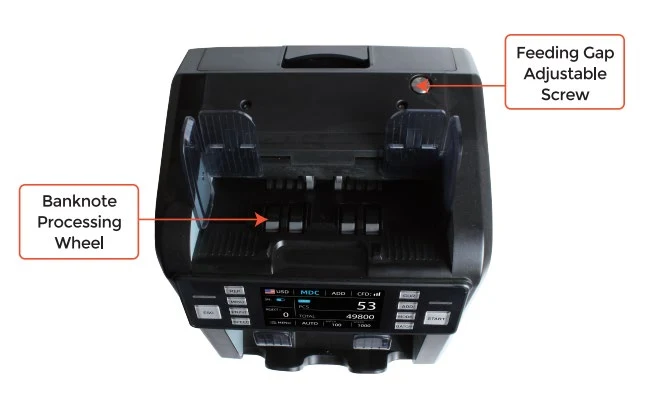
Getting started
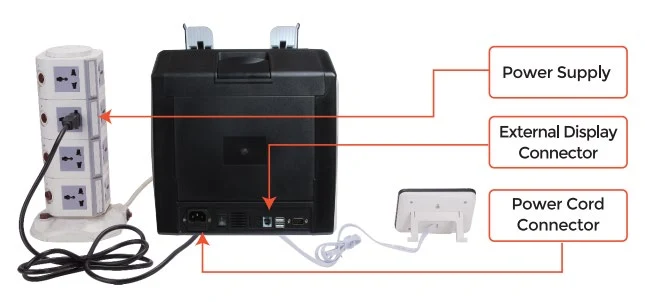
Powering up
- Connect the power cable to the machine and to the power outlet.
- Press the power switch to switch the machine on.
- After a short boot-up and self-test, the machine shows the main screen.
Installing the banknote guides
Placing banknotes
Avoid counting wet, excessively dirty or damaged notes.
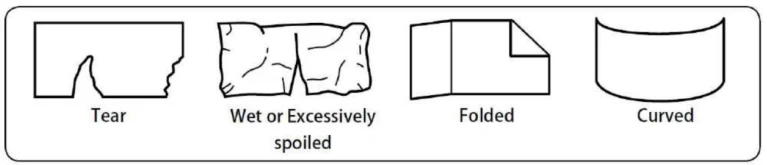
Check that there are no foreign objects among the notes (paper chips, rubber bands, clips, dust, etc.).

Remove folds at the ends of the notes. Separate the notes with your fingers so they do not stick together — especially new ones.
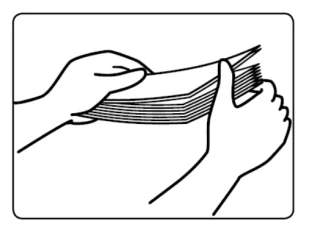
Set the hopper guides so that the sides of the notes are enclosed. Arrange the notes in a neat pile with a straight back edge and place them between the guides. The machine starts counting automatically.
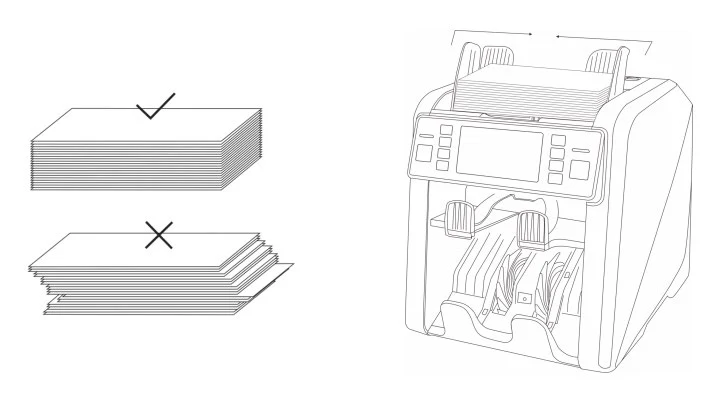
Function keys and touch display
Function keys
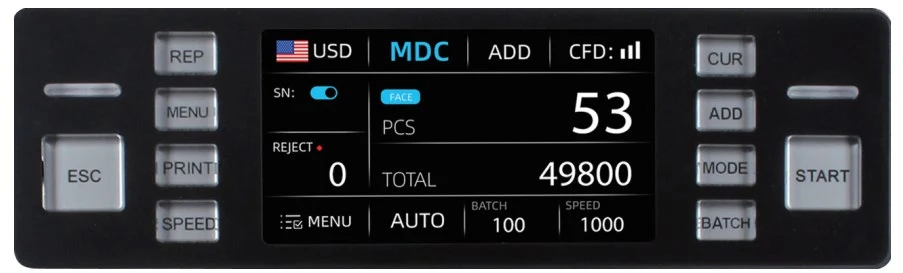
| Key | Function |
|---|---|
 | Press once to view the detailed list of counted currencies; press again to view the serial number list (when serial number reading is on). |
 | Long press to enter the menu, or press to confirm a selection. |
 | Prints a receipt with the counting result when the machine is connected to a printer. |
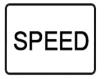 | Selects one of the available counting speeds. |
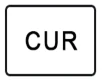 | Selects a single currency, automatic recognition or multi-currency mode. |
 | Turns the adding (accumulative counting) function on and off. |
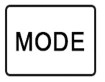 | Selects the counting mode: MDC (MIX), CNT (COUNT), SDC (SINGLE), SDCV (VERSION). |
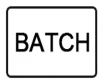 | Short press — selects the batch quantity; long press — sets a custom batch value. |
 | Returns to the previous screen. |
 | Starts counting, clears the counting result or saves a setting in the menu. |
Touch display
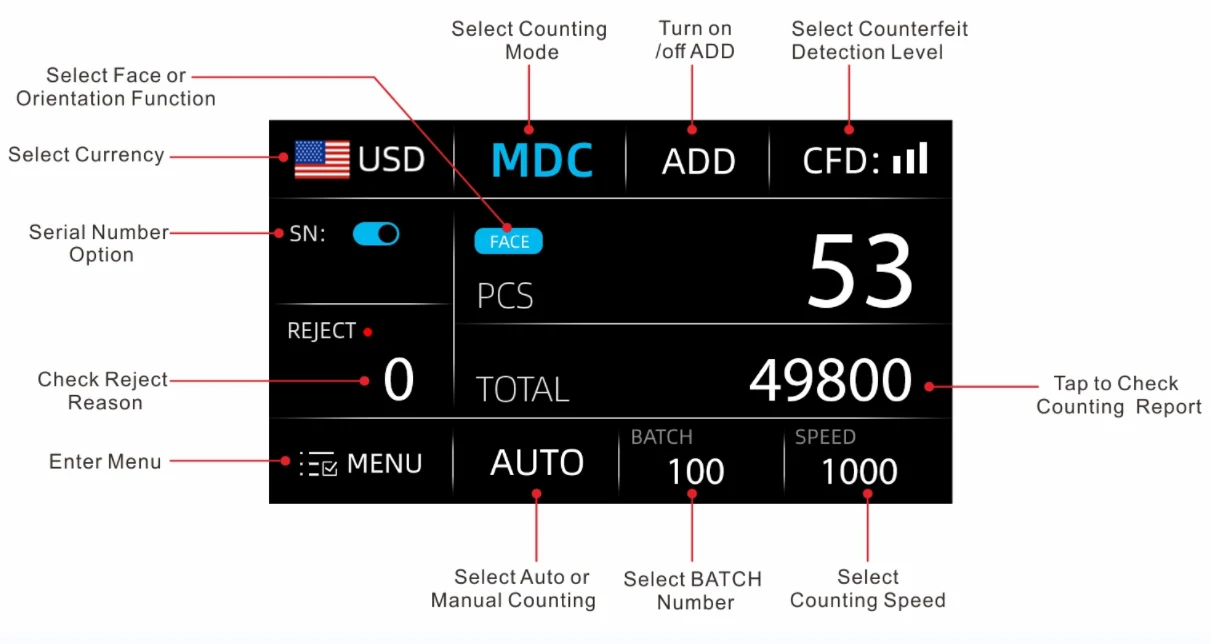
Operating modes and functions
Selecting the currency
Press the CUR key or tap the country flag  on the screen. The currency selection screen shows AUTO, MULT and the installed currencies — tap the one you need.
- AUTO (automatic recognition mode) — the machine recognises the currency from the first note. When it detects another currency, it sounds an alarm and stops — take out the note and press START to continue counting. Only the currencies shown on the currency selection screen are recognised.
- MULT (multi-currency counting mode) — the machine counts mixed currencies and after counting shows the number of pieces and the value of each currency. Only the first 4 currencies shown on the currency selection screen are recognised.
In multi-currency mode only the MDC mode works.
If PLN or a currency you want to count is missing from the list, install the update — see Currency update — missing PLN and additional currencies.
Counting modes
- MDC mode (mixed denomination counting) — counts notes of mixed denominations. After counting, the screen shows the total value and number of notes. View the detailed report with the REP key or by tapping the total amount on the screen.
- SDC mode (single denomination counting) — counts and sorts notes by one denomination, determined automatically by the first note in the stack. Useful to make sure there are no other denominations in a large strap of one denomination. When a note does not match the denomination of the first note, the machine stops and sounds an alarm — take out the suspicious note and press START to continue. The total number and value of notes are shown on the main screen; view the detailed report with REP or by tapping the total amount.
- SDCV mode (version sorting) — counts and sorts notes by one version, determined by the first note in the stack. Useful to make sure there are no other versions in a large strap of one version. A note that does not match the version of the first note goes to the reject pocket. The total number and value of notes are shown on the main screen; view the detailed report with REP or by tapping the total amount.
- FACE mode — sorts notes by whether they lie face up or face down in the hopper. The first note sets the orientation: if it is face up, all face-up notes go to the stacker and all face-down notes go to the reject pocket. The total number and value of notes are shown on the main screen.
- ORIENT mode — counts and sorts notes by one of 4 orientations, set by the first note in the hopper. A note with a different orientation goes to the reject pocket. The total number and value of notes are shown on the main screen.
- CNT mode (piece counting) — counts the number of notes only, without recognising or recording denominations. Counterfeit detection is off in CNT mode.
Automatic and manual counting
After switching on, the machine works in automatic counting mode — AUTO is shown on the main screen and counting starts as soon as notes are placed. To switch to manual counting, tap AUTO on the screen to change it to MANUAL. In this mode press START to begin each count.
BATCH function
Counts out a preset number of notes. With BATCH active, the machine counts the preset number of notes and stops when it is reached, even if notes remain in the hopper. When the notes are removed from the stacker, the machine automatically continues counting the next batch.
ADD function
Adds the results of successive counts to a total. When ADD is active, the ADD icon is shown on the main screen. To turn it off, press ADD again or tap the ADD icon on the screen.
BATCH + ADD function
Counts out batches of the preset quantity and keeps the running total at the same time.
Serial number reading
Records the serial numbers of the counted notes. Available only for some currencies, e.g. USD, EUR, GBP, RUB, CNY, TRL, IDR.
User menu
Press the MENU key or tap MENU on the screen to enter the menu.
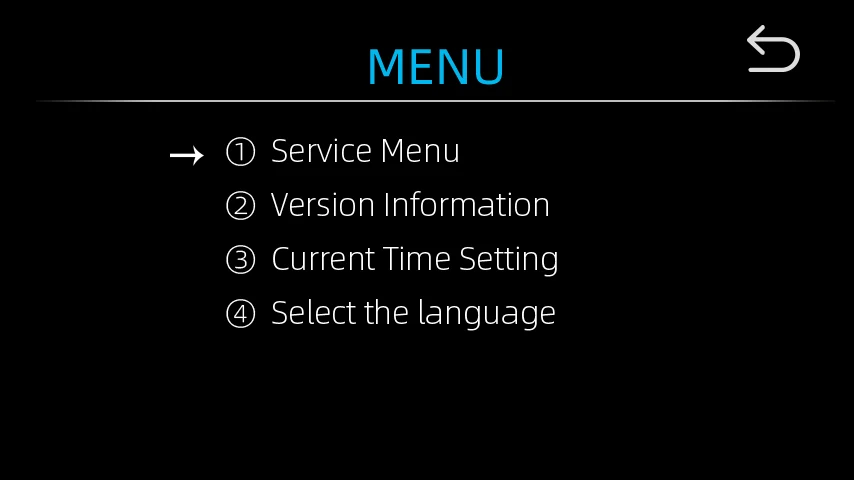
Service menu
The service menu is password protected — the default password is 9999.
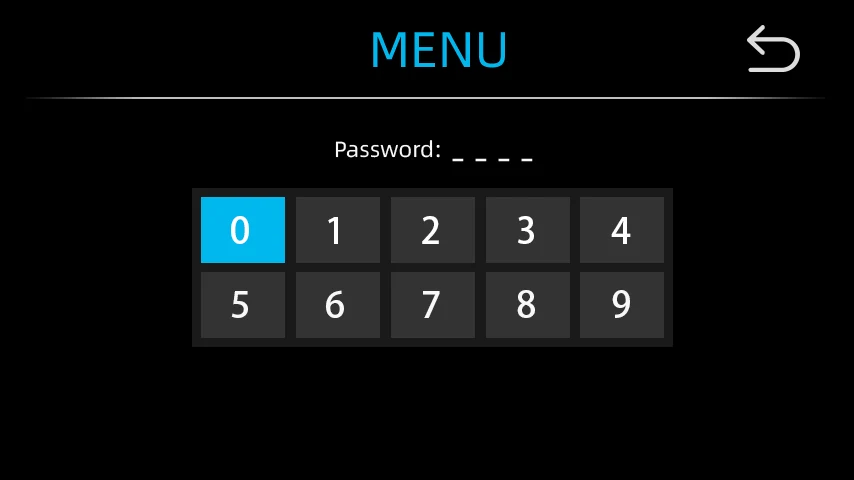
After you enter the password, the list of submenus appears. Tap the submenu you want to enter and tap the return icon to go back.
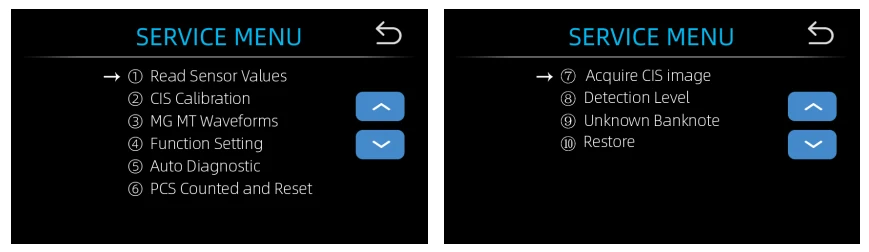
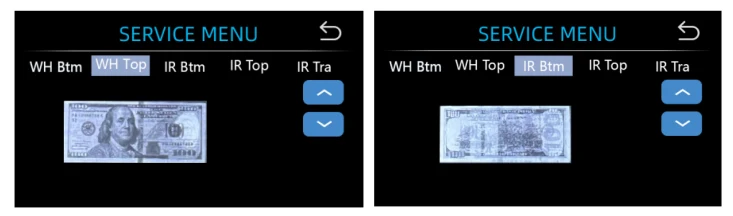
Reading sensor values
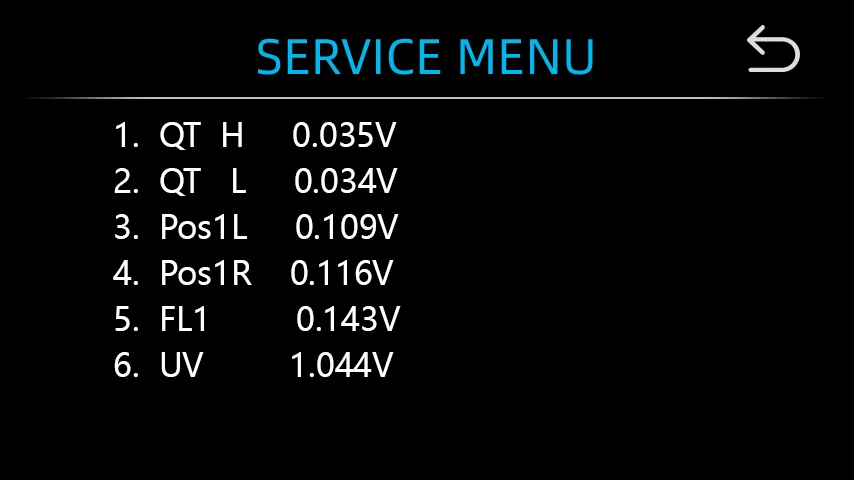
Sensor values are used only by service engineers to check whether any sensor is malfunctioning. If you have a problem with the machine, take a photo of this screen and contact the seller.
Dual CIS calibration
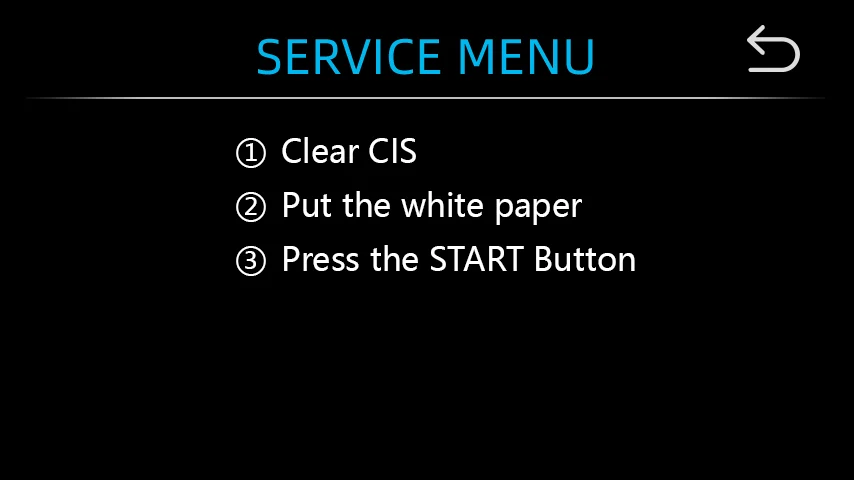
The contact image sensor (CIS) is calibrated at the factory. With regular use its sensitivity decreases, which can lead to image errors. Re-calibrate the machine with the white calibration paper from the set — the steps are described in CIS calibration.
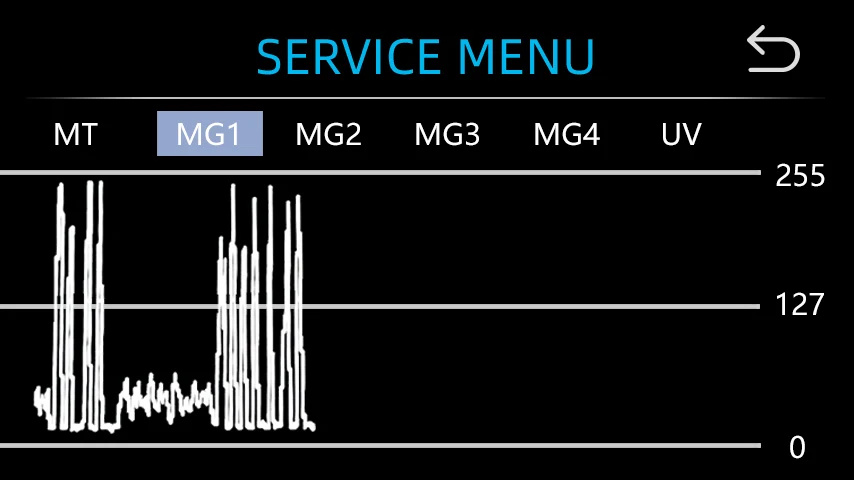
MG MT waveforms
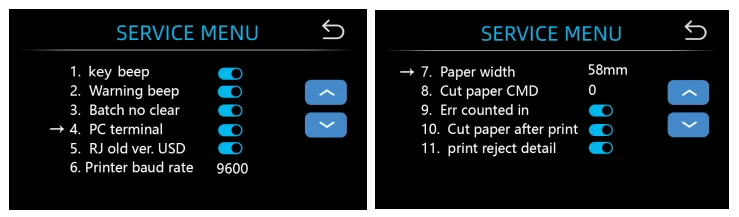
Function setting
Auto diagnostic
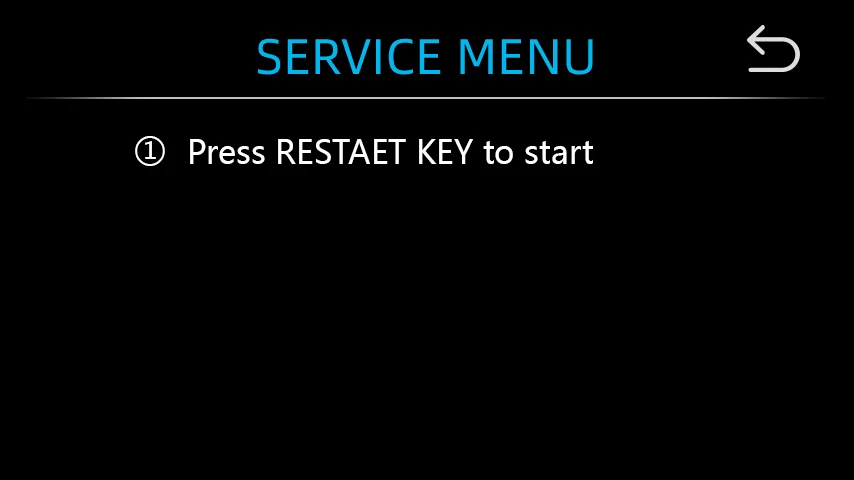
This option is intended for production and professional servicing.
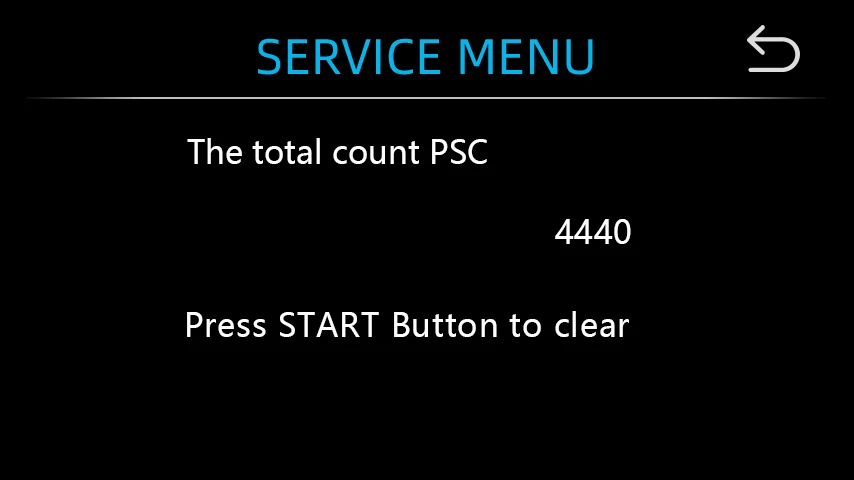
PCS counted and reset
After selecting "PCS Counted and Reset" you will see the total number of notes counted by the machine since the last reset. Press START to clear the counter.
Acquire CIS image
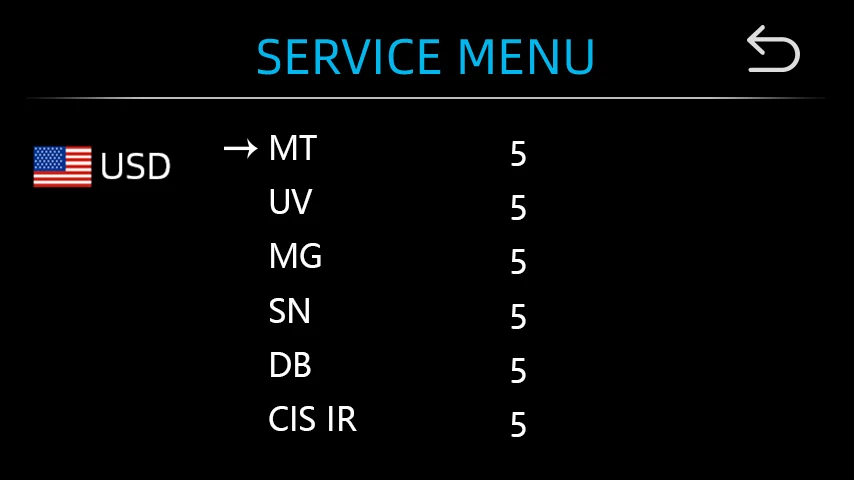
Detection level
Do not change the sensitivity levels without contacting your local distributor first.
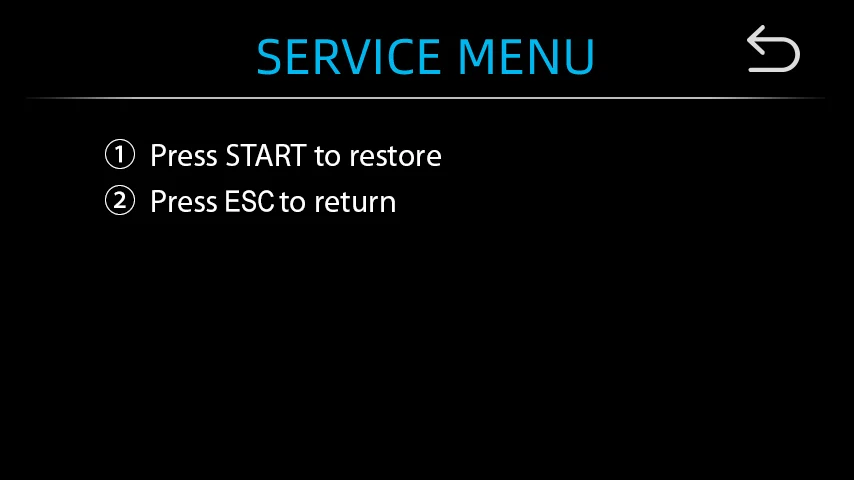
Restore
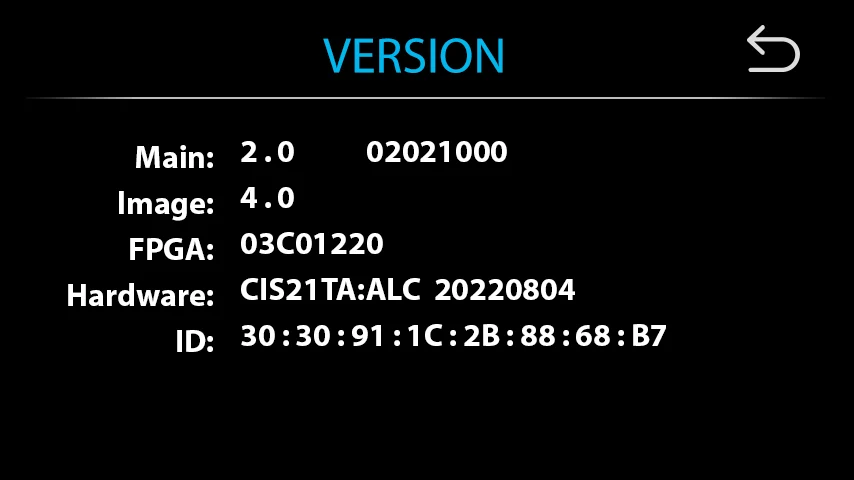
Version information
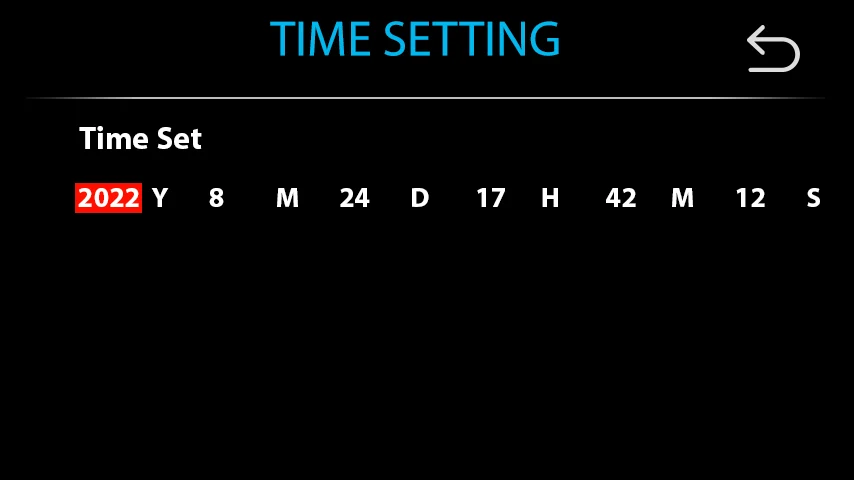
Current time setting
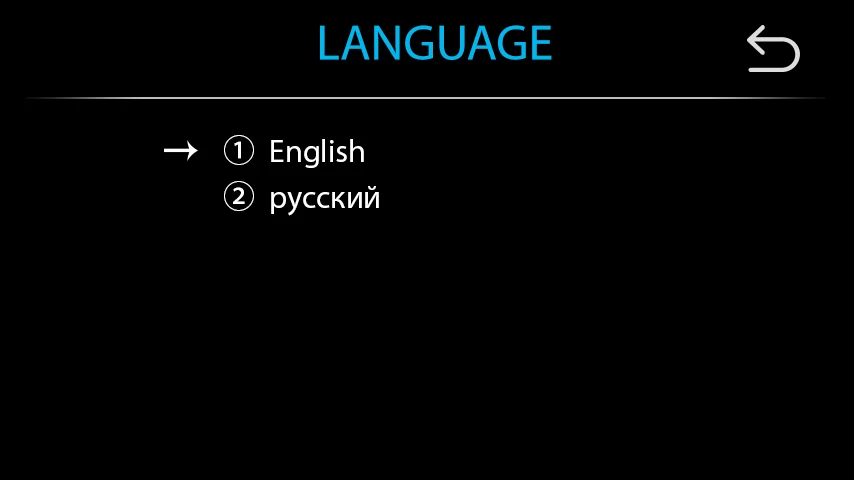
Menu language
Adjusting the feeding gap
When counting errors such as double, chained or slanted notes occur often, or when notes are not fed smoothly, the hopper adjusting screw may need adjustment. The hopper wheel position is set optimally at the factory, but the feed mechanism can shift during transport and some banknotes need a different setting.
- When notes are not counted smoothly — increase the gap between the resistance wheel and the feed wheel by turning the adjusting screw clockwise (+).
- When "double notes" or "chained notes" errors occur often — decrease the gap by turning the adjusting screw anticlockwise (−).
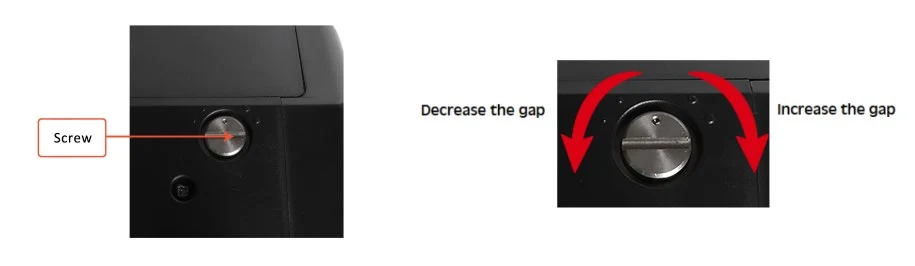
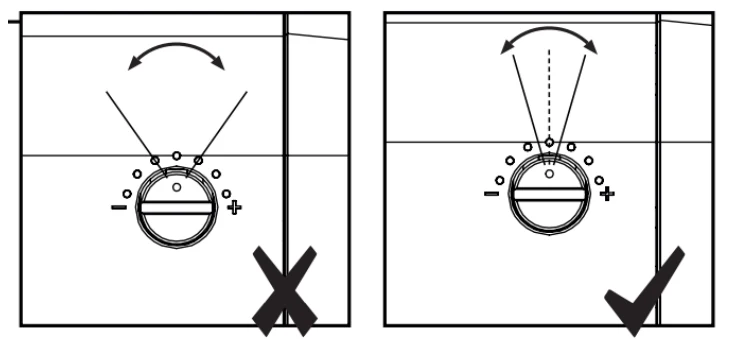
Make only small changes at a time — one dot or half a dot.
To fine-tune the feeding gap:
- Stop automatic counting.
- Insert one note into the gap between the rollers and check whether it slides in smoothly.
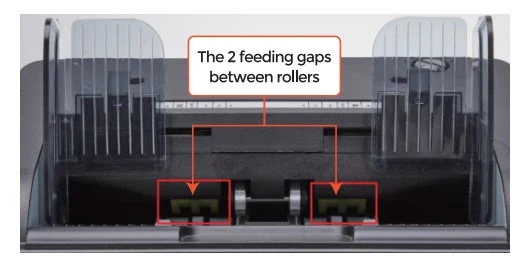
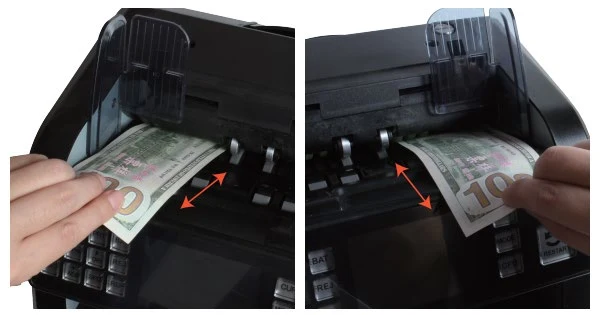
- If the note is hard to insert, the gap is too small — turn the screw clockwise until the note slides in smoothly. If the gap is so large that two or more notes fit, turn the screw anticlockwise until only one note fits.
- Check the other gap with the note to make sure it slides smoothly into both gaps.
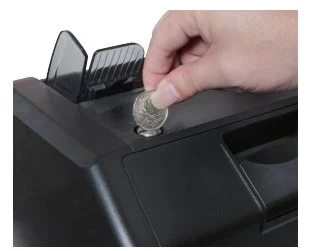
You can turn the screw with a coin.
CIS calibration
CIS calibration is needed when many errors occur during counting.
- Enter the menu and go to the service menu with the password 9999.
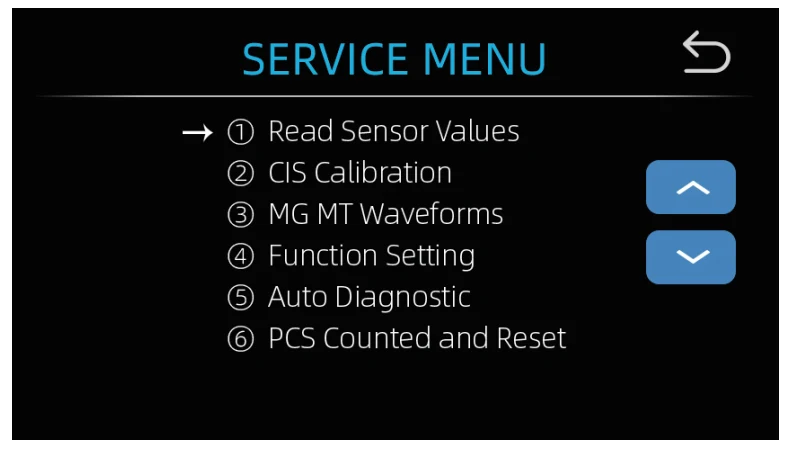
- Tap "CIS Calibration" — the screen below appears.
- Open the back cover and clean the CIS sensors with the cleaning cloth.
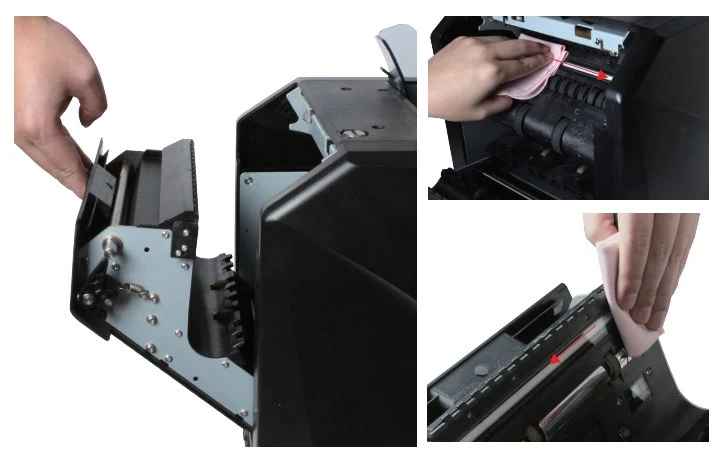
- Put the CIS calibration paper (white paper) inside and close the back cover.
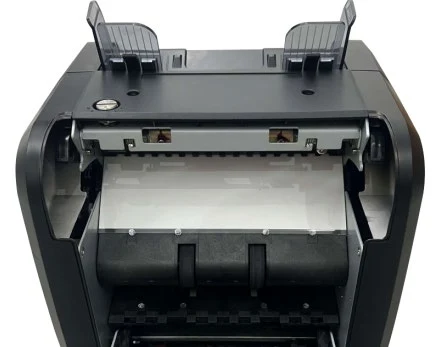
- Start the calibration with the START key.
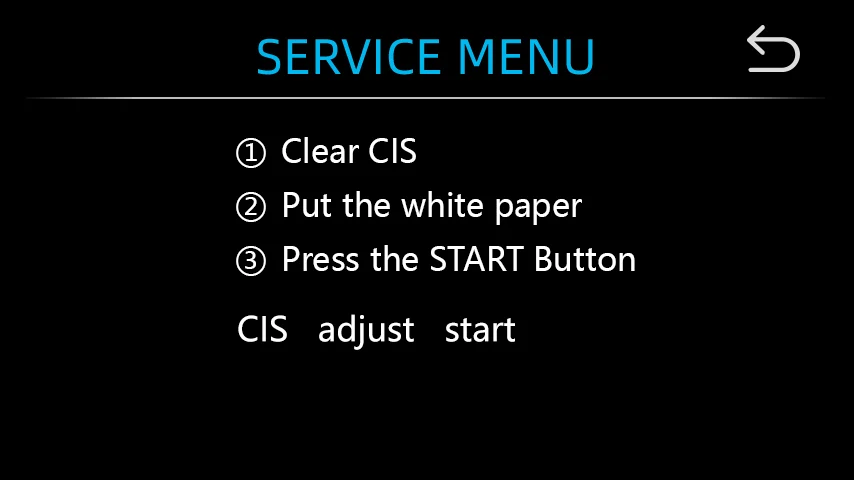
- When the calibration is complete, take out the calibration paper, close the back cover and switch the machine off.
- Switch the machine on to finish the CIS calibration.
Firmware update
The counter firmware is updated from a USB flash drive. You can download the current update file in the Currency update — missing PLN and additional currencies section.
- Copy the update file to the root directory of the USB flash drive. Do not change the file name or format. There must not be two or more update files in the root directory.
- With the machine switched off, insert the flash drive into the upper USB port at the rear of the machine.
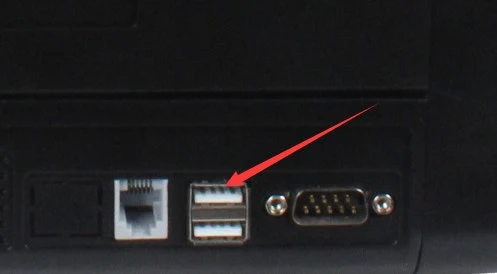
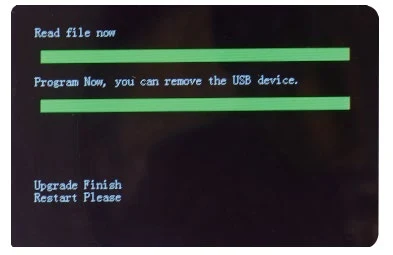
- Switch the counter on — the machine recognises the update file automatically and reads it first.
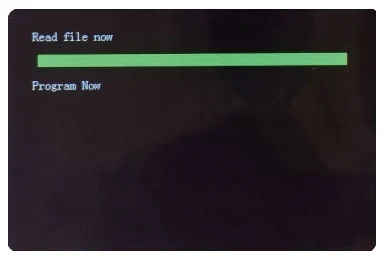
- The machine programs the file.
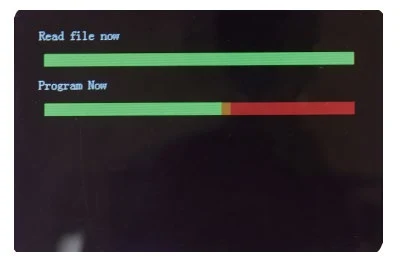
- When programming is complete, remove the flash drive and restart the machine.
Collecting image data
Counterfeit or new-version note data
- Insert a USB flash drive into the upper USB port at the rear of the machine — the USB icon appears on the screen.
- Select the currency, choose CNT mode with the MODE key and set the speed to 800.
- Count the counterfeit notes in all four orientations — the machine automatically saves the data to a file on the flash drive.
Genuine note error data
- Insert a USB flash drive into the upper USB port at the rear of the machine — the USB icon appears on the screen.
- Select the currency, choose MDC mode with the MODE key and set the speed to 800.
- Count the notes in all four orientations — the machine automatically saves the data to a file on the flash drive.
Error messages
The machine runs a self-test after switching on. Most of the messages below are caused by a sensor blocked by a note or dust. Remove the stuck notes or clean the dust off the sensor with the brush or a soft cloth, and restart the machine.
| Error code | Message | Solution |
|---|---|---|
| E1 | UV fault | Remove the note and clean the UV sensor. |
| E2 | Double notes | If the error occurs often, turn the adjusting screw anticlockwise to decrease the gap. |
| E3 | Chained notes | As for E2. |
| E4 | Half note | Remove the note. |
| E10 | Image error | Remove the note, clean the CIS sensor, calibrate the CIS, collect the note data. |
| E11 – E12 | Denomination error | As for E10. |
| E13 | Face recognition error | As for E10. |
| E14 | Size recognition error | As for E10. |
| E15 | Orientation recognition error | As for E10. |
| E20 | MT error | Remove the note, clean or replace the MG sensors. |
| E21 | MG1 error | As for E20. |
| E22 | MG2 error | As for E20. |
| E23 | MG3 error | As for E20. |
| E24 | MG4 error | As for E20. |
| E30 – E37 | IR transmission area 1–8 error | Remove the note, clean the CIS sensor, calibrate the CIS, collect the note data. |
| E38 | IR reflection area 1 error | As for E30. |
Maintenance
Always switch the machine off and disconnect the power cord before cleaning. DO NOT use solvents such as thinner or alcohol to clean the machine.
Most operating problems can be avoided with regular care and preventive maintenance, which significantly extends the machine's lifetime. Make sure there are no metal clips or rubber bands among the notes and follow the correct procedure for loading the hopper.
For best results, remove dust and debris from inside the machine with compressed air and a soft brush. If the machine will not be used for a long time, cover it with a dust cover (not included) to keep dust from settling inside.
All parts of the machine need daily care. Pay special attention to the sensors — they are delicate, and dust or other foreign matter on them can cause various operating problems.
- Clean the machine every day to avoid faults caused by foreign objects.
- Regularly open the back cover and clean the sensors with the supplied brush or a dry cloth.
- Regularly clean the top cover and the CIS sensor with the supplied brush or a dry cloth.
Currency update — missing PLN and additional currencies
If the Polish zloty (PLN) is missing from the counter's list of currencies, install the update — it adds the PLN currency. The same update also increases the number of supported currencies, so use it as well when you want to count currencies that are missing from the currency selection screen.
Download the update file cds_HDWR_AL-952A_20260818_220331B.CWU (8 MB)How to install the update:
- Copy the update file to an empty USB flash drive (root directory). Do not change the file name or extension.
- With the counter switched off, connect the flash drive to the upper USB port at the rear of the machine.
- Switch the counter on with the flash drive connected — the update starts automatically after start-up.
- Wait for the update to finish — it takes about 1–2 minutes.
- Remove the flash drive and restart the counter.
The update progress on the counter screen is described in the Firmware update section.
Frequently asked questions
Which currencies does the FiscalFlow-9020 support?
PLN is missing from the list of currencies — what should I do?
What counterfeit detection methods does the FiscalFlow-9020 use?
What are the available counting speeds?
What is the hopper and stacker capacity?
What sorting functions does the FiscalFlow-9020 offer?
Downloads
Original PDF manuals kept available as a legacy reference. Everything from them is already covered on this page — use the PDFs only if you need an offline copy.