Wireless 1D CCD barcode scanner with onboard memory, 2.4 GHz USB receiver, HDWR HD26C
GTIN: 5907614660369 · SKU: HD26C
Table of contents
Specifications
- Construction material: ABS + PC
- Light source: CCD sensor
- Scanning method: manual (push button)
- Scan confirmation: LED indicator (red and blue) and two beep types
- Reading width: 200 mm
- Scanning speed: 100 scans per second
- Reading accuracy: 0.10–0.825 mm
- Error rate: 1 in 800,000,000
- Wireless frequency: 2.4 GHz
- Interface: USB
- Charging cable length: 150 cm
- Protection rating: IP54
- Device dimensions: 14.5 × 5 × 7.5 cm
- Receiver dimensions: 2 × 1.5 × 0.6 cm
- Package dimensions: 17.5 × 9 × 6 cm
- Device weight: 175 g
- Weight with packaging: 230 g
- Operating temperature: −10 to 40 °C
- Storage temperature: −20 to 40 °C
- Operating humidity: 5 to 85%
- Storage humidity: 5 to 85%
- Onboard memory: up to 5000 codes
- Readable 1D codes: EAN-8, EAN-13, UPC-A, UPC-E, Code 128, Code 39, Code 93, Code 11, GS1 DataBar, Industrial 2 of 5, IATA 2 of 5, Matrix 2 of 5, Chinese 2 of 5, Codabar, MSI and other 1D codes
Set contents
- Wireless HD26C barcode scanner
- USB receiver (2.4 GHz dongle)
- USB charging cable
- User manual
Features
- Wireless 2.4 GHz: the scanner talks to the bundled USB receiver — no pairing software needed on the host
- Onboard memory (inventory mode): store up to 5000 codes while out of radio range and upload them later in one batch
- Real-time mode: every scan is sent to the host immediately, with distinct success / failure beeps
- CCD scanning: reads 1D codes from paper labels and from LCD, LED and OLED screens, including phone displays
- Rugged housing: IP54-rated ABS + PC body for dusty warehouse use
- Programmable prefix / suffix: any character from the Appendix A table (including control characters and function-style keys)
- Configurable output: end mark, letter case, hide leading / trailing characters
- Power management: standby timer with optional vibration feedback
- Keyboard layout selection (USB HID) plus an optional USB virtual COM-Port mode
Configuration codes
To change scanner settings, scan the barcode below directly with the HD26C.
💡 Tip: print this page ("Download this page as PDF" button above) to keep the codes at hand during configuration.
Restore factory defaults
Restore all device settings to default values:

Version information (output the firmware version on the next scan):

Battery level (output the current battery charge):

2.4 GHz wireless pairing
Pair the scanner with its USB receiver in three steps:
- Scan Set 2.4 GHz mode to switch the scanner to 2.4 GHz radio.
- Scan Force pairing with USB receiver — the scanner enters pairing mode and the blue LED flashes quickly.
- Plug the USB receiver into the host. After a beep the scanner is paired and the blue LED stays on.
If the scanner does not connect within 1 minute it emits two short and one long beep — repeat the three steps.
Set 2.4 GHz mode:

Force pairing with USB receiver:
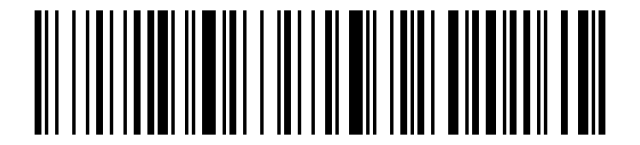
Transfer mode
Real-time mode (each scan is transmitted to the host immediately; if transmission fails the data is lost):

Memory mode (scans are saved to onboard memory; transfer them later — recommended when out of radio range):

Total amount of stored codes (output the number of codes currently in memory):

Upload data (send the stored codes to the host; data is kept in memory afterwards, so you can upload repeatedly):

Clear data (erase the onboard memory — make sure the data was uploaded first):

End mark
Character automatically appended after each scanned code.
CR (Carriage Return):

LF (Line Feed):

CR + LF:

Cancel CR + LF (no end mark):

TAB:

Transmission speed
Add a delay between characters if the host receives data too fast to keep up.
Enable 2.4 GHz transmission delay:

Disable 2.4 GHz transmission delay:

Delay 5 ms:

Delay 10 ms:

Delay 20 ms:

Delay 30 ms:

Scan speed — Fast:

Scan speed — Medium:

Scan speed — Slow:

Scan speed — Very low:

Letter case
Convert to lowercase:

Convert to uppercase:

No case change (keep original case):

Swap upper ↔ lower case:

Hide leading / trailing characters
Scan Hide leading characters (prefix) or Hide trailing characters (suffix), then scan one count code below. Re-scan the same prefix / suffix code to cancel hiding.
Hide leading characters (prefix):

Hide trailing characters (suffix):

Show all 16 character-count codes (hide 1–16)
Hide 1:

Hide 2:

Hide 3:

Hide 4:

Hide 5:

Hide 6:

Hide 7:

Hide 8:

Hide 9:

Hide 10:

Hide 11:

Hide 12:

Hide 13:

Hide 14:

Hide 15:

Hide 16:

Standby timer
Standby after 1 minute:

Standby after 5 minutes:

Standby after 10 minutes:

Standby after 30 minutes:

Never enter standby (scanner stays active):

Standby immediately:

Buzzer and vibration
Buzzer off:

Buzzer on:

Vibration off (optional):

Vibration on (optional):
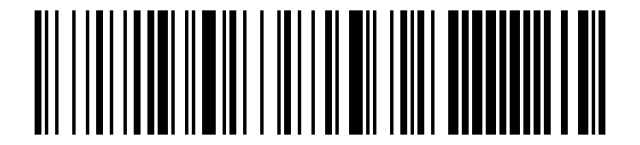
Keyboard layout
Set the scanner's keyboard layout to match the host operating system.
English (default):

German:

French:

Spanish:

Italian:

Japanese:

Interface mode
USB virtual COM-Port mode (output as a serial COM port instead of a keyboard; scan "Restore factory defaults" to return to USB keyboard mode):

Add prefix / suffix
To add a prefix or suffix made of one or more characters before / after every scanned barcode:
- Scan Allow for prefix adding (or Allow for suffix adding).
- Scan one or more character codes from the Appendix A character table below.
- To cancel, scan Allow for prefix adding (or Allow for suffix adding) once more.
Allow for prefix adding:

Allow for suffix adding:

Appendix A character table
Each code below represents a single character used to compose prefixes or suffixes. Scan them after Allow for prefix / suffix adding above.
Show all 127 character codes (control characters and printable ASCII)
Control characters
SOH (0x01):

STX (0x02):

ETX (0x03):

EOT (0x04):

ENQ (0x05):

ACK (0x06):

BEL (0x07):

BS (0x08):

HT (0x09):

LF (0x0A):

VT (0x0B):

FF (0x0C):

CR (0x0D):

SO (0x0E):

SI (0x0F):

DLE (0x10):

DC1 (0x11):

DC2 (0x12):

DC3 (0x13):

DC4 (0x14):

NAK (0x15):

SYN (0x16):

ETB (0x17):

CAN (0x18):

EM (0x19):

SUB (0x1A):

ESC (0x1B):

FS (0x1C):

GS (0x1D):

RS (0x1E):

US (0x1F):

Printable ASCII
Space:

!:

":

#:

$:

%:

&:

':

(:

):

*:

+:

,:

-:

.:

/:

0:

1:

2:

3:

4:

5:

6:

7:

8:

9:

::

;:

<:

=:

>:

?:

@:

A:

B:

C:

D:

E:

F:

G:

H:

I:

J:

K:

L:

M:

N:

O:

P:

Q:

R:

S:

T:

U:

V:

W:

X:

Y:

Z:

[:

\:

]:

^:

_:

`:

a:

b:

c:

d:

e:

f:

g:

h:

i:

j:

k:

l:

m:

n:

o:

p:

q:

r:

s:

t:

u:

v:

w:

x:

y:

z:

{:

|:

}:

~:

Delete (0x7F):

Frequently asked questions
What is the difference between real-time mode and memory mode?
Can the HD26C scan barcodes from a phone screen?
What does IP54 protection mean for a barcode scanner?
How do I pair the HD26C with its USB receiver?
Downloads
Original manufacturer PDF manuals kept available as a legacy reference. Everything from them is already covered on this page — use the PDFs only if you need an offline copy.