Wireless barcode scanner with docking station, Bluetooth and 2.4 GHz, HDWR HD8600
GTIN: 5907614669836 · SKU: HD8600
Table of contents
- Table of contents
- Specifications
- Set contents
- Features
- Configuration codes
- Factory defaults and custom defaults
- Volume and buzzer
- Battery level
- Standby timer
- Output encoding
- Operating modes and memory
- Connection modes
- Pairing
- iOS keyboard
- Bluetooth HID upload speed
- Bluetooth name
- Keyboard layout
- Letter case
- GS replacement
- Custom prefix and suffix
- Hide first/last characters
- Terminator
- Clock
- Escape character sets
- Enter / exit setting mode
- LED and buzzer signals
- Character table
- Frequently asked questions
- Downloads
Specifications
- Sensor: CMOS
- Scanning method: manual (button)
- Scan confirmation: LED and sound
- Internal memory: up to 20,000 scanned codes
- Reading angle: ±60° (normal, inverted)
- Reading precision: 0.076 mm
- Charging time: 4.5 h
- Working time: 16 h
- Battery capacity: 2000 mAh
- Drop resistance: 1.5 m
- Interface: USB, Virtual COM, 2.4 GHz, Bluetooth
- Supported systems: Windows, Mac OS, iOS, Linux, Unix, Android
- Cable length: 180 cm
- Operating temperature: 0–50 °C
- Storage temperature: −20–60 °C
- Operating/storage humidity: 5–95%
- 1D codes read: EAN-8, EAN-13, UPC-A, UPC-E, Code 128, Code 39, Code 93, Code 11, GS1 DataBar, Industrial 2 of 5, IATA 2 of 5, Matrix 2 of 5, Chinese 2 of 5, Codabar, MSI, Interleaved 2 of 5 (ITF) and other linear codes
Set contents
- Wireless barcode scanner
- Docking station
- USB cable
- User manual
Features
- Manual (button) scanning with LED and sound confirmation
- 2.4 GHz and Bluetooth wireless communication with a docking station
- Internal memory for up to 20,000 codes (storage mode)
- Programmable prefix and suffix
Configuration codes
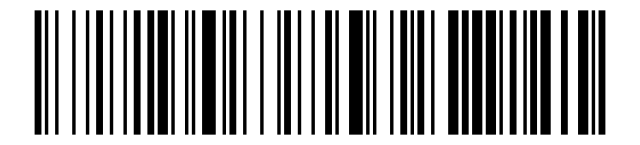
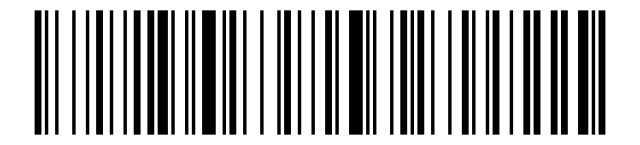
The scanner is configured by scanning the setup codes below — from the screen or from a printout. The producer manual prints each command as a Code 128 and QR pair; the codes below are the Code 128 variants and carry exactly the same commands. Options marked (default) reflect the factory state.
Factory defaults and custom defaults
Restore all wireless settings to the factory state:
Wireless Factory Default:

Custom Default Setting (save current as default):
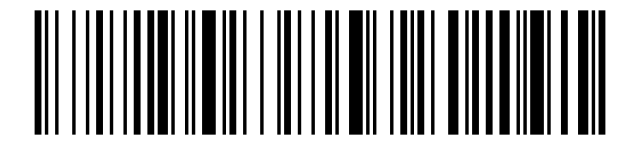
Custom Default Setting saves the current configuration as your own default set. Scanning Wireless Factory Default afterwards restores these custom values.
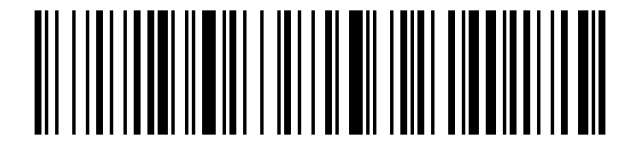
Version:
Volume and buzzer
Volume high (default):

Volume medium:

Volume low:

Mute:

2048 Hz:

2730 Hz:

Vibration on (optional):
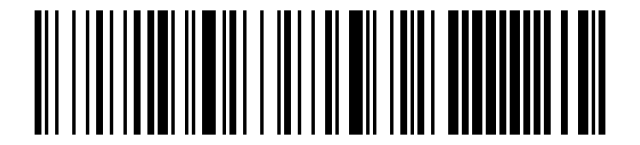
Off:

Battery level
Scan to type out the current battery percentage:
Battery Level:

Standby timer
Time of inactivity after which the scanner goes to sleep:
30s:

1min:

2min:

5min (default):

10min:

30min:

Never:

Sleep Immediately:

Output encoding
GBK (Notepad, Excel, etc) (default):

Unicode (WORD, QQ, etc):

Operating modes and memory
In instant upload mode every scan is transmitted immediately. In storage mode scans are saved to the 20,000-code internal memory and uploaded later — useful out of radio range:
Instant Upload Mode (default):

Storage Mode:

Upload All Codes:

Upload Total Count:
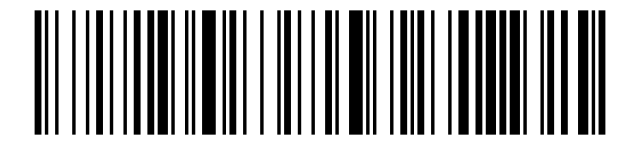
Clear All Codes:

Clear All Codes permanently deletes the stored scans — upload them first.
Connection modes
USB-COM:

Wireless 2.4G Mode:
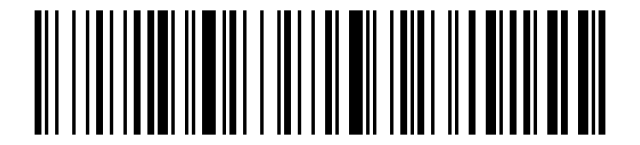
Virtual Bluetooth Mode:
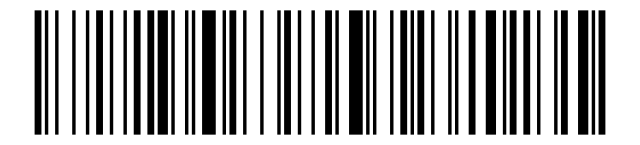
Bluetooth HID Mode:
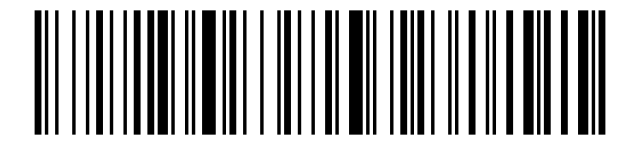
Bluetooth SPP Mode:

Bluetooth BLE Mode:

Pairing
2.4 GHz (dongle/docking station): plug the receiver in, scan Forced Pairing, then scan Wireless 2.4G Mode — the scanner beeps twice when paired. Bluetooth HID: scan Bluetooth HID Mode, hold the button for 8 seconds, then pick "Barcode Scanner" from the system Bluetooth list.
Forced Pairing:
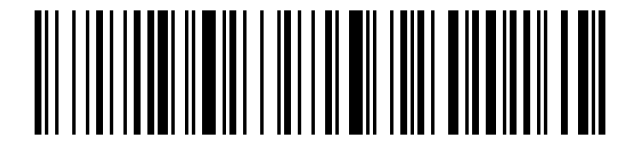
HID searching by button (8 s) on:
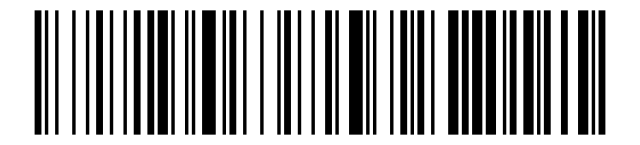
Off:
iOS keyboard
Show/Hide iOS Keyboard:

Turn on the double-click to display the iOS keyboard function (HID mode):

Turn off the double-click to display the iOS keyboard function (HID mode):

Bluetooth HID upload speed
Lower the speed if characters get lost over Bluetooth HID:
Fast:

Medium (default):

Slow:

Very slow:

Bluetooth name
To rename the scanner (max 16 bytes): scan Custom Bluetooth Name, then scan a Code 128 barcode containing the new name (the example below sets "Scanner"), generated with any barcode generator. The default name is "Barcode Scanner".
Custom Bluetooth Name:

Example name barcode: "Scanner":

Get the Bluetooth Name:
Keyboard layout
In HID mode set the layout matching your system:
English:

German:

French:
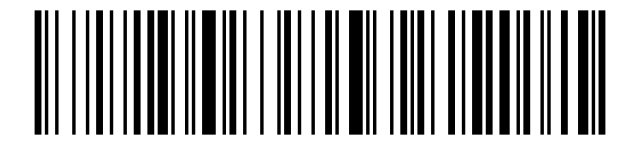
Spanish:

Italian:

Japanese:

BF - Belgian French:

Portuguese:
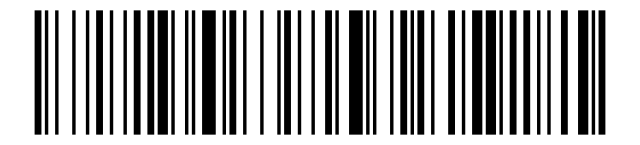
British English:

German iOS keyboard:

Brazilian Portuguese:

Russian:

Czech:

Italy 142:

(Turkey Q):

(Turkey F):

Sweden / Finland:

Mexican Spanish:
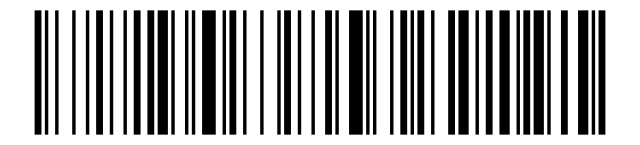
Denmark:

Written Norwegian:

Croatian/Serbian:

Swiss German:

Swiss French:

Dutch:
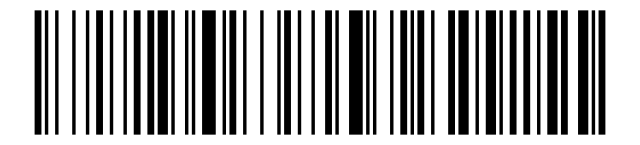
Hungarian:
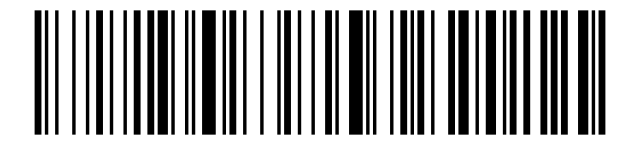
Polish:

Canadian French:
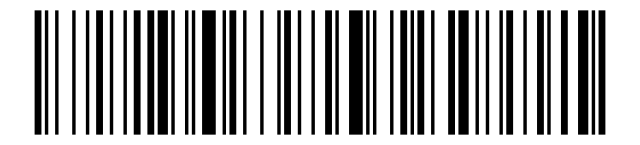
Argentina (Latin American):

Slovak:

International keyboard:

Letter case
Normal (default):

Upper:

Lower:

Inverse:

GS replacement
Replaces the GS control character (0x1D, used in GS1 barcodes) with a printable character. Scan Custom GS Replacement, then the replacement character from the character table, then Exit setting mode:
Custom GS Replacement:

Cancel GS Replacement:

Custom prefix and suffix
Scan Add Custom Prefix (or Add Custom Suffix), then up to 32 characters from the character table, then Exit setting mode from the appendix. To clear, scan the add code followed directly by Exit setting mode (or restore factory defaults):
Add Custom Prefix:
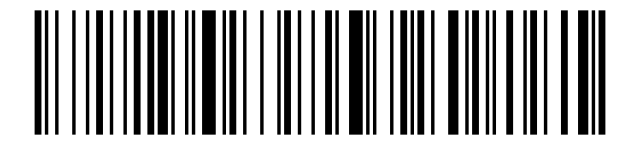
Add Custom Suffix:

Hide first/last characters
Scan Hide first characters (or Hide last characters), then the number of characters to hide (1–16) from the character table (SOH–DLE = 1–16), then Exit setting mode. To clear, scan the hide code followed directly by Exit setting mode:
Hide first characters:

Hide last characters:

Terminator
Character appended after every barcode:
<CR>(0x0D) (default):

<LF>(0x0A):

<CR><LF>(0x0D,0x0A):

<HT>(0x09):

NONE:

Clock
The clock functions require a wireless version that supports them (3.0 and above); time stamps work best with storage mode:
Show current time:

Add time before barcode:

Add time after barcode:

Close time before or after barcode:

Escape character sets
Control how control characters are escaped in the output:
Escape character set 0 (default):

Escape character set 1:

Escape character set 2:

Escape character set 3:

Escape character set 4:

Enter / exit setting mode
Used as the terminator of multi-step sequences (prefix/suffix, hidden characters, GS replacement):
Enter setting mode:

Exit setting mode:

LED and buzzer signals
| Signal | Meaning |
|---|---|
| Blue LED on | 2.4 GHz / Bluetooth connected, ready to scan |
| Blue LED flashing | Waiting for pairing |
| Red LED on while charging | Charging in progress |
| Red LED off while plugged in | Charging complete |
| One short beep | Scan successful |
| Two beeps | Paired / connected |
| Three short beeps | Transmission error or memory event — check mode and pairing |
| Long low beep | Command not accepted |
Character table
Scannable codes for control characters and the full ASCII set — used by the prefix/suffix, hidden-characters and GS-replacement sequences:
SOH (0x01):

STX (0x02):

ETX (0x03):

EOT (0x04):

ENQ (0x05):

ACK (0x06):

BEL (0x07):

BS (0x08):

HT (0x09):

LF (0x0A):

VT (0x0B):

FF (0x0C):

CR (0x0D):

SO (0x0E):

SI (0x0F):

DLE (0x10):

DC1 (0x11):

DC2 (0x12):

DC3 (0x13):

DC4 (0x14):

NAK (0x15):

SYN (0x16):

ETB (0x17):

CAN (0x18):

EM (0x19):

SUB (0x1A):

ESC (0x1B):

FS (0x1C):

GS (0x1D):

RS (0x1E):

US (0x1F):

Space:

!:

":

#:

$:

%:

&:

':

(:

):

*:

+:

,:

-:

.:

/:

0:

1:

2:

3:

4:

5:

6:

7:

8:

9:

::

;:

<:

=:

>:

?:

@:

A:

B:

C:

D:

E:

F:

G:

H:

I:

J:

K:

L:

M:

N:

O:

P:

Q:

R:

S:

T:

U:

V:

W:

X:

Y:

Z:

[:

\:

]:
![Code: ]](/img/products/HD8600/codes/char-bracket-close.svg)
^:

_:

`:

a:

b:

c:

d:

e:

f:

g:

h:

i:

j:

k:

l:

m:

n:

o:

p:

q:

r:

s:

t:

u:

v:

w:

x:

y:

z:

{:

|:

}:

~:

Delete:

Ç (0xC7):

ç (0xE7):

Frequently asked questions
Can the scanning sound be turned off on the HD8600?
The scanner reads codes but nothing arrives on the computer — what should I check?
How do I scan away from the computer?
The scanner types wrong characters — how do I fix it?
What should I do when the HD8600 does not work properly after a Windows 10 update?
Downloads
The original PDF manuals are kept as archive documentation. Everything they contain is already on this page — use the PDFs only if you need an offline copy.