Pull-out under-desk keyboard tray, SolidHand-KT09W
GTIN: 5907614667740 · SKU: SolidHand-KT09W
The SolidHand-KT09W is a white keyboard tray that clamps under the edge of the desk, with no drilling into the desktop. The 67 × 24 cm platform holds a keyboard and a mouse and carries up to 5 kg. It slides out on two rails, its height is adjusted steplessly, and a locking lever keeps it steady while you type.
Table of contents
Specifications
- Colour: white
- Material: steel, ABS, particleboard
- Load capacity: 5 kg
- Mounting method: clamping screw
- Overall dimensions: 83.6 × 64.4 × 14.2–16.2 cm
- Platform dimensions: 67 × 24 cm
- Package dimensions: 70 × 25.5 × 11.5 cm
- Weight: 4.5 kg
- Desktop thickness at the clamp: up to 35 mm
Kit contents
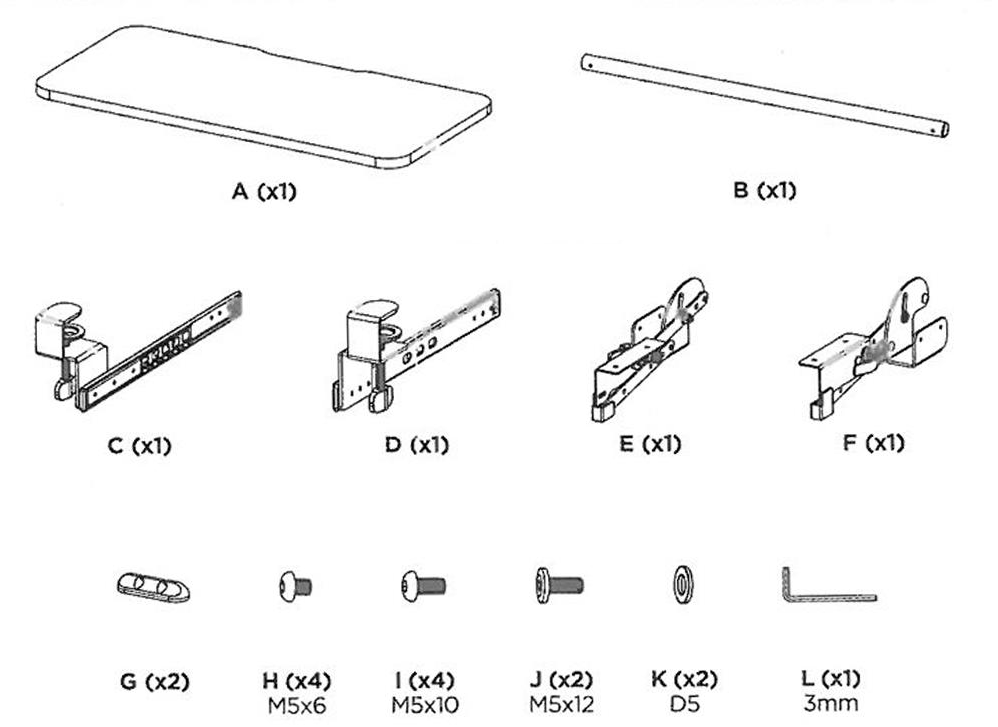
- A — keyboard platform (× 1)
- B — crossbar (× 1)
- C — clamp with rail (× 1)
- D — clamp with rail (× 1)
- E — bracket (× 1)
- F — bracket (× 1)
- G — cable clip (× 2)
- H — M5 × 6 screw (× 4)
- I — M5 × 10 screw (× 4)
- J — M5 × 12 screw (× 2)
- K — D5 washer (× 2)
- L — 3 mm hex key (× 1)
The kit also includes the printed user manual.
Before you start
All the screws are tightened with the 3 mm hex key (L) supplied in the kit.
- Check that the desktop is no thicker than 35 mm where the clamps will sit
- Clear the edge of the desk of cables and anything the clamps could catch on
- Lay the platform upside down on a soft surface for steps 1 and 2, so the white finish does not get scratched
caution
Check that you have received all the parts listed above before you start. If anything is missing or damaged, contact us before assembling the tray.
Assembly
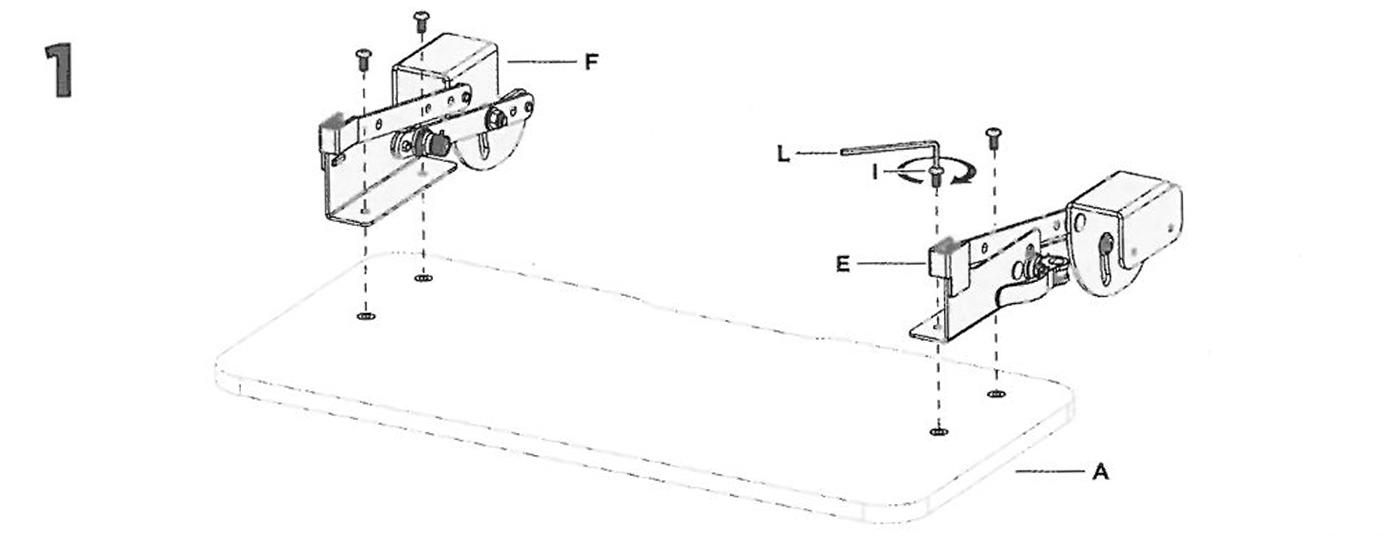
Step 1 — Fit the brackets to the platform
- Place the brackets (E and F) on the underside of the platform (A), one at each end, over the pre-drilled holes.
- Fix each bracket with two M5 × 10 screws (I) using the hex key (L).
Step 2 — Fit the crossbar
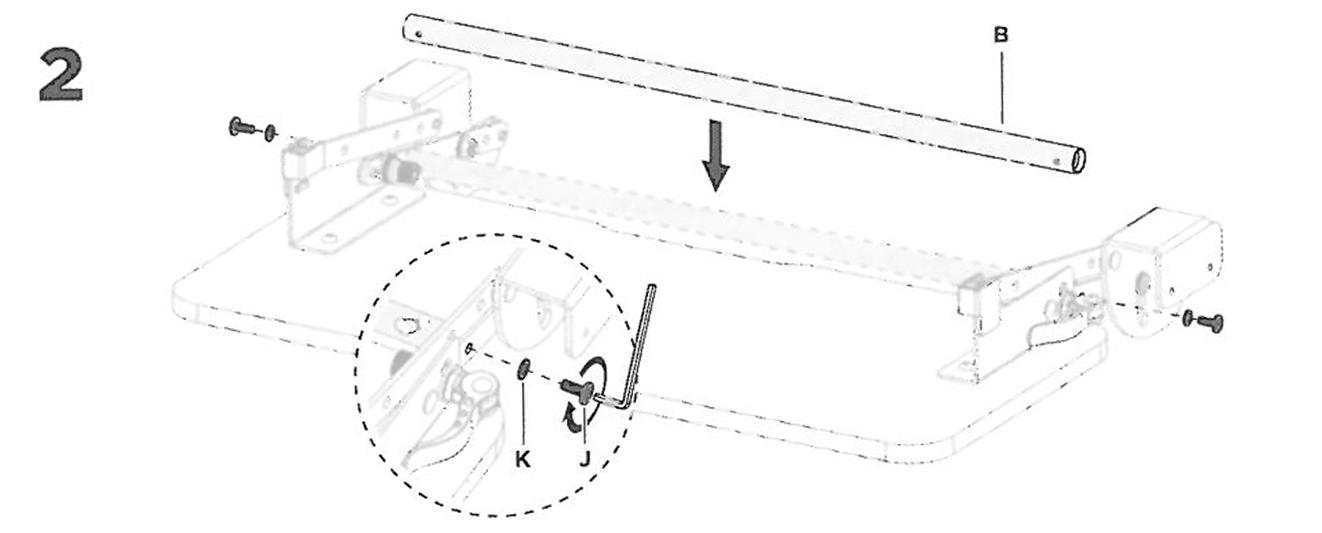
- Put the crossbar (B) between the two brackets.
- Fix each end of the crossbar with an M5 × 12 screw (J) and a D5 washer (K), tightening them with the hex key (L).
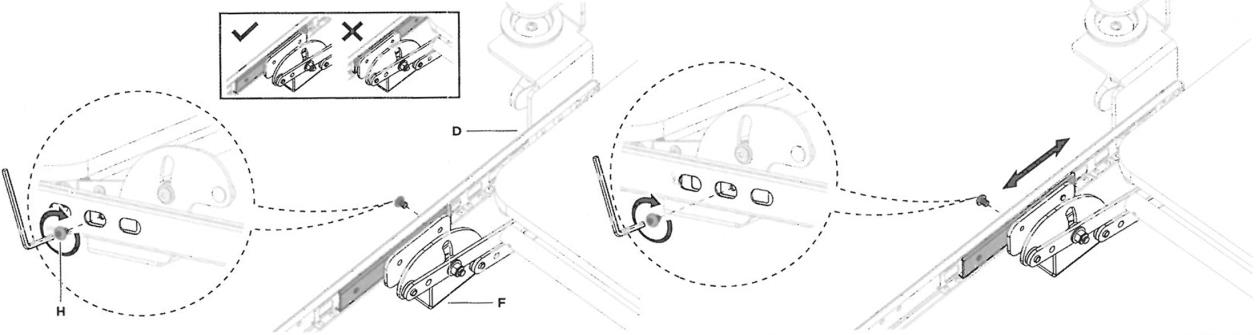
Step 3 — Attach the clamp rails to the brackets
- Slide the inner part of the rail on the clamp (D) in the direction of the arrow until the mounting holes appear.
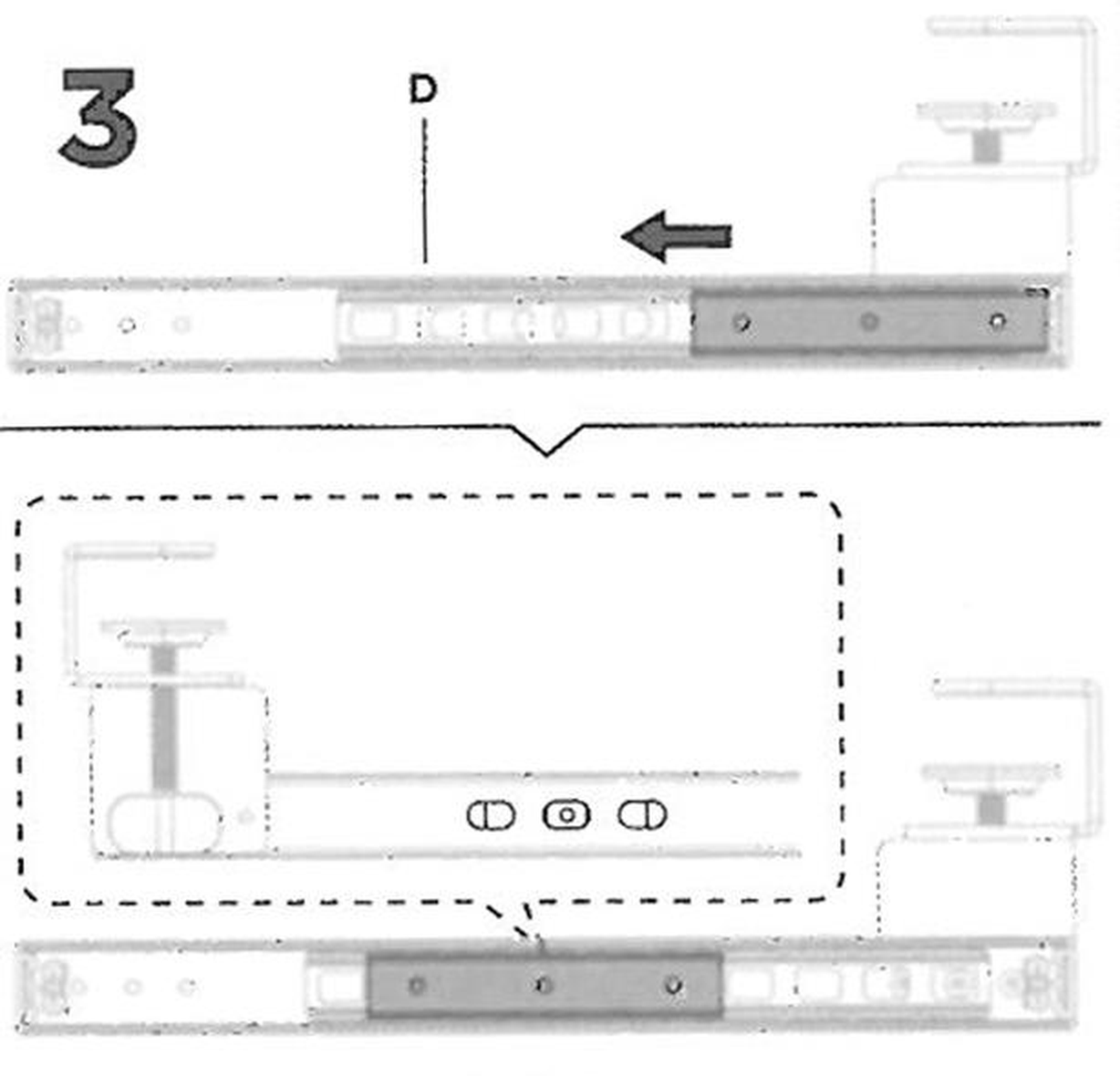
- Screw the rail to the bracket with two M5 × 6 screws (H) using the hex key (L). Check that the bracket sits on the rail the way the inset in the drawing shows (correct ✓, incorrect ✗).
- The holes in the rail are slotted: before fully tightening the screws you can move the platform forwards or backwards along the rail, then tighten the screws.
- Attach the second clamp (C) to the other bracket in the same way.
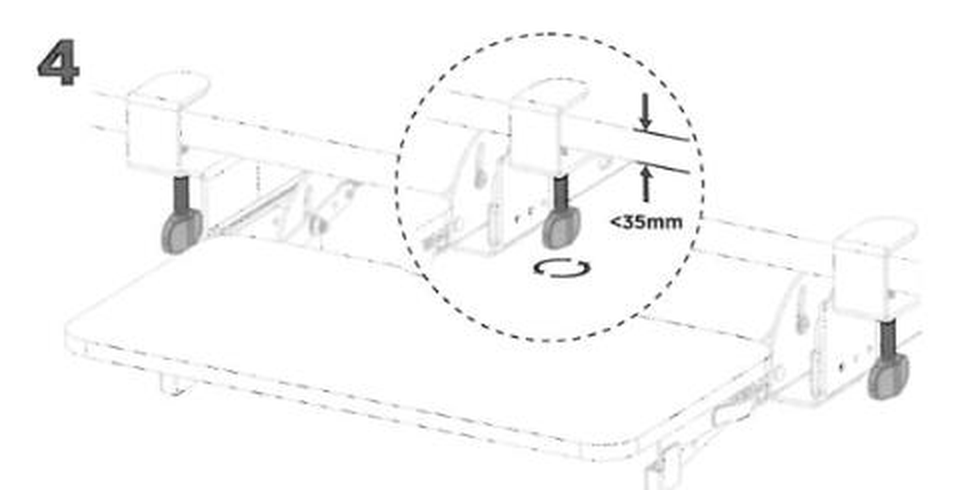
Step 4 — Clamp the tray to the desk
- Hold the tray under the edge of the desk and slide the jaws of both clamps over the desktop.
- Turn the knob of each clamp until the jaw presses firmly against the underside of the desktop. The desktop may be up to 35 mm thick.
- Check that the tray sits level and does not move when you press on it.
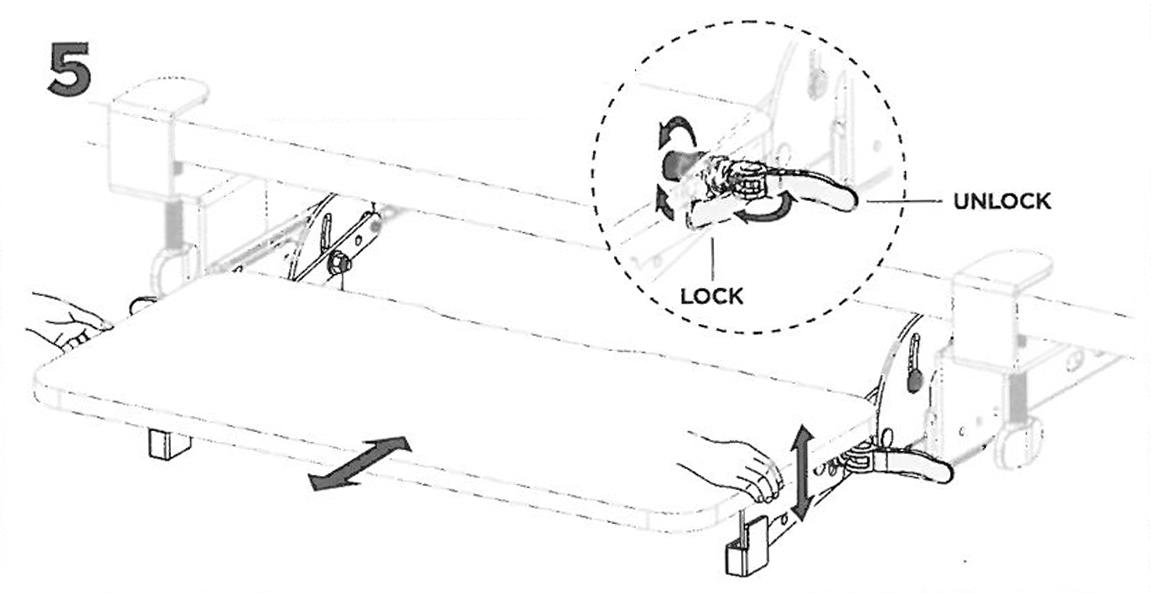
Step 5 — Set the height and lock the platform
- Move the locking lever to UNLOCK.
- Set the platform to the height you want — the adjustment is stepless.
- Move the lever to LOCK. The platform now stays at the chosen height while you type.
- Pull the platform towards you to use the keyboard, and push it back under the desk when you need the whole desktop.
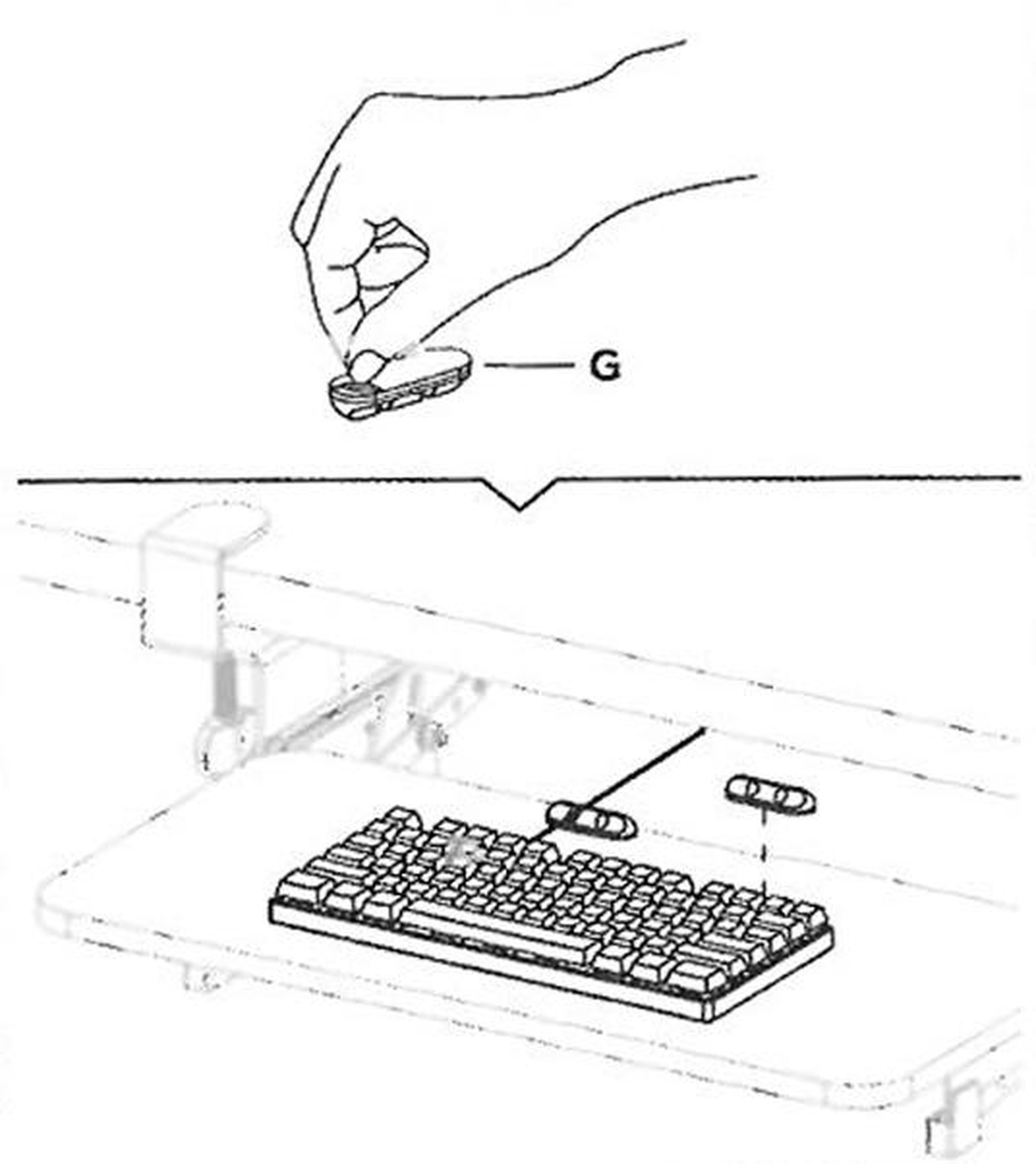
Step 6 — Fit the cable clips
- Place a cable clip (G) on the platform behind the keyboard.
- Fit the second clip the same way and run the keyboard cable through both clips.
Using the tray
- The 67 × 24 cm platform takes a keyboard and a mouse side by side
- To change the height, move the lever to UNLOCK, set the platform and move the lever back to LOCK
- The rated capacity is 5 kg — enough for a keyboard, a mouse and small accessories
- The tray needs no maintenance beyond wiping it clean and checking the clamps and screws from time to time
Safety notes
- Do not exceed the rated load of 5 kg.
- Do not lean on the tray, rest your forearms on it with your full weight, or use it as a step.
- Make sure both clamps are tight and the lever is set to LOCK before you load the platform. Check the clamps and screws again every few months.
- Do not mount the tray on a desktop thicker than 35 mm at the clamping point — the jaws will not hold.
- Keep the small parts away from children; they are a choking hazard if swallowed.
- Do not modify the tray or replace the supplied screws with longer ones.
Frequently asked questions
What desk thickness do the clamps support?
The tray hangs on two clamps that grip the edge of the desktop. The desktop may be up to 35 mm thick at the place where the clamps sit — check the thickness of yours before ordering.
Do I need to drill into my desk?
No. The SolidHand-KT09W clamps on and needs no drilling into the desktop. All the screws in the kit are tightened with the 3 mm hex key supplied in the box.
Can I place a mouse on the tray as well as a keyboard?
Yes. The 67 × 24 cm surface is designed to hold both a full-size keyboard and a mouse side by side. The 5 kg load capacity is more than sufficient for any standard keyboard and mouse combination.
Does the tray stay in position while typing?
Yes. The SolidHand-KT09W has a locking lever that secures the platform at your chosen height. Set the lever to LOCK and the platform stays stable while you type.
How do I change the height of the platform?
Move the locking lever to UNLOCK, set the platform to the height you want and move the lever back to LOCK. The adjustment is stepless.
What are the cable clips for?
The two clips (G) sit on the platform behind the keyboard and hold the keyboard cable, so it does not hang loose or catch when you slide the tray in and out.
Downloads
The manufacturer's manuals and datasheets in PDF, in case an offline copy is needed. Everything in them is on this page as well.