Bluetooth keyboard with numpad, membrane, QWERTY, classic full-size for laptop, HDWR typerCLAW-BC100
GTIN: 5907614661441 · SKU: typerCLAW-BC100
Table of contents
Introduction
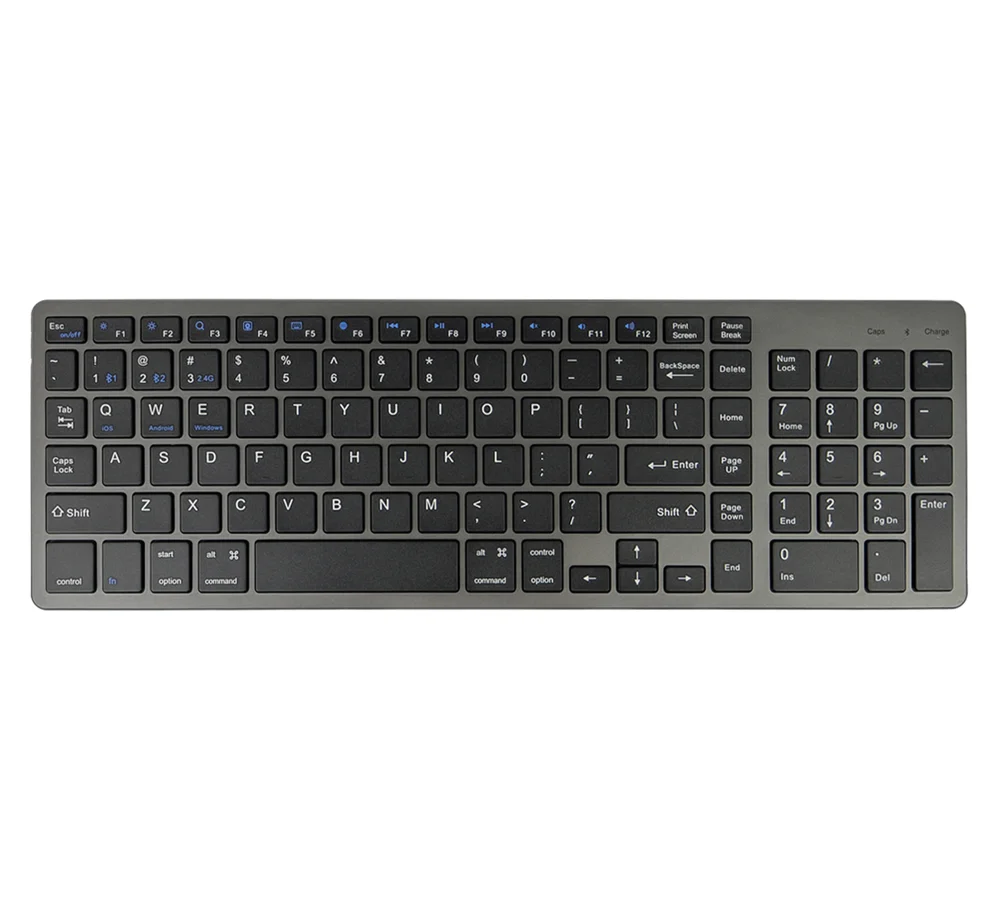
The typerCLAW-BC100 is a full-size wireless keyboard with a numeric keypad. Its built-in Bluetooth module lets you work without cables at a distance of up to 10 metres and connect to a laptop, phone, tablet or computer without installing any drivers. It works with Windows, Android and iOS. The membrane keys are quiet and precise. The built-in 180 mAh battery lasts more than 72 hours of work and charges in up to 2 hours over micro USB; after 10 minutes of inactivity the keyboard goes to sleep to save energy.
Specifications
- Colour: grey
- Material: ABS
- Keyboard type: membrane
- Number of keys: 102
- Keyboard layout: QWERTY
- Additional functions: numeric keypad
- Supported languages: Polish, English, French, Russian, etc.
- Supported operating systems: Windows, Android, iOS
- Wireless communication: Bluetooth V3.0
- Wireless range: up to 10 m
- Working time: more than 72 hours
- Standby time: about 4 months
- Charging time: up to 2 hours
- Key life: up to 5 million clicks
- Power supply: 180 mAh lithium battery
- Interface: micro USB
- Device dimensions: 36.8 × 12.2 × 1.3 cm
- Package dimensions: 39.5 × 13.5 × 2.5 cm
- Device weight: 400 g
- Weight with packaging: 500 g
Set contents
- Wireless keyboard
- USB charging cable
- User manual
Buttons and LED signals
Buttons
- On/Off slider switch — switches the keyboard on or off.
- Connect button (Bluetooth) — when the keyboard is on, press Connect to put it in pairing mode so it can connect to the target device (e.g. computer, smartphone, tablet, game console).
LED signals
| Signal | Meaning |
|---|---|
| Blue LED blinks after pressing Connect | The keyboard is waiting for a Bluetooth connection. The LED goes off when the connection is established. |
| Blue LED blinks quickly | The battery is low and needs to be charged. |
| Blue LED lights up for 4 seconds | The keyboard has been switched on. |
Compatible devices
- iPad, iPhone — all versions
- PCs and laptops with Bluetooth running Windows XP / Vista / 7 / 8 / 8.1 / 10
- iMac / MacBook with Bluetooth and Mac OS X 10.2.8 or later (the keyboard may not be compatible with the Mac mini)
- Smartphones and tablets with Android 3.0 or later (with Bluetooth HID)
Bluetooth pairing
The keyboard appears on the target device as Bluetooth Keyboard.
Pairing with an iPad or iPhone
- Switch the keyboard on with the On/Off slider. The blue LED lights up for 4 seconds and then goes off.
- Press Connect — the LED starts blinking blue.
- On the iPad / iPhone select Settings → General → Bluetooth → On.
- The iPad / iPhone shows Bluetooth Keyboard in the list of available devices.
- Select Bluetooth Keyboard — the keyboard pairs with the iPad / iPhone.
Pairing with tablets, smartphones, laptops and computers
- Switch the keyboard on with the On/Off slider. The blue LED lights up for 4 seconds and then goes off.
- Press Connect — the LED starts blinking blue.
- On the tablet, laptop, smartphone or other Bluetooth device open the Bluetooth settings and switch Bluetooth on.
- Select Bluetooth Keyboard in the list of found devices to connect the keyboard.
Only one device can be paired with the keyboard at a time. After the first pairing, the device connects to the keyboard automatically when the keyboard is switched on. If the connection fails, remove the keyboard from the paired devices on the target device and pair it again.
Battery and power saving
- Low battery alarm — when the battery is low, the LED in the upper right corner blinks to show that the keyboard needs to be charged. Charge it with the supplied USB cable (micro USB).
- Power saving mode — after 10 minutes of inactivity the keyboard goes to sleep. To wake it up, press any key and wait 3 seconds.
Function keys
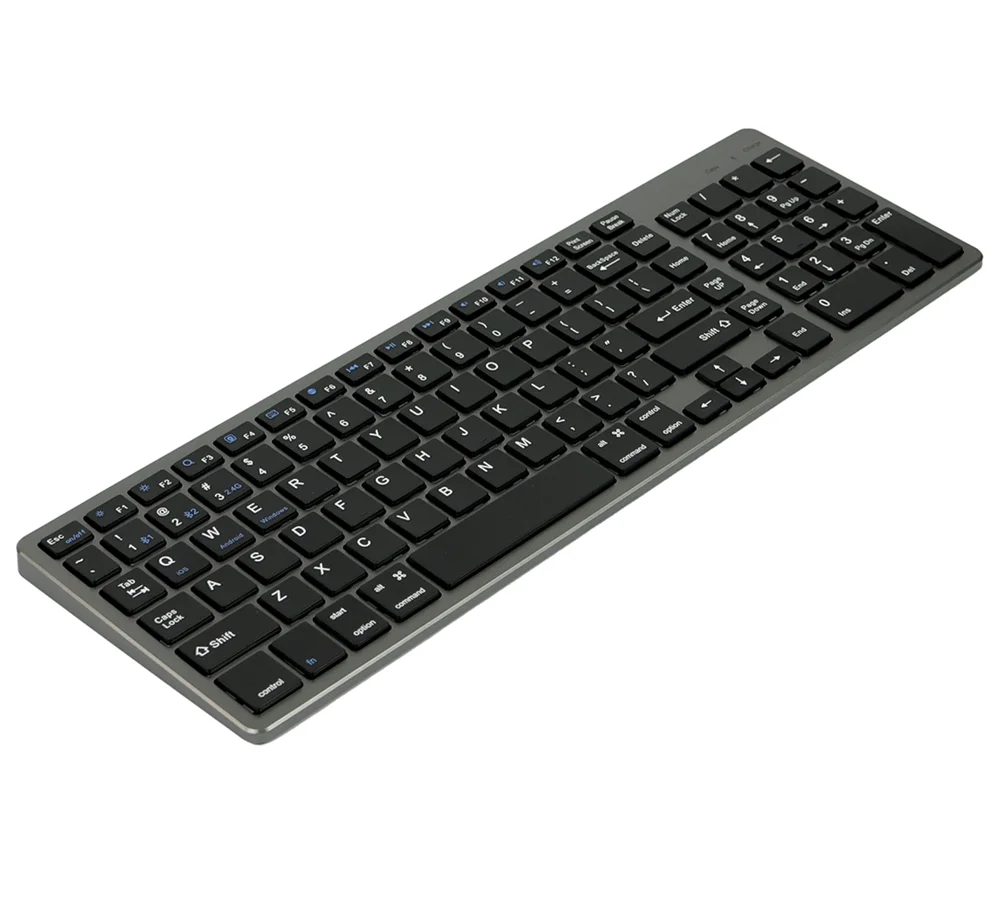
After connecting the keyboard, select the operating system by pressing Fn + Q (iOS), Fn + W (Android) or Fn + E (Windows). Otherwise the function keys work only partially.
| Key | Fn + key on iOS | Fn + key on Android | Fn + key on Windows | Without Fn (Windows) |
|---|---|---|---|---|
| Esc | Home screen | Home screen | Home screen | Esc |
| F1 | Brightness down | Back | Back | F1 |
| F2 | Brightness up | F2 | ||
| F3 | Virtual keyboard | Menu | Right click | F3 |
| F4 | Screenshot | Music player | Music player | F4 |
| F5 | Screen lock | Screen lock | Screen lock | F5 |
| F6 | Search | Search | Search | F6 |
| F7 | Change language | Change language | Change language | F7 |
| F8 | Previous track | Previous track | Previous track | F8 |
| F9 | Play / Pause | Play / Pause | Play / Pause | F9 |
| F10 | Next track | Next track | Next track | F10 |
| F11 | Mute | Mute | Mute | F11 |
| F12 | Volume down | Volume down | Volume down | F12 |
| Del | Volume up | Volume up | Volume up | Del |
The function key features may vary depending on the operating system version and the device. On iOS below version 9.2 the change-language function does not work — press Command + Space to change the language instead.
Tips and safety
- Read this manual carefully and keep it for reference.
- Use the keyboard only as described in this manual. The manufacturer is not responsible for damage resulting from improper use.
- Repairs must be carried out by a qualified technician. Never try to repair the keyboard yourself.
- Do not place heavy objects on the keyboard.
- Keep the keyboard away from water, oil, chemicals and organic liquids.
- Clean the keyboard by wiping it lightly with a damp cloth.
This device complies with the limits for a Class B digital device under Part 15 of the FCC Rules, which provide protection against harmful interference in residential installations. If the keyboard causes interference with radio or television reception, reorient or relocate the receiving antenna, increase the distance between the equipment and the receiver, connect the equipment to an outlet on a different circuit than the receiver, or consult the dealer or an experienced radio/TV technician.
Apple is a trademark of Apple Inc., Android is a trademark of Google LLC and Windows is a trademark of Microsoft Corporation. Brand and product names are used for illustration only and belong to their respective owners.
Frequently asked questions
Which devices can I use the typerCLAW-BC100 with?
How long does the battery last?
Can I connect the keyboard to several devices at once?
Downloads
Original PDF manuals kept available as a legacy reference. Everything from them is already covered on this page — use the PDFs only if you need an offline copy.