Russian / Ukrainian Cyrillic Bluetooth keyboard with numeric keypad, QWERTY layout, USB-C, HDWR typerCLAW-BC140GR
GTIN: 5907614668662 · SKU: typerCLAW-BC140GR
Table of contents
Introduction
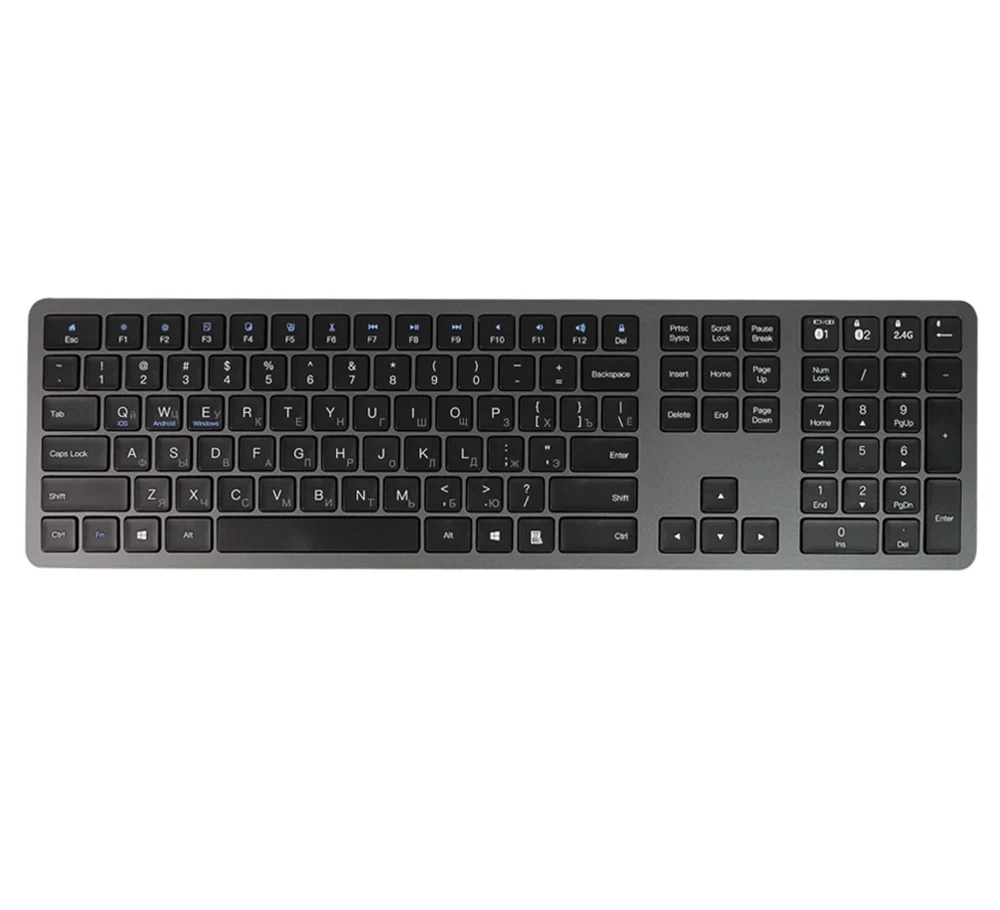
The typerCLAW-BC140GR is a full-size wireless keyboard with Cyrillic and Latin key labels, a numeric keypad and function keys. Its 111 low-profile scissor keys are quiet and comfortable. The keyboard connects over Bluetooth at up to 10 metres to computers, laptops, tablets and smartphones with Windows, Android or iOS. The built-in 180 mAh battery provides up to 80 hours of work and charges in up to 2 hours over USB Type-C.
Specifications
- Housing colour: dark grey
- Material: ABS
- Keyboard type: scissor
- Number of keys: 111
- Keyboard layout: QWERTY
- Additional functions: numeric keypad, function keys
- Supported languages: Polish, English, Russian, etc.
- Supported operating systems: Windows, Android, iOS
- Wireless communication: Bluetooth V3.0
- Wireless range: up to 10 m
- Working time: up to 80 hours
- Standby time: up to 2 months
- Charging time: up to 2 hours
- Power supply: 180 mAh lithium battery
- Interface: USB Type-C
- Device dimensions: 438 × 124 × 20 mm
- Package dimensions: 45 × 14.5 × 2.5 cm
- Device weight: 550 g
- Weight with packaging: 700 g
Set contents
- Wireless keyboard
- USB charging cable
- User manual
Bluetooth pairing
The keyboard appears on the target device as Bluetooth Keyboard.
Pairing with tablets, smartphones, laptops and computers
- Switch the keyboard on with the power slider. The blue LED lights up for 4 seconds and then goes off.
- Press Connect — the LED starts blinking blue.
- On the tablet, laptop, smartphone or other Bluetooth device open the Bluetooth settings and switch Bluetooth on.
- Select Bluetooth Keyboard in the list of found devices to connect the keyboard.
Pairing with an iPad or iPhone
- Switch the keyboard on with the power slider. The blue LED lights up for 4 seconds and then goes off.
- Press Connect — the LED starts blinking blue.
- On the iPad / iPhone select Settings → General → Bluetooth → On.
- The iPad / iPhone shows Bluetooth Keyboard in the list of available devices.
- Select Bluetooth Keyboard — the keyboard pairs with the iPad / iPhone.
Only one device can be paired with the keyboard at a time. After the first pairing, the device connects to the keyboard automatically when the keyboard is switched on. If the connection fails, remove the keyboard from the paired devices on the target device and pair it again.
Function keys
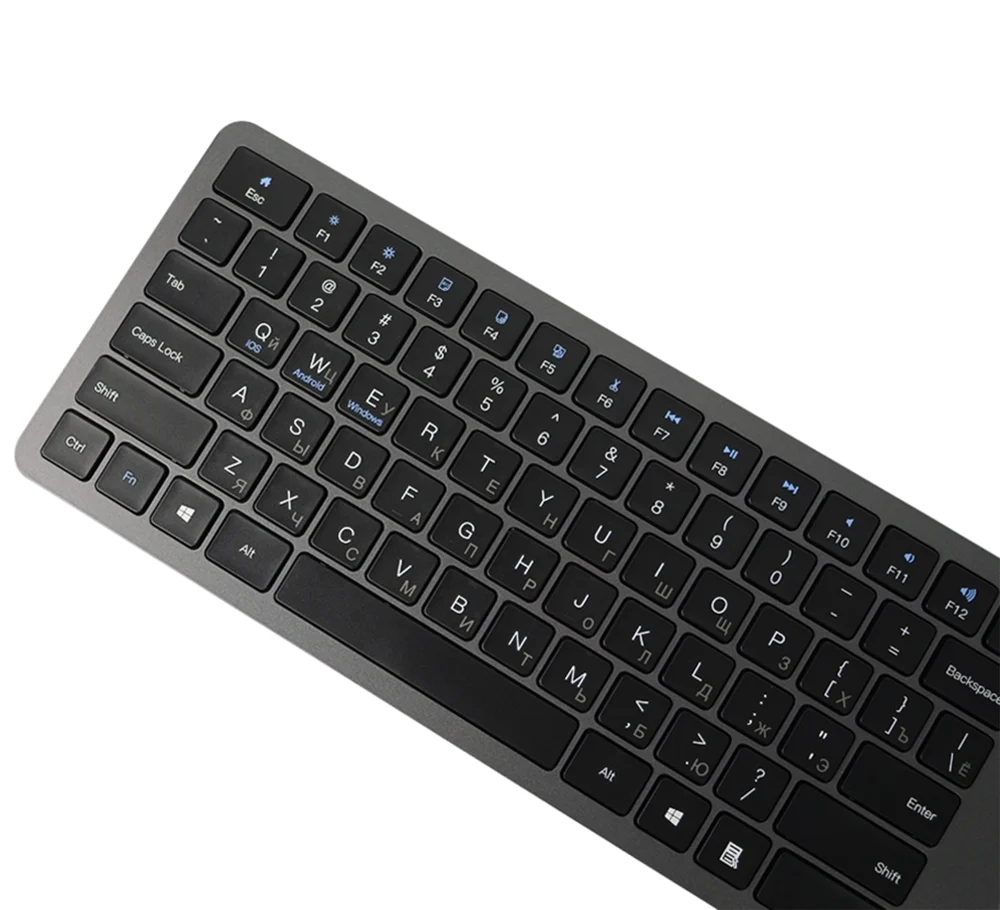
| Key | Fn + key on iOS | Fn + key on Android | Fn + key on Windows | Without Fn (Windows) |
|---|---|---|---|---|
| Esc | Home screen | Home screen | Home screen | Esc |
| F1 | Brightness down | Back | Back | F1 |
| F2 | Brightness up | F2 | ||
| F3 | Virtual keyboard | Menu | Right click | F3 |
| F4 | Screenshot | Music player | Music player | F4 |
| F5 | Screen lock | Screen lock | Screen lock | F5 |
| F6 | Search | Search | Search | F6 |
| F7 | Change language | Change language | Change language | F7 |
| F8 | Previous track | Previous track | Previous track | F8 |
| F9 | Play / Pause | Play / Pause | Play / Pause | F9 |
| F10 | Next track | Next track | Next track | F10 |
| F11 | Mute | Mute | Mute | F11 |
| F12 | Volume down | Volume down | Volume down | F12 |
| Del | Volume up | Volume up | Volume up | Del |
The function key features may vary depending on the operating system version and the device.
Using the keyboard
- Keep the keyboard away from damp places and places with high humidity (swimming pools, saunas, etc.). Do not expose it to water or rain.
- Do not expose the keyboard to very high or very low ambient temperatures.
- Do not leave the keyboard in direct sunlight for long periods.
- Do not place the keyboard near open flames (e.g. gas stoves, candles, fireplaces).
- Keep away objects with sharp edges that could damage the keyboard housing.
Troubleshooting
If the keyboard behaves unexpectedly:
- check that you have not accidentally activated one of the keyboard functions,
- make sure the keyboard is charged and switched on,
- pair the target device with the keyboard again,
- try pairing the keyboard with another device.
If these steps do not help, contact HDWR customer service.
Frequently asked questions
Does the typerCLAW-BC140GR require a USB receiver to connect?
Which operating systems are compatible with this keyboard?
How long does it take to fully charge the keyboard?
Downloads
Original PDF manuals kept available as a legacy reference. Everything from them is already covered on this page — use the PDFs only if you need an offline copy.