Bluetooth numeric keypad for laptop and tablet with up to 10 m range, membrane, HDWR typerCLAW-BN100
GTIN: 5907614661540 · SKU: typerCLAW-BN100
Table of contents
Introduction
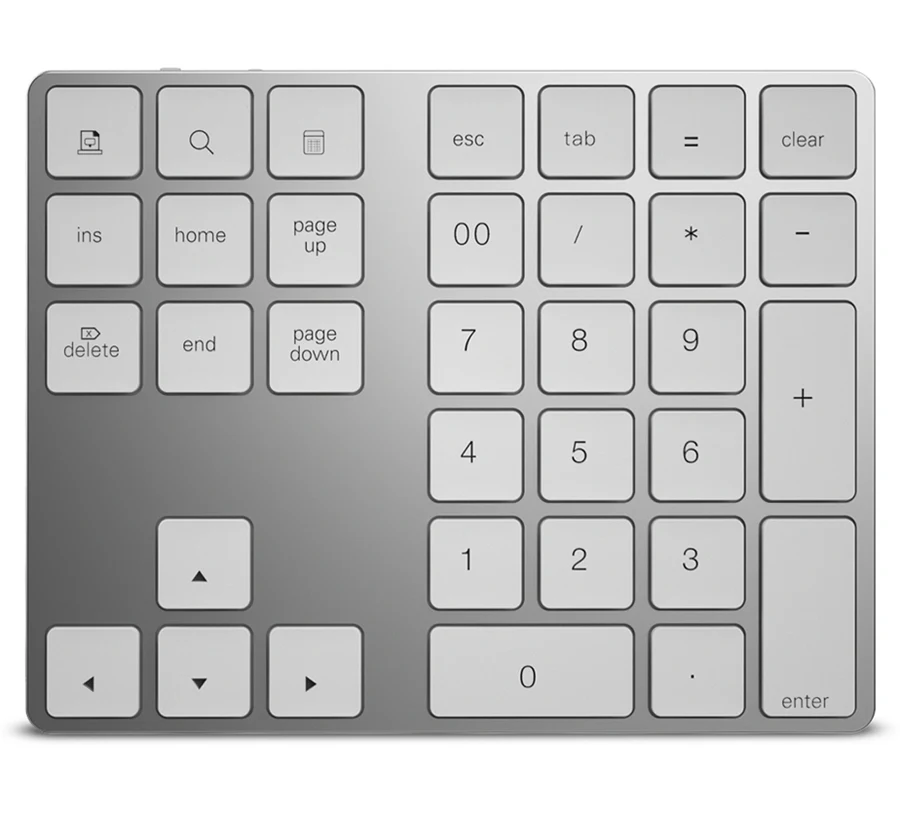
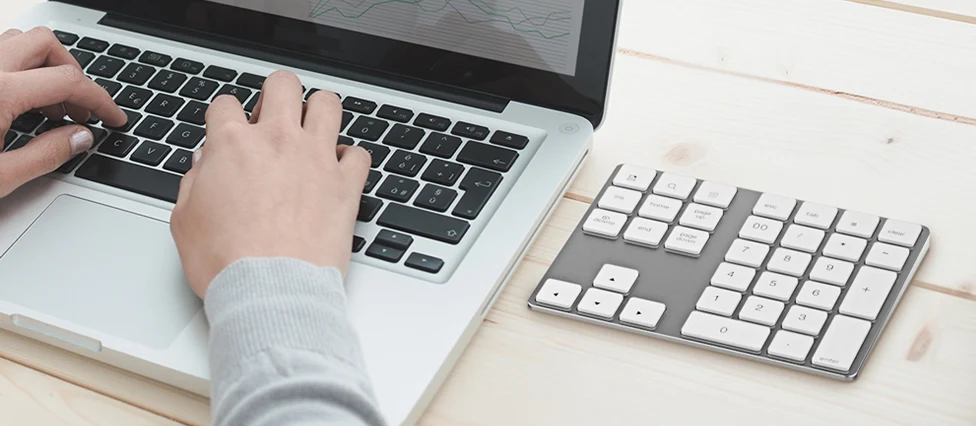
The typerCLAW-BN100 is a wireless Bluetooth numeric keypad that adds a full number block and function keys to a laptop, tablet or compact keyboard. It connects over Bluetooth at up to 10 metres and works with Windows, Android, iOS and Mac. The aluminium and ABS housing is slim and light, and the built-in 110 mAh battery provides up to 50 hours of work and charges in up to 2 hours over micro USB.
Specifications
- Housing colour: silver
- Key colour: white
- Material: aluminium, ABS
- Keyboard type: membrane
- Number of keys: 34
- Additional functions: numeric keypad, function keys
- Supported languages: Polish, English, French, Russian, etc.
- Supported operating systems: Windows, Android, iOS, Mac
- Wireless communication: Bluetooth V3.0
- Wireless range: up to 10 m
- Working time: up to 50 hours
- Standby time: up to 60 days
- Charging time: up to 2 hours
- Key life: up to 3.5 million clicks
- Power supply: 110 mAh lithium battery
- Working voltage: 3.0–4.2 V
- Operating current: 3 mA
- Standby current: 0.5 mA
- Sleep current: 10 µA
- Sleep time: after 20 minutes
- Interface: micro USB
- Device dimensions: 14.6 × 11.4 × 1.1 cm
- Package dimensions: 15.5 × 12.5 × 3 cm
- Device weight: 140 g
- Weight with packaging: 240 g
Set contents
- Wireless keypad
- USB cable
- User manual
Keypad overview
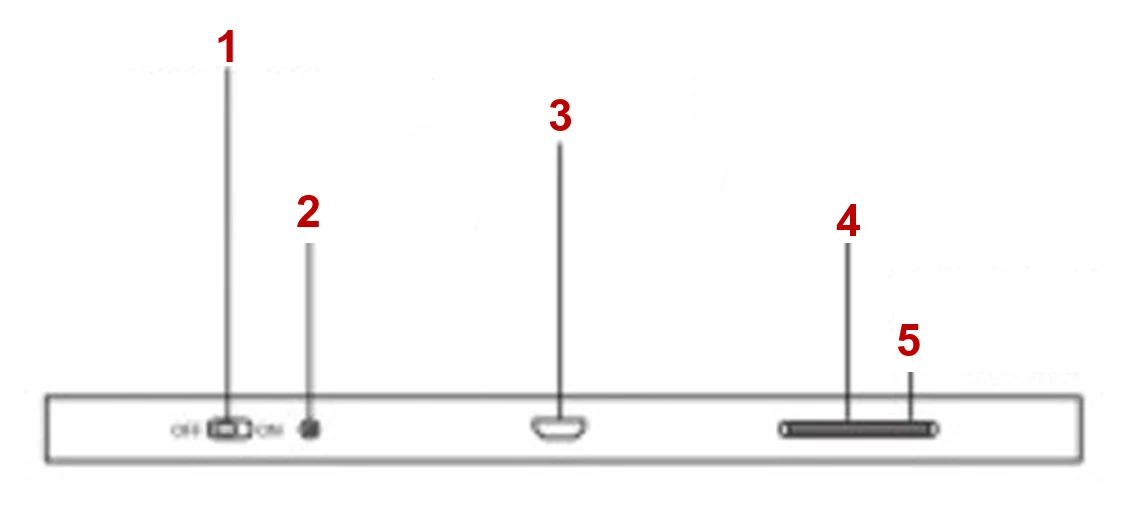
- Power switch (OFF / ON)
- Pairing button
- Micro USB port
- Red LED (charging)
- Blue LED (power, pairing, low battery)
Function keys
| Key | Function |
|---|---|
 | Screenshot |
 | Search |
 | Opens the calculator app (Windows only) |
 | Works as the Esc key of the main keyboard. In the calculator it clears the input field. |
 | Works as the Tab key of the main keyboard. In the calculator it moves between buttons. |
-
The keypad can be connected to only one device at a time.
-
The keypad pairs automatically with a device it has already been connected to.
-
To make sure the keypad pairs correctly, remove previously paired keypads from the device.
-
The following keys do not work on iOS:

-
If the number keys do not work after pairing, press and hold this key for 3 seconds:
Bluetooth pairing
The keypad appears on the target device as Bluetooth Keypad.
Pairing with a Mac
- Slide the power switch to the ON position (green background), then press the pairing button. The blue LED starts blinking.
- Switch on the iMac / MacBook, click the settings icon and open System Preferences.
- Click the Bluetooth icon to start searching for Bluetooth devices.
- In the list of available devices find Bluetooth Keypad and select it to pair.
- Once paired, the keypad is ready to use.
Pairing with Windows
- Slide the power switch to the ON position (green background), then press the pairing button. The blue LED starts blinking.
- Switch on the Windows computer, click the Windows logo and then the Settings icon.
- In the settings select Devices and then Bluetooth.
- Turn Bluetooth on and click + to add a new device and start searching.
- In the list of available devices click Bluetooth Keypad to connect.
- Once paired, the keypad is ready to use.
If the blue LED keeps blinking after pairing, charge the keypad until the red LED goes off.
LED indicators
| State | LED |
|---|---|
| On / off | Slide the power switch to ON — the blue LED lights up for 3 seconds and goes off. |
| Pairing mode | Slide the power switch to ON and press the pairing button — the blue LED blinks. |
| Sleep | When the keypad is on and not used for more than 20 minutes, it goes to sleep to save power. Press any key to wake it up. |
| Low battery | When the keypad is on, the blue LED blinks to show that the battery is low. |
| Charging | The red LED lights up when the micro USB charging cable is connected and goes off when the keypad is fully charged. |
Quick help
| Problem | Solution |
|---|---|
| The tablet or computer cannot connect to the keypad. | Make sure the keypad is charged — a low battery can prevent pairing. |
| The blue LED blinks while using the keypad. | The battery is low — connect the keypad to power. |
| The connected keypad does not work. | After 20 minutes of inactivity the keypad goes to sleep to save power. Press any key to wake it up and wait 3 seconds. |
Frequently asked questions
What devices is the typerCLAW BN100 compatible with?
Does the BN100 work with small laptops that lack a numeric keypad?
How do I charge the BN100 and how long does a charge last?
Downloads
Original PDF manuals kept available as a legacy reference. Everything from them is already covered on this page — use the PDFs only if you need an offline copy.