Double-folding keyboard with touchpad and Bluetooth for laptop and tablet, QWERTY layout, HDWR typerCLAW-BS120
GTIN: 5907614661502 · SKU: typerCLAW-BS120
Table of contents
Introduction
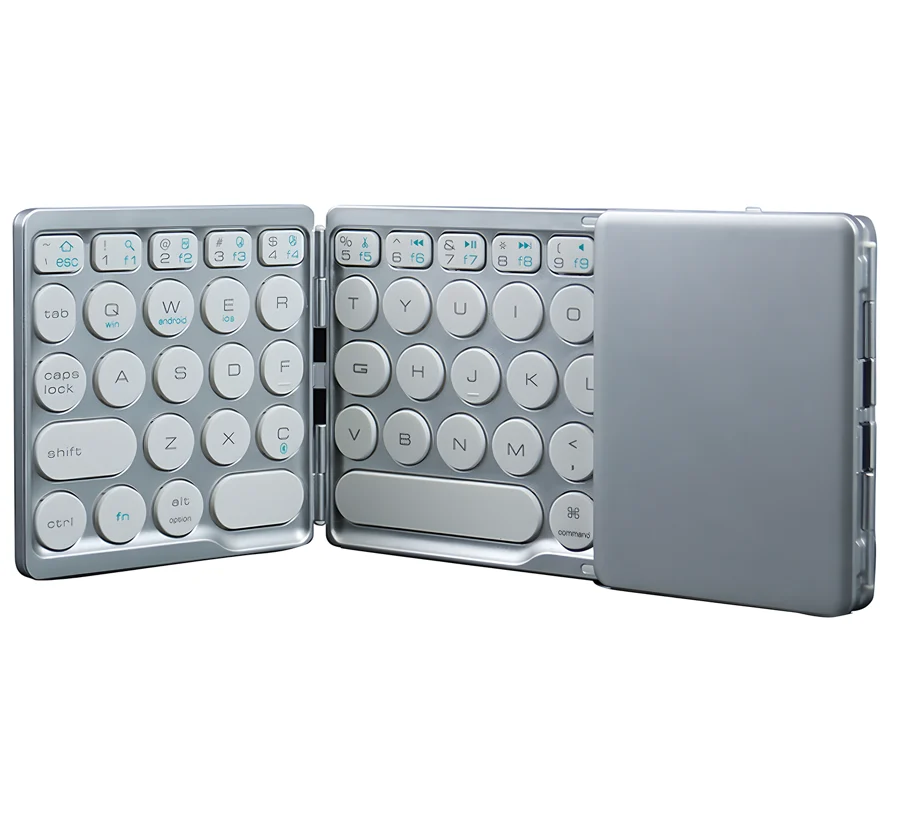
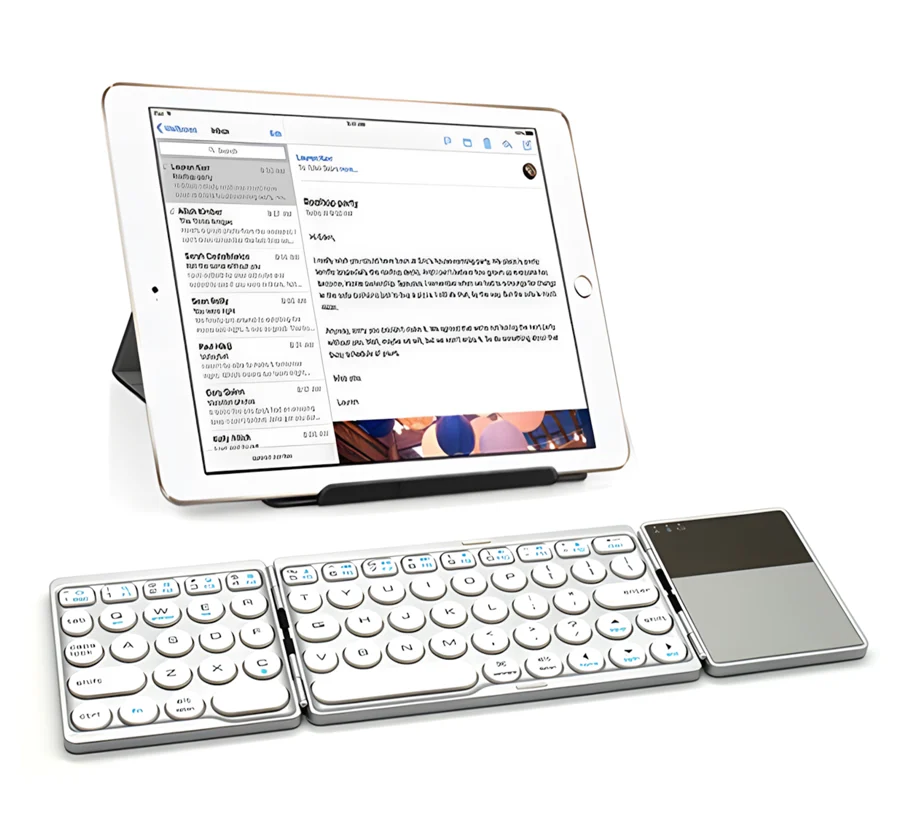
The typerCLAW-BS120 is a double-folding wireless keyboard with a built-in touchpad. Folded, it measures only 16.1 × 9.1 cm, so it fits easily into a bag or pocket; unfolded, it offers a QWERTY layout with function keys and a touchpad for controlling the cursor. It connects over Bluetooth at up to 10 metres and works with Windows, Android and iOS. The built-in 180 mAh battery provides up to 100 hours of work and charges in up to 2 hours over micro USB.
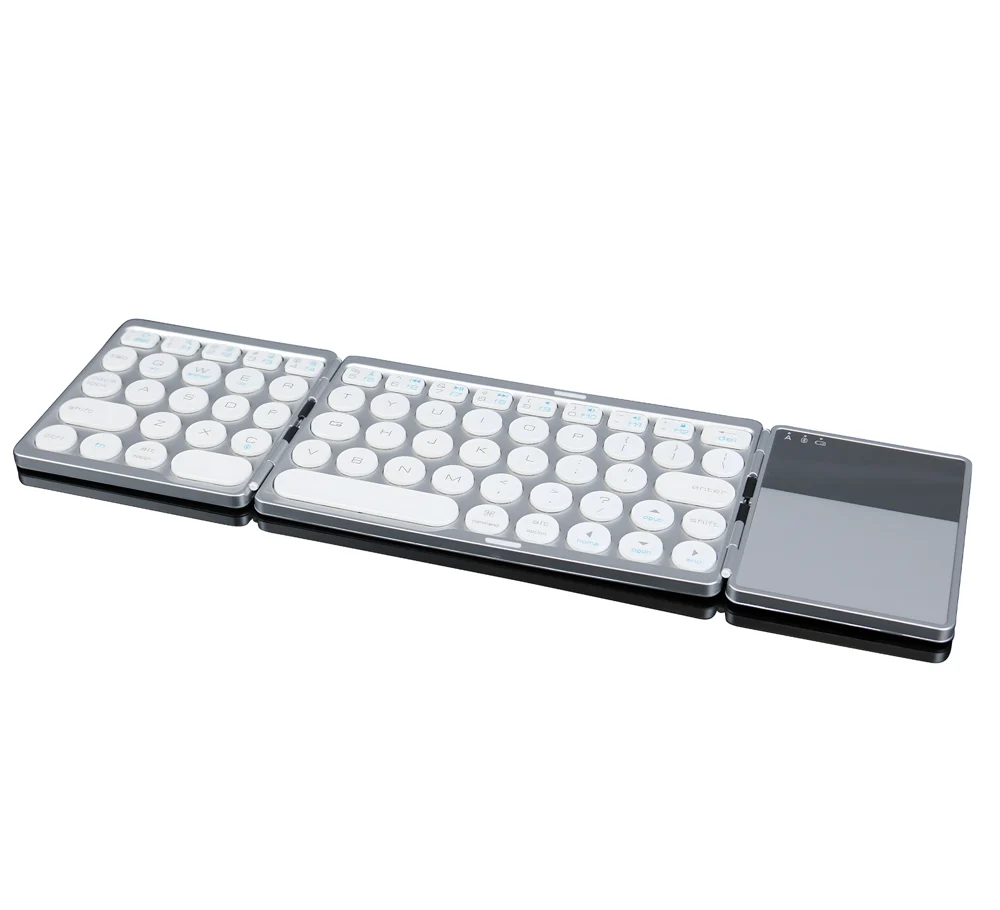
Specifications
- Colour: silver
- Material: ABS
- Keyboard type: membrane
- Number of keys: 64
- Keyboard layout: QWERTY
- Additional functions: touchpad, multi-pairing, function keys
- Supported languages: Polish, English, French, Russian, etc.
- Supported operating systems: Windows, Android, iOS
- Wireless communication: Bluetooth V3.0
- Wireless range: up to 10 m
- Working time: up to 100 hours
- Standby time: up to 30 days
- Charging time: up to 2 hours
- Key life: up to 5 million clicks
- Power supply: 180 mAh lithium battery
- Interface: micro USB
- Dimensions unfolded: 31.5 × 9.1 × 0.6 cm
- Dimensions folded: 16.1 × 9.1 × 1.2 cm
- Package dimensions: 19 × 10 × 3 cm
- Device weight: 160 g
- Weight with packaging: 250 g
Set contents
- Foldable keyboard
- USB charging cable
- User manual
Keyboard overview
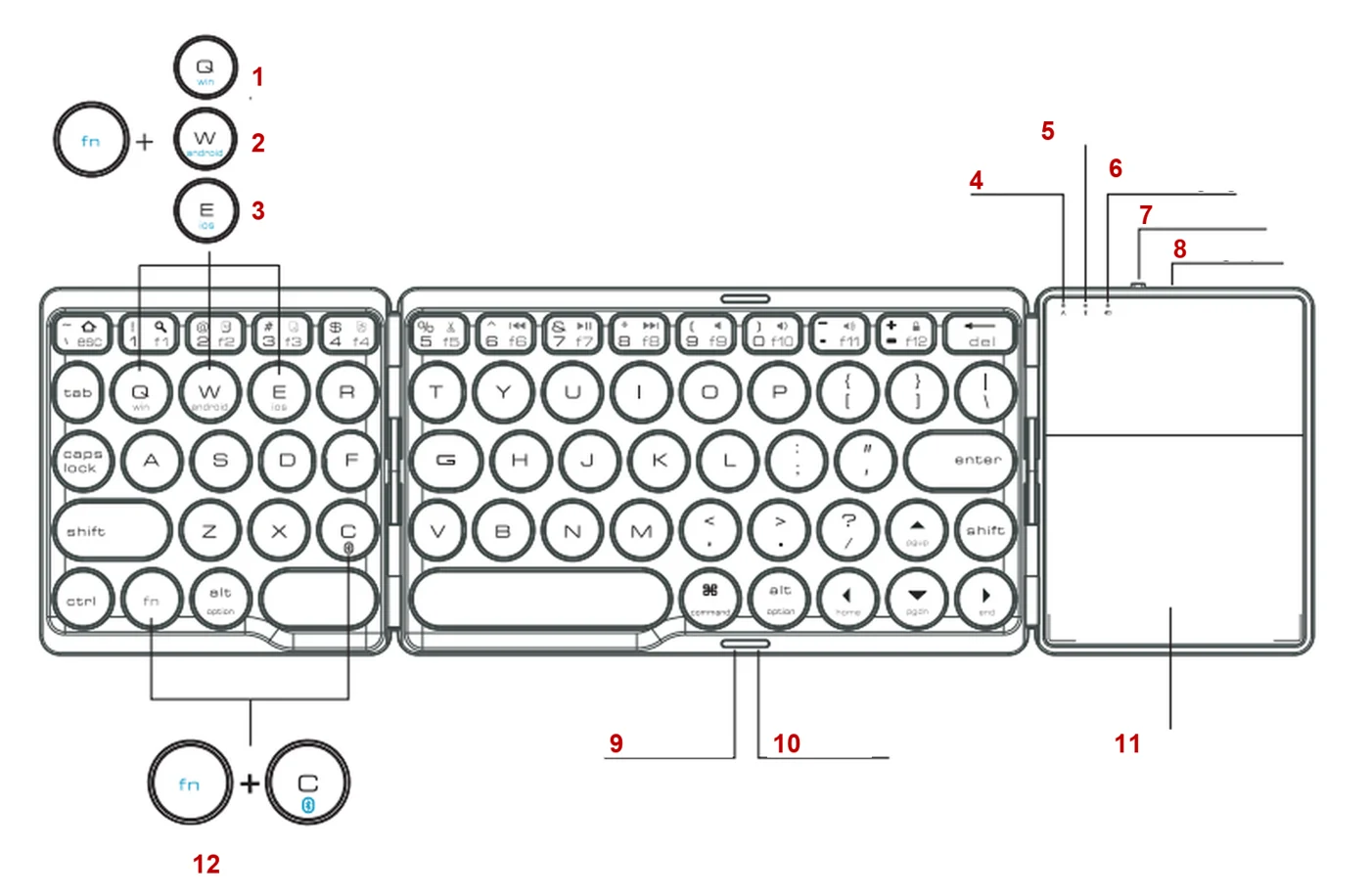
- Fn + Q — switch to Windows
- Fn + W — switch to Android
- Fn + E — switch to iOS
- Caps Lock LED
- Bluetooth LED
- Low battery and charging LED
- Power switch
- Charging port (micro USB)
- Rubber foot
- Magnet
- Touchpad
- Fn + C — pairing
Bluetooth pairing
- Slide the power switch to ON to switch the keyboard on. Then press Fn + C to start pairing mode.
- On the target device open the Bluetooth settings and start searching for devices. Select the device named Bluetooth keyboard to pair it.
- If the target device shows a code, type it on the keyboard and confirm with Enter. After a moment the keyboard is paired and ready to use.
After pairing, select the operating system of the connected device with Fn + Q (Windows), Fn + W (Android) or Fn + E (iOS) so that the function keys work correctly.
LED indicators
| State | LED |
|---|---|
| Connection | With the keyboard on, the blue LED blinks while it is being paired with a device. |
| Charging | When the keyboard is connected to power, the red LED stays on until the battery is fully charged. |
| Low battery | When the battery voltage drops below 3.2 V, the blue LED starts blinking. |
To extend battery life, switch the keyboard off with the power switch when you are not going to use it for a long time.
Function keys
iOS and Android
| Key | iOS (Fn + key) | Android (Fn + key) |
|---|---|---|
| Esc | Home | Desktop |
| 1 | Search | Search |
| 2 | Select all | Select all |
| 3 | Copy | Copy |
| 4 | Paste | Paste |
| 5 | Cut | Cut |
| 6 | Previous track | Previous track |
| 7 | Play / Pause | Play / Pause |
| 8 | Next track | Next track |
| 9 | Mute | Mute |
| 0 | Volume down | Volume down |
| − | Volume up | Volume up |
| = | Lock screen | Lock screen |
| Del (without Fn) | Delete | Delete |
Windows
| Key | Fn + Shift + key | Fn + key |
|---|---|---|
| Esc | Home page | Esc |
| 1 | Search | F1 |
| 2 | Select all | F2 |
| 3 | Copy | F3 |
| 4 | Paste | F4 |
| 5 | Cut | F5 |
| 6 | Previous track | F6 |
| 7 | Play / Pause | F7 |
| 8 | Next track | F8 |
| 9 | Mute | F9 |
| 0 | Volume down | F10 |
| − | Volume up | F11 |
| = | Lock screen | F12 |
| Del | Delete (Fn + Shift + Del) | Backspace (Del without Fn) |
Touchpad gestures
Windows 10 and later
| Fingers | Gesture | Function |
|---|---|---|
| 1 | Tap | Left click / double click |
| 1 | Move | Move the cursor |
| 1 | Tap and slide | Select and drag |
| 2 | Tap | Right click |
| 2 | Slide | Scroll / pan |
| 2 | Pinch | Zoom |
| 3 | Tap | Open Cortana |
| 3 | Slide | Multitasking gestures |
| 4 | Tap | Open the Action Center |
iOS 13 and later
| Fingers | Gesture | Function |
|---|---|---|
| 1 | Tap | Left click / double click |
| 1 | Move | Move the cursor |
| 1 | Tap and slide | Select and drag |
| 2 | Tap | AssistiveTouch |
| 2 | Slide | Scroll (like a mouse wheel) |
| 3 | Slide up | Return to the home screen |
Due to system limitations, on iOS the touchpad features may be available only in iOS 13 or later.
Using the keyboard
- Keep the keyboard away from damp places and places with high humidity. Do not expose it to rain or water.
- Do not expose the keyboard to very high or very low temperatures.
- Do not leave the keyboard in direct sunlight for long periods.
- Do not place the keyboard near open flames (e.g. gas stoves, candles, fireplaces).
- Avoid using sharp objects near the keyboard, as they may damage its housing.
Frequently asked questions
How do I pair the typerCLAW-BS120 with a tablet or laptop?
Does the touchpad work on iPad and iPhone?
How long does the battery last?
Downloads
Original PDF manuals kept available as a legacy reference. Everything from them is already covered on this page — use the PDFs only if you need an offline copy.