Barcode label printer, direct thermal and thermal transfer, 203 dpi, Wi-Fi, LAN, USB, RS-232, HDWR OPrint-DB200WN
GTIN: 5906935203149 · SKU: OPrint-DB200WN
Table of contents
Introduction
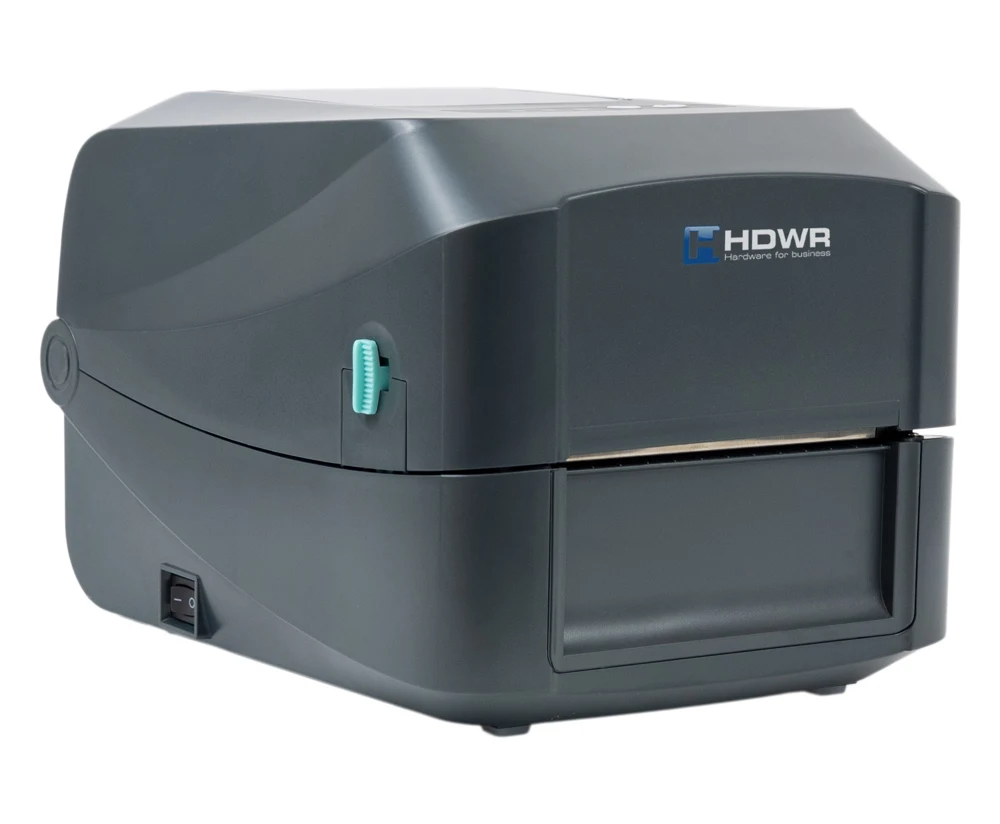
The OPrint-DB200WN is a desktop label printer that combines direct thermal and thermal transfer printing, so you can choose the media and print durability you need. It prints at 203 dpi and up to 152.4 mm/s on labels up to 108 mm wide and handles continuous paper, die-cut labels, black mark media, fan-fold and notched media. Built-in Wi-Fi and LAN modules let you print from several workstations over the network, while USB 2.0 and RS-232 ports provide direct connections and a USB host port accepts a scanner or keyboard. The printer accepts EPL, ZPL, ZPL II, DPL and TSPL commands, so it works with popular label design programs and logistics systems.
Specifications
- Material: ABS plastic
- Printing method: direct thermal and thermal transfer
- Resolution: 203 dpi
- Maximum print speed: 152.4 mm/s
- Maximum print width: 108 mm
- Maximum print length: 2,794 mm
- CPU: 400 MHz, 32-bit, ARM9
- RAM: 64 MB SDRAM
- Operating voltage: AC 100–240 V, 2.5 A, 50–60 Hz
- Interface: USB 2.0, USB Host 2.0, RS-232, LAN, Wi-Fi
- Buttons: power switch, PAUSE (stop) button, FEED button
- Command languages: EPL, ZPL, ZPL II, DPL, TSPL
- Media types: continuous paper, die-cut, black mark media, fan-fold, notched
- Media width: 15–112 mm (0.6"–4.4")
- Media thickness: 0.055–0.254 mm
- Core diameter: 25.4 mm (1")
- Label roll capacity: 127 mm (5")
- Label length: 5–2,794 mm
- Device dimensions: 28 × 20 × 18.2 cm
- Package dimensions: 39.5 × 26 × 24 cm
- Device weight: 3 kg
- Weight with packaging: 3.4 kg
- Operating temperature: 5°C – 40°C
- Storage temperature: −40°C – +60°C
- Operating humidity: 25% – 85%
- Storage humidity: 10% – 90%
- Printable 1D codes: Code 11, Code 39, Code 93, Code 128, UPC-A, UPC-E, UCC-128, Codabar, EAN/JAN-8, EAN/JAN-13, Interleaved 2 of 5, ITF14, MSI Plessey, PostCode, Telepen
- Printable 2D codes: QR Code, PDF417, Micro QR Code, Micro PDF417, Grid Matrix, MaxiCode, Aztec Code, Data Matrix
- Certificates: FCC, CE, CCC, BIS, CB
Set contents
- Label printer
- USB-B cable
- Power cord
- Roll spindle
- Test roll
Printer overview
Front panel
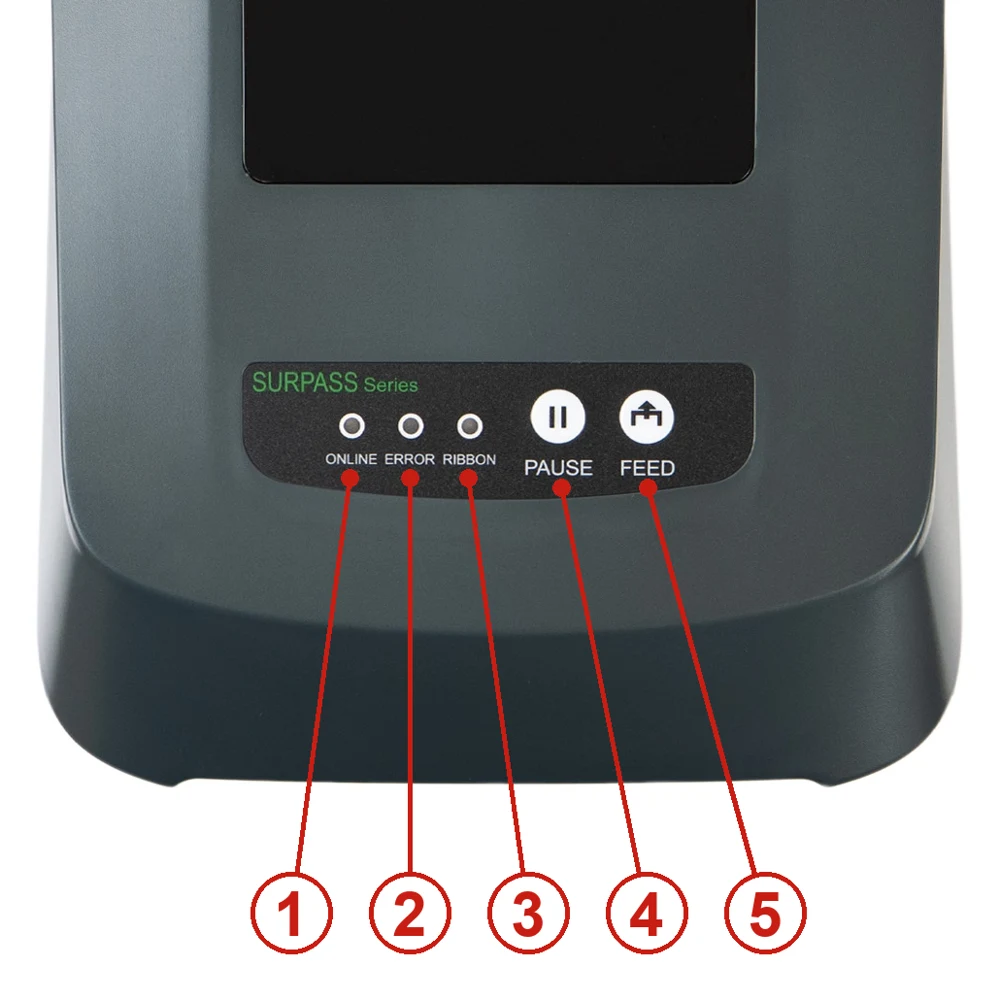
- ONLINE indicator
- ERROR indicator
- RIBBON indicator
- PAUSE button
- FEED button
Inside the printer
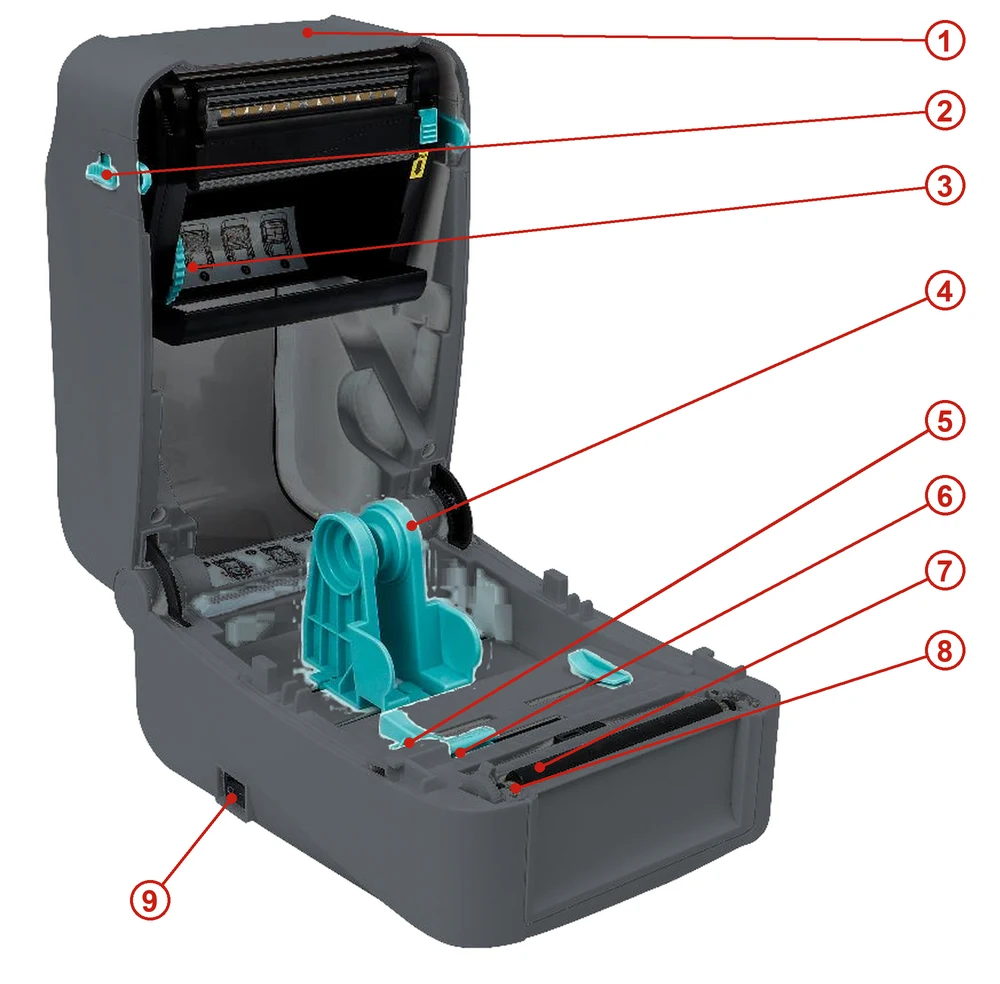
- Top cover
- Top cover release tab
- Ribbon compartment
- Media holders
- Media guide
- Gap sensor
- Black mark sensor
- Platen roller
- Power switch
Front view
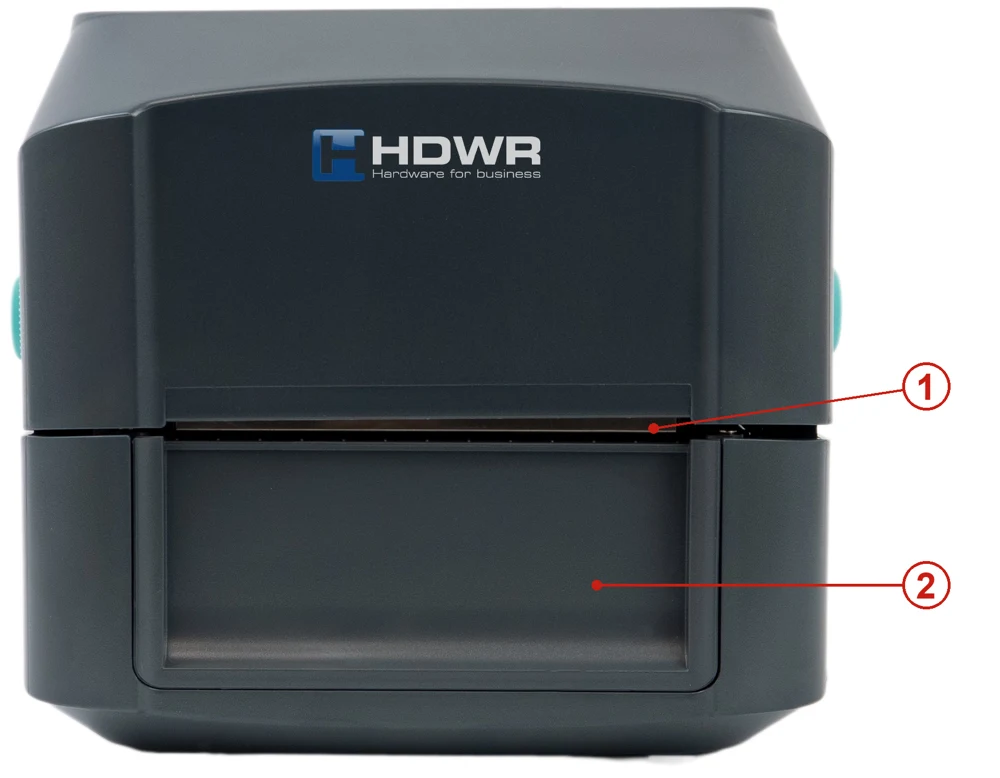
- Tear edge
- Front bezel
Rear panel
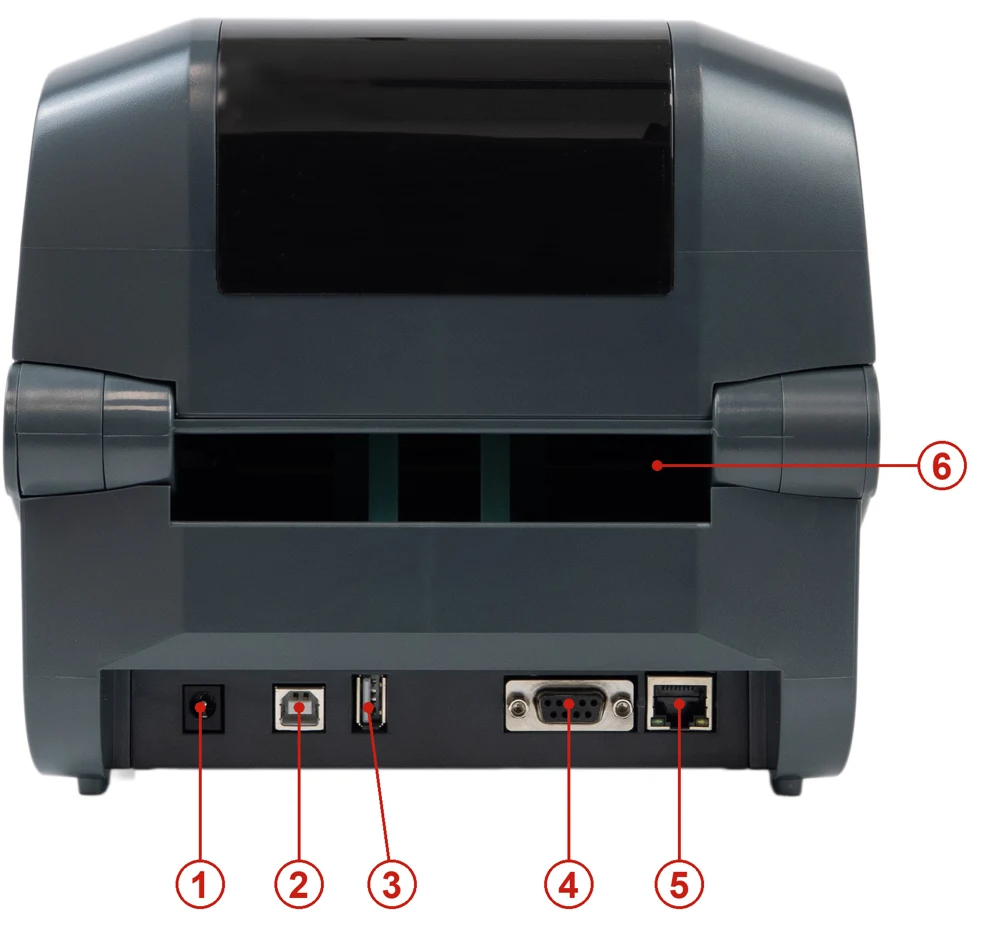
- Power socket
- USB interface
- USB host (for a HID keyboard or scanner)
- RS-232 interface
- RJ-45 Ethernet interface
- External label entrance chute
Setting up the printer
Place the printer on a flat, stable surface and follow the steps below:
- Plug the power cord into the power socket at the back of the printer, then plug the other end into a properly grounded outlet.
- Connect the printer to the computer with the supplied USB cable.
- Press the power switch to the "–" side to switch the printer on.
Switch the printer off before plugging the power cord into the power socket of the printer.
LED indicators
| Event | Description |
|---|---|
| Thermal transfer mode ready | Blue (ONLINE) and green (RIBBON) are on steadily — the printer is ready for use. |
| Direct thermal mode ready | Blue (ONLINE) is on steadily — the printer is ready for use. |
| Cover open | A beep sounds and blue (ONLINE), red (ERROR) and green (RIBBON) blink. |
| Pause | Press the PAUSE button. When blue (ONLINE) blinks, the printer is paused. |
| FEED | Press the FEED button to print on demand. Blue (ONLINE) blinks. |
| Out of paper | A beep sounds and red (ERROR) blinks. |
| Out of ribbon | A beep sounds, red (ERROR) is on steadily and green (RIBBON) blinks. |
| Label gap / black mark error | When the gap or black mark cannot be found, a beep sounds and red (ERROR) and blue (ONLINE) blink. |
| Print head overheated | A beep sounds and blue (ONLINE) and red (ERROR) blink alternately. |
| Other errors | A beep sounds and red (ERROR) and green (RIBBON) blink alternately. |
Button functions
The printer has two buttons for feeding, pausing and cancelling errors. Their function depends on the printer status:
| Button | Printer status | Function | Description |
|---|---|---|---|
| FEED | Ready | Feed | When the printer is ready (blue LED on), press the button once — the media advances to the start of the next label. |
| FEED | Waiting for the button | Print next | When the "Demand button" function is enabled, the printer stops after each printed label and waits for the button to be pressed before printing the next one. |
| PAUSE | Printing | Pause | While the printer is printing continuously, press PAUSE to pause the job. The blue indicator blinks. Press the button again to resume printing. |
| PAUSE | Error | Cancel error | When the red ERROR indicator is on, press PAUSE once — the printer cancels the error, resumes printing and reprints the label on which the error occurred. |
Power-on utilities
The printer has six power-on utilities for setting up and testing the hardware. To start one, hold the buttons described below while switching the printer on and release them when the indicators show the corresponding signal.
| Utility | Procedure | Indicator | Sound |
|---|---|---|---|
| Self-test | Switch the printer off. Make sure media is loaded and close the cover. Hold the FEED button and switch the printer on. Keep holding it until the blue ONLINE indicator lights up. The printer prints a self-test page. | ONLINE (blue) on | 1 beep |
| USB mass storage mode | Switch the printer off. Make sure media is loaded and close the cover. Hold the PAUSE button and switch the printer on. Keep holding it until the blue ONLINE indicator lights up. The printer's storage device appears on the computer. | ONLINE (blue) on | 1 beep |
| Dump mode | Switch the printer off. Make sure media is loaded and close the cover. Hold the PAUSE and FEED buttons together for two seconds, then switch the printer on. Release both buttons when the blue ONLINE and red ERROR indicators are on at the same time. The printer enters dump mode and prints "NOW IN DUMP MODE". | ONLINE (blue) + ERROR (red) on | 1 beep |
| Skip AUTO.BAS | Switch the printer off. Hold the PAUSE and FEED buttons together for four seconds and switch the printer on. Release both buttons when the blue ONLINE indicator goes off and the red ERROR indicator lights up. The printer skips the AUTO.BAS program, then the power indicator lights up. | ERROR (red) on | 2 beeps |
| Printer initialization | Switch the printer off. Hold the PAUSE and FEED buttons together for six seconds and switch the printer on. Release both buttons when the blue ONLINE indicator lights up and the red ERROR indicator goes off. The printer restores the factory settings. | ONLINE (blue) on | 5 beeps |
| Ribbon inspection | The printer detects the ribbon status automatically after power-on and in every thermal transfer print job. | — | — |
To leave dump mode, switch the printer off and on again.
Loading the ribbon and media
The ribbon is needed only for thermal transfer printing. For direct thermal printing load only the media.
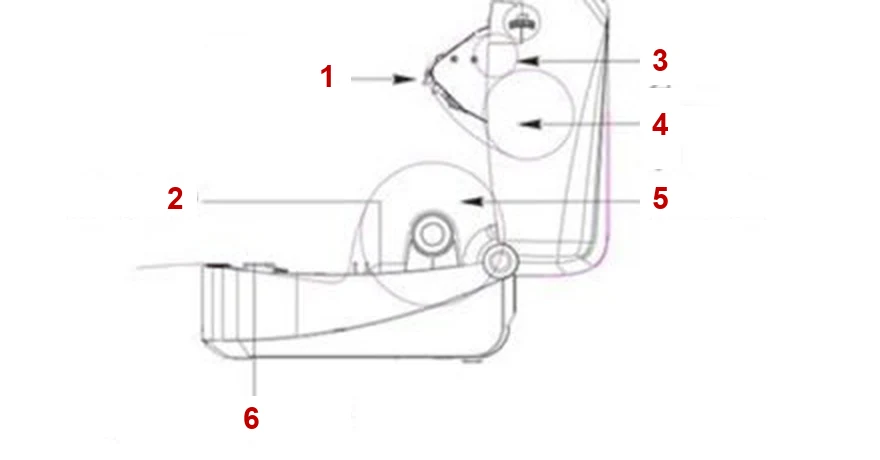
- Print head
- Paper guide
- Empty ribbon roll (take-up)
- Ribbon
- Print media
- Gap and black mark sensor
Loading the ribbon
- Insert the black ribbon spindle into the new ribbon.
- Mount the ribbon in the printer — left side first, then right side — and make sure it sits firmly.
- Press the button to open the ribbon holder.
- Insert the blue ribbon spindle into the empty core that collects the used ribbon.
- Mount the empty core — left side first, then right side.
- Pull out the ribbon and stick it to the empty core. Make sure the ribbon is flat and smooth where it touches the print head.
- Put the ribbon holder back in its position.
- Carefully close the top cover.
Loading the media
- Press the two buttons on both sides of the printer to lift and open the top cover.
- Place the media roll in the printer and adjust the media guide to the width of the media.
- Pull the media out until it passes the gap sensor; media loading is complete.
External label roll mount (optional)
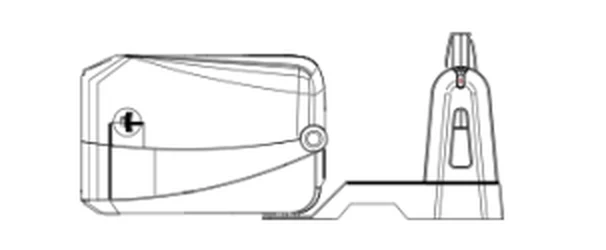
- Attach the external mount to the bottom of the printer.
- Insert the label spindle into the label roll, then place it on the external roll mount. The labels are fed through the external label entrance chute at the back of the printer.
Driver installation
- Run the driver installer (downloads below), read the license agreement, select I accept the terms in the license agreement and click Next.
- Select the installation folder and click Next, then Finish.
- In the installation window click Install Printer Driver, then Next.
- Click Other, then Next.
- Select the printer model, click to install and click Next.
- Connect the printer to the computer with the USB cable, select the corresponding USB port and click Next.
- Change the printer name if needed and click Next, then Finish and Close.
You can check the installed printer in Windows Settings → Devices → Printers & scanners or in Control Panel → Devices and Printers. To change the printer interface (another USB port or a COM port), open the printer properties and select the right port on the Ports tab.
Printer configuration application
The configuration application (downloads below) lets you check the printer settings and status, change printer settings and send commands or files to the printer. After start-up it shows the following functions: port settings, printer information, printer configuration, printer functions, command tool, language, about and exit.
In Printer Configuration, click Load to read all current settings from the printer over the selected interface. Change the settings and click Set to write them to the printer — always read the settings first.
Mobile app
You can also operate and configure the printer from a smartphone with the free Gprinter mobile app, available on the App Store and Google Play.
Troubleshooting
| Problem | Possible cause | Solution |
|---|---|---|
| The power indicator does not light up. | The power cord is not connected properly. | Plug the power cord into the printer and the outlet. Switch the printer on. |
| Out of ribbon | The ribbon has run out or is loaded incorrectly. | Install a new ribbon or reload it following the steps for loading the ribbon. |
| Out of paper | The paper has run out, is loaded incorrectly or the gap / black mark sensor detects it incorrectly. | Install new paper or reload it following the steps for loading the media. Recalibrate the label sensor. |
| Paper jam | The gap / black mark sensor detects the media incorrectly, the label size is set incorrectly or a label is stuck inside the printer. | Recalibrate the label sensor. Set the correct label size. Clean the inside of the printer. |
| Unable to print | The cable is not connected properly to the USB or serial interface. The ribbon and media are not compatible. The print density setting is incorrect. | Reconnect the cable or replace it. Check the ink side of the ribbon and reload the ribbon. Clean the print head. Check the print density setting. Switch the printer off and reconnect the print head connector. |
| Poor print quality | The ribbon and media are loaded incorrectly or are incompatible. Dust or adhesive on the print head. The print density is not set properly. The print head element is damaged. | Reload the ribbon and media. Clean the print head and the platen roller. Adjust the print density and print speed. Run the self-test and check the print head test pattern for missing dots. Use a suitable ribbon or media. Check that the print head mechanism is latched properly. |
| Labels are skipped when printing | The label size is not set properly. The sensor sensitivity is not set properly. The media sensor is dusty. | Check the label size setting. Calibrate the sensor (Auto Gap or Manual Gap). Clean the gap / black mark sensor with compressed air. |
| Incorrect print position on small labels | The media sensor sensitivity or the label size is set incorrectly. The vertical offset in the driver is incorrect. | Calibrate the sensor sensitivity again. Set the correct label size and gap size. If you use BarTender, set the vertical offset in the driver. |
| Print missing on the left or right side of the label | Wrong label size setting. | Set the correct label size. |
| Wrinkles | The ribbon or media is loaded incorrectly, the print density is incorrect or the media is fed incorrectly. | Set a suitable print density. Make sure the media guide touches the edge of the media. |
| Grey line on a blank label | The print head or the platen roller is dirty. | Clean the print head and the platen roller. |
| Irregular printing | The printer is in dump (HEX) mode. | Switch the printer off and on again to leave dump mode. |
Maintenance
Clean the printer with a cotton swab, a lint-free cloth, a vacuum cleaner or blower brush and 100% ethanol.
| Printer part | Method |
|---|---|
| Print head | Always switch the printer off before cleaning. Let the print head cool for at least one minute. Clean the print head surface with a cotton swab and 100% ethanol. |
| Platen roller | Switch the printer off. Rotate the platen roller and wipe it thoroughly with 100% ethanol and a cotton swab or lint-free cloth. |
| Tear bar | Wipe it with a lint-free cloth and 100% ethanol. |
| Sensor | Compressed air or a vacuum cleaner. |
| Exterior | Wipe it with a cloth dampened with water. |
| Interior | Brush or vacuum cleaner. |
Do not touch the print head with your fingers — if you do, clean it with ethanol. Use only 100% ethanol; medical alcohol may damage the print head.
- Clean the print head and the media sensors regularly, every time you change the ribbon, to keep the print quality and extend the printer life.
- The maximum print ratio per dot line is 15%. A full-width black line can be at most 40 dots (5 mm) high.
Safety notes
- Switch the printer off before connecting the power cord to the power socket. Plug the power cord into a properly grounded outlet.
- Place the printer on a flat, stable surface.
- This is a Class A product. In a residential environment it may cause radio interference, in which case the user may need to take appropriate measures.
Frequently asked questions
What wireless communication does the OPrint-DB200WN printer offer?
Does the printer work with popular label software?
What barcodes can it print?
Downloads
Original PDF manuals kept available as a legacy reference. Everything from them is already covered on this page — use the PDFs only if you need an offline copy.