Mobile label printer, direct thermal, 203 dpi, Bluetooth, HDWR OPrint-MA300B
GTIN: 5906935201848 · SKU: OPrint-MA300B
Table of contents
Introduction
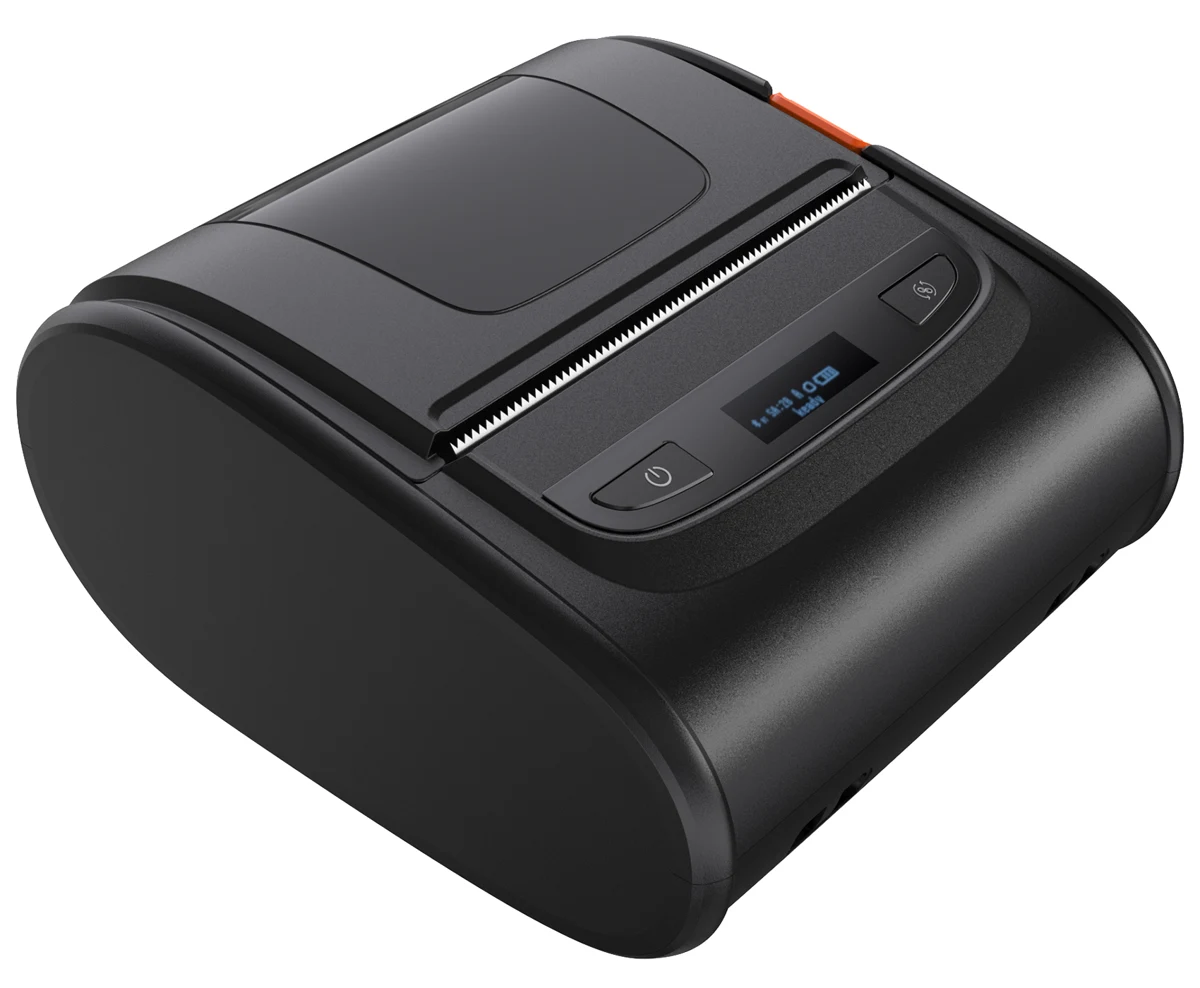
The OPrint-MA300B is a compact, durable mobile thermal printer for fast printing of receipts, labels and tickets in the field. It prints at 203 dpi, up to 120 mm/s and up to 72 mm wide, and handles continuous paper, die-cut labels and black mark media. It connects to phones and tablets over Bluetooth 4.2 BLE and to a computer over USB type C, and its rechargeable 2500 mAh battery allows long work away from a power outlet. An OLED display shows the printer status, and sensors detect an open cover, missing paper and overheating.
Specifications
- Colour: black
- Printing method: direct thermal
- Resolution: 203 dpi
- Maximum print speed: 120 mm/s
- Maximum print width: 72 mm
- Print head life (TPH): 50 km
- CPU: 400 MHz, 32-bit, ARM9
- RAM: 8 MB PSRAM
- Flash memory: 16 MB
- Sensors: gap, cover open, paper out, paper end, overheating, top black mark
- Power adapter: input AC 100–240 V, 50–60 Hz; output DC 5 V, 2000 mA
- Battery: 2500 mAh / 7.4 V, rechargeable lithium battery
- Communication interface: USB 2.0, Bluetooth 4.2 BLE
- Port: USB type C
- Rotation: text and barcodes 0°, 90°, 180°, 270°
- Command languages: TSPL, CPCL, ESC/POS, ZPL, JPL
- Media types: continuous paper, die-cut labels, black mark media
- Media width: 30–80 mm
- Paper tear-off: tear bar, manual tearing
- Operating temperature: 0°C – +50°C
- Dimensions: 105 mm (W) × 62 mm (H) × 118 mm (D)
- Package dimensions: 20 × 15 × 7 cm
- Weight: 450 g
- Printable 1D codes: UPC-A, UPC-E, EAN-8, EAN-13, Code 128, Code 39, Codabar, Code 93, ITF, Interleaved 2 of 5
- Printable 2D codes: QR Code, PDF417, Data Matrix
Set contents
- Label printer
- USB type C cable
- Power adapter
- User manual
Printer overview
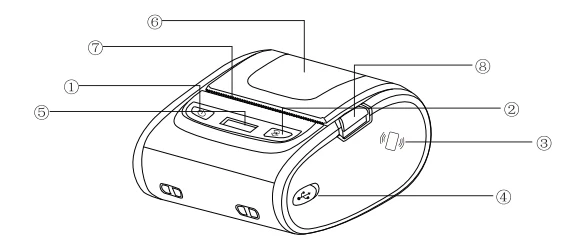
- Power / Settings button
- Feed / Menu button
- NFC logo (one-touch pairing)
- USB port / power input
- OLED display
- Paper compartment cover
- Tear bar
- Cover release button
Loading paper
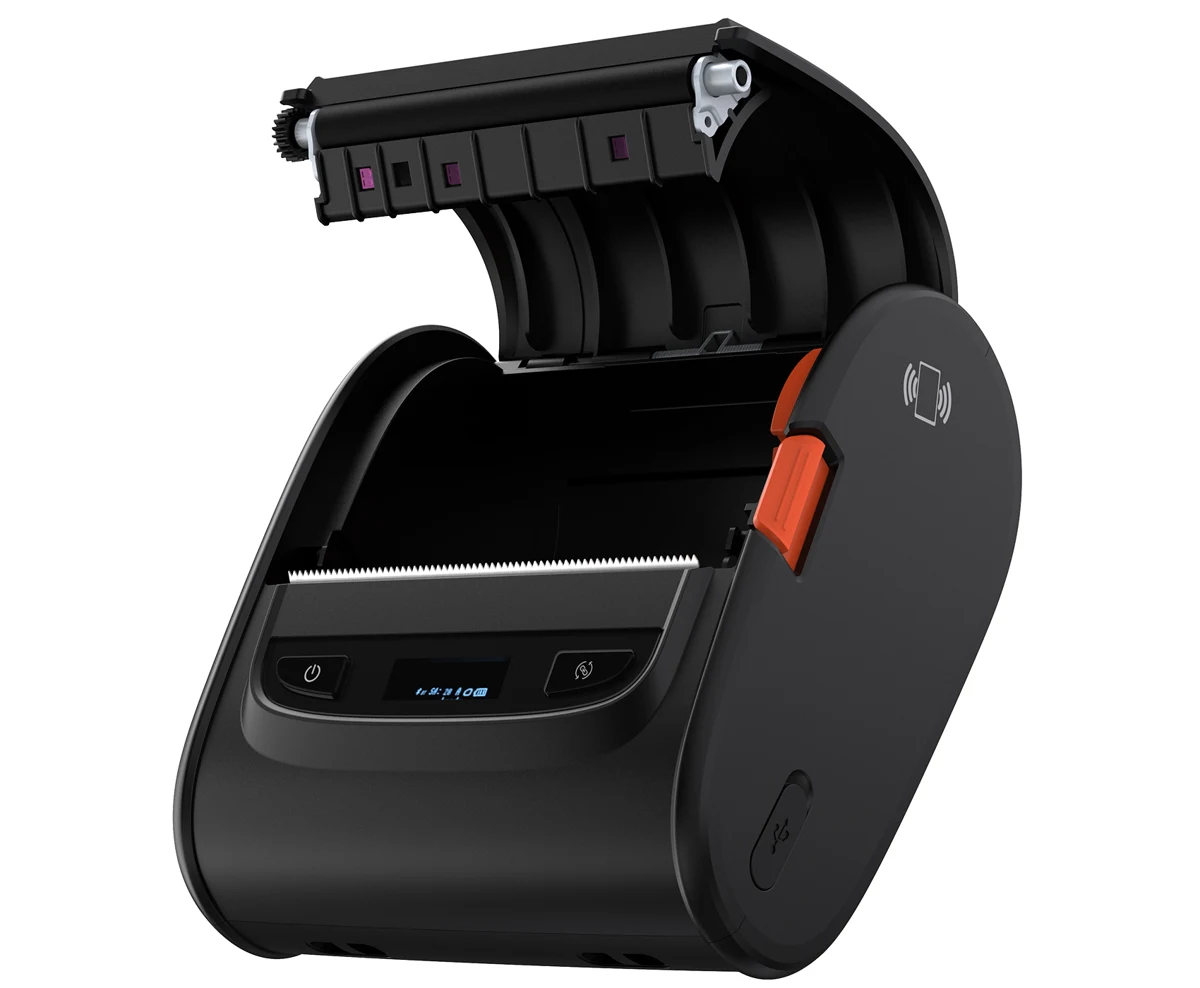
- Press the release button on the right side to open the printer cover.
- Place the paper roll in the paper compartment. Adjust the position of the paper holder and press the holder button; to change the holder position, lift its button.
- Pull part of the paper out of the printer and close the cover. Make sure both the left and right sides of the cover are fully closed.
- Tear off the excess paper along the tear bar.
Display icons and messages
The top line of the OLED display shows the printer status:
- BT — Bluetooth is supported.
- 03:C2 — the last two bytes of the printer's Bluetooth address.
- A — the command set is switched automatically according to the type of the incoming commands.
- T — the printer uses the TSPL command set.
- C — the printer uses the CPCL command set.
- E — the printer uses the ESC/POS command set.
- Label icon — the current paper type is label paper.
- Unrolled paper icon — the current paper type is continuous paper.
- Dark rectangle with a white bar — the current paper type is black mark paper.
- Battery icon — the current battery charge level.
The bottom line shows a status message:
| Message | Meaning |
|---|---|
Ready | The printer is ready. |
Hot error | Error: the print head is overheated. |
Zzzzz | The printer is in sleep mode. |
Cover is open | The printer cover is not closed. |
Printing | The printer is printing. |
Paper is end | The printer is out of paper. |
Button functions
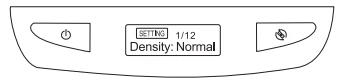
The Power / Settings button is on the left and the Feed / Menu button is on the right.
| Action | How |
|---|---|
| Switch on | Hold the Power / Settings button for 3 seconds. |
| Switch off | When the printer is on, hold the Power / Settings button for 2 seconds. |
| Feed paper | When the printer is ready, briefly press the Feed / Menu button (0.5 s) — the printer feeds paper by one label according to the media settings. |
| Enter the settings menu | When the printer is ready, hold the Feed / Menu button for 1 second. |
Settings menu
All settings are changed in the same way:
- Hold the Feed / Menu button for 1 second to enter the settings menu.
- Briefly press the Feed / Menu button to move to the required item.
- Briefly press the Power / Settings button to change its value.
- Hold the Feed / Menu button for 2 seconds to save the setting and return to the main screen.
The item number is shown at the top of the display, for example SETTING:1/12.
Print density
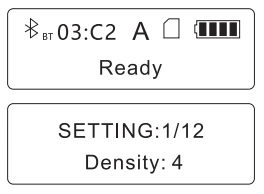
Item Density — options 1, 2, 3, 4, 5, 6. A higher value gives a darker print.
Paper type
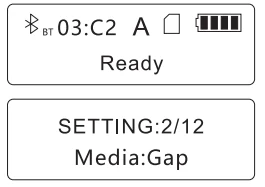
Item Media — options:
- Media:Gap — labels with gaps (die-cut labels),
- Media:Continue — continuous paper,
- Media:Blackmark — paper with a black mark.
Self-test page
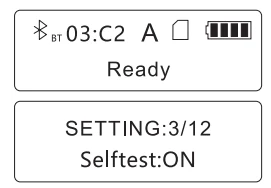
Move to the self-test item and press the Power / Settings button to select Selftest:ON. The printer prints the self-test page within 0.5 seconds.
Auto feed after closing the cover
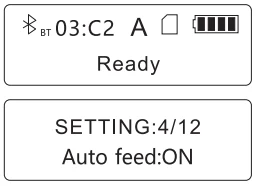
Select Auto feed:ON and save the setting. From now on, the printer feeds the paper automatically after the cover is closed.
This option is not available in continuous paper mode.
Bluetooth mode
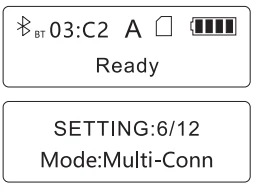
Item Mode — options:
- Mode: Fast — high-speed Bluetooth mode,
- Mode: Multi-Conn — multi-connection mode.
Select the option and save the setting.
Bluetooth information
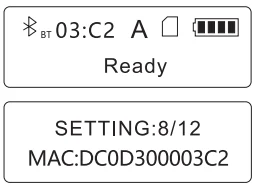
Move to the Bluetooth name item to see the printer's Bluetooth name, then press the Feed / Menu button again to move to MAC — this is the printer's Bluetooth address (for example DC0D300003C2). Hold the Feed / Menu button for 2 seconds to return to the main screen.
Debug mode
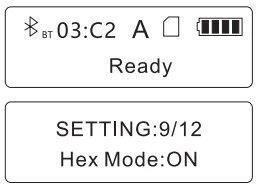
Select Hex Mode:ON and save the setting to switch on debug mode.
Auto power-off
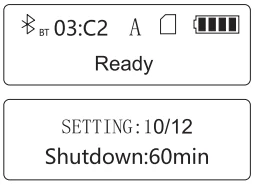
Item Shutdown — options 10 min, 30 min, 60 min, 90 min, OFF. The printer switches off automatically after the selected time.
Factory reset
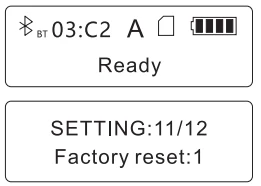
Move to the factory reset item and press the Power / Settings button to select Factory reset:1. The printer switches off automatically after 2 seconds. The factory settings apply after the printer is switched on again.
Version information

Move to the Ver item — the display shows the firmware date. Press the Power / Settings button to show the firmware time.
Troubleshooting
| Symptom | Possible cause | Solution |
|---|---|---|
| Nothing on the OLED display | The battery is not installed. | Install the battery. |
| Nothing on the OLED display | The battery level is low. | Charge the battery. |
Cover is open on the display | The paper compartment cover is not closed. | Close the paper compartment cover properly. |
Paper is end on the display | The printer is out of paper. | Replace the paper roll. |
Hot error on the display | The print head is overheated. | Wait — when the print head cools down, the printer resumes printing automatically. |
| Printing error | The paper is not loaded correctly. | Load the paper roll correctly. |
| Printing error | The print head cable is not connected correctly. | Connect the print head cable correctly (service). |
| Printing error | The print head or the main board is damaged. | Contact the service to replace the damaged part. |
| Printing error | The label size is set incorrectly. | Set the correct label size. |
| Printing error | The maximum print width is exceeded. | Use paper that fits the maximum print width. |
| Partial printing | One side of the paper compartment cover is not closed. | Close the paper compartment cover properly. |
| Partial printing | The print head cable is not connected correctly, or the print head is damaged. | Contact the service. |
| Wrinkled label | Uneven print head pressure, the label paper is not loaded or fed correctly, or the print density is wrong. | Load the label paper correctly, adjust the label width with the slider and set a suitable print density for the labels. |
| Blurred print | The labels are not loaded correctly. | Reload the consumables. |
| Blurred print | Dust or adhesive has collected on the print head or the rubber roller. | Clean the print head with a cloth moistened with alcohol and the rubber rollers with a soft brush. |
| Blurred print | The print density or speed is set incorrectly. | Set a suitable print speed and density. |
| Blurred print | The battery voltage is low. | Charge the battery. |
| Blurred print | One side of the cover is not closed, or the rubber roller is not installed correctly. | Make sure the print head holder and the cover are fully closed. |
| Blurred print | The label is thicker than the maximum of 0.15 mm. | Use label paper that meets the requirements. |
| Blurred print | The print head is damaged. | Print a self-test page to check the print head. If it is damaged, send the printer to the service. |
| Skipped labels | The label size is set incorrectly or incompletely. | Set the label size again according to the label specification and reduce the gap value if needed. |
| Skipped labels | The label sensor is covered with dirt, which causes wrong readings. | Remove the dirt from between the sensors. |
| Missing dots (white lines in the print) | The print head or the rubber roller is dirty. | Clean the print head and the rubber roller. |
Frequently asked questions
What print media does the OPrint-MA300B support?
How do I connect the printer to a phone or a computer?
How long does the battery last and how is it charged?
Downloads
Original PDF documents kept available as a legacy reference. Everything from them is already covered on this page — use the PDFs only if you need an offline copy. The documents are available in Polish only.