Label printer, direct thermal, 203 dpi, USB, HDWR OPrint-XA200
GTIN: 5906935201510 · SKU: OPrint-XA200
Table of contents
Introduction
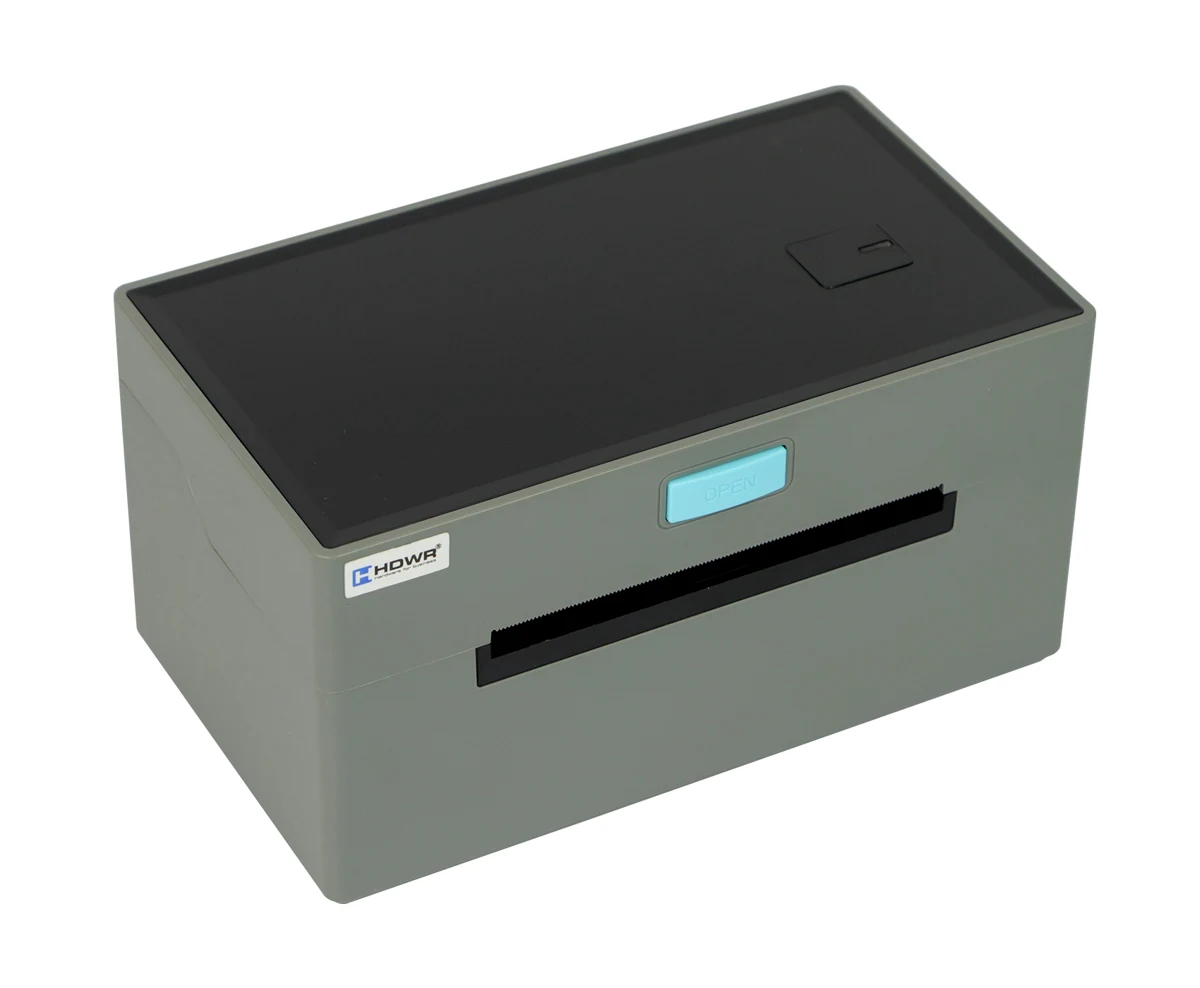
The OPrint-XA200 is a compact direct thermal label printer for shipping labels, product labels, receipts, logistics documents and price tags. It prints at 203 dpi and up to 160 mm/s, with an effective print width of 30–104 mm on media up to 110 mm wide, and handles continuous paper, labels, fan-fold media and tag stock. Transmissive and reflective sensors detect the label position automatically. The printer connects over USB, accepts TSPL, CPCL and ESC/POS commands and has drivers for Windows and macOS.
Specifications
- Printing method: direct thermal
- Resolution: 203 dpi
- Maximum print speed: 160 mm/s
- Effective print width: 30–104 mm
- Maximum print width: 104 mm
- Media types: continuous, labels, fan-fold, tag stock
- Maximum media width: 110 ± 0.5 mm
- Media thickness: 0.06–0.3 mm
- Print head life: 100 km
- Sensors: transmissive and reflective
- Interface: USB
- Command languages: TSPL, CPCL, ESC/POS
- Drivers: Windows Server 2003, Windows XP, 7, 8, 10, 11, macOS
- Compatible operating systems: Windows, Android, iOS
- Power supply: AC 100–240 V, 50–60 Hz (external power adapter)
- Dimensions: 20 × 11.5 × 10.5 cm
- Package dimensions: 21 × 18.5 × 12.6 cm
- Weight: 0.9 kg
- Weight with packaging: 1.45 kg
- Operating temperature: 0°C – +45°C
- Storage temperature: −20°C – +60°C
- Operating humidity: 10% – 80% (non-condensing)
- Storage humidity: 5% – 95% (non-condensing)
- Printable 1D codes: UPC-A, UPC-E, JAN13 (EAN13), JAN8 (EAN8), Code 39, ITF, Codabar, Code 93, Code 128
- Printable 2D codes: QR Code, PDF417
Set contents
- Label printer
- Power adapter
- USB cable
- User manual
Printer overview
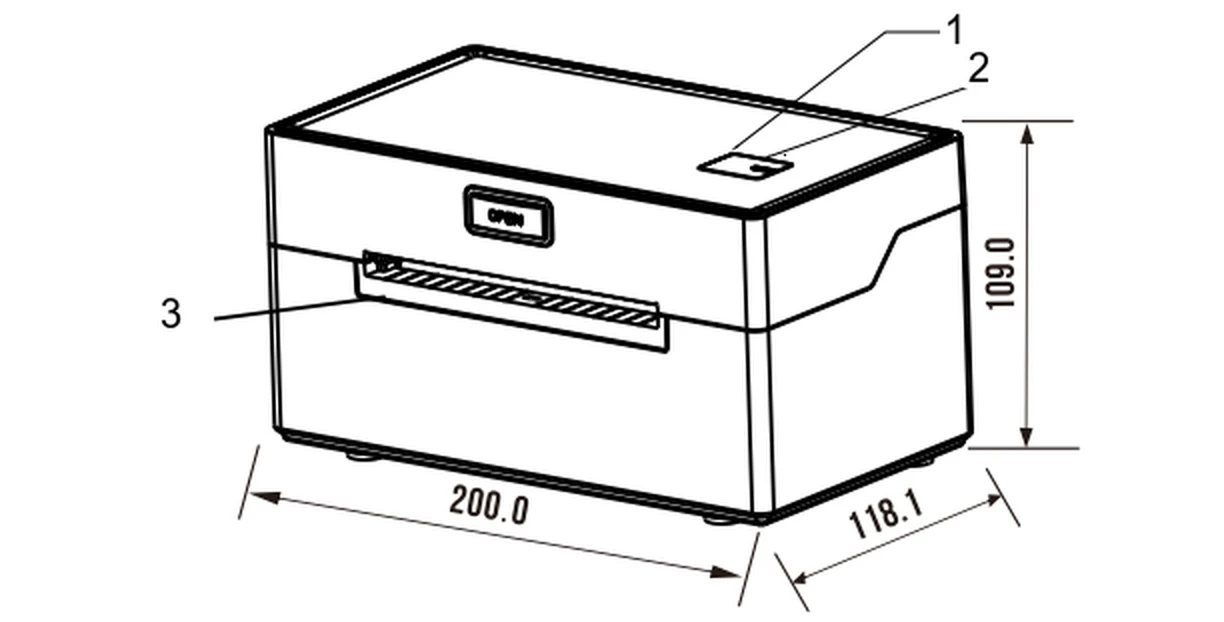
- FEED button
- Status light (LED indicators)
- Paper exit
The OPEN button on the front opens the top cover.
Loading paper
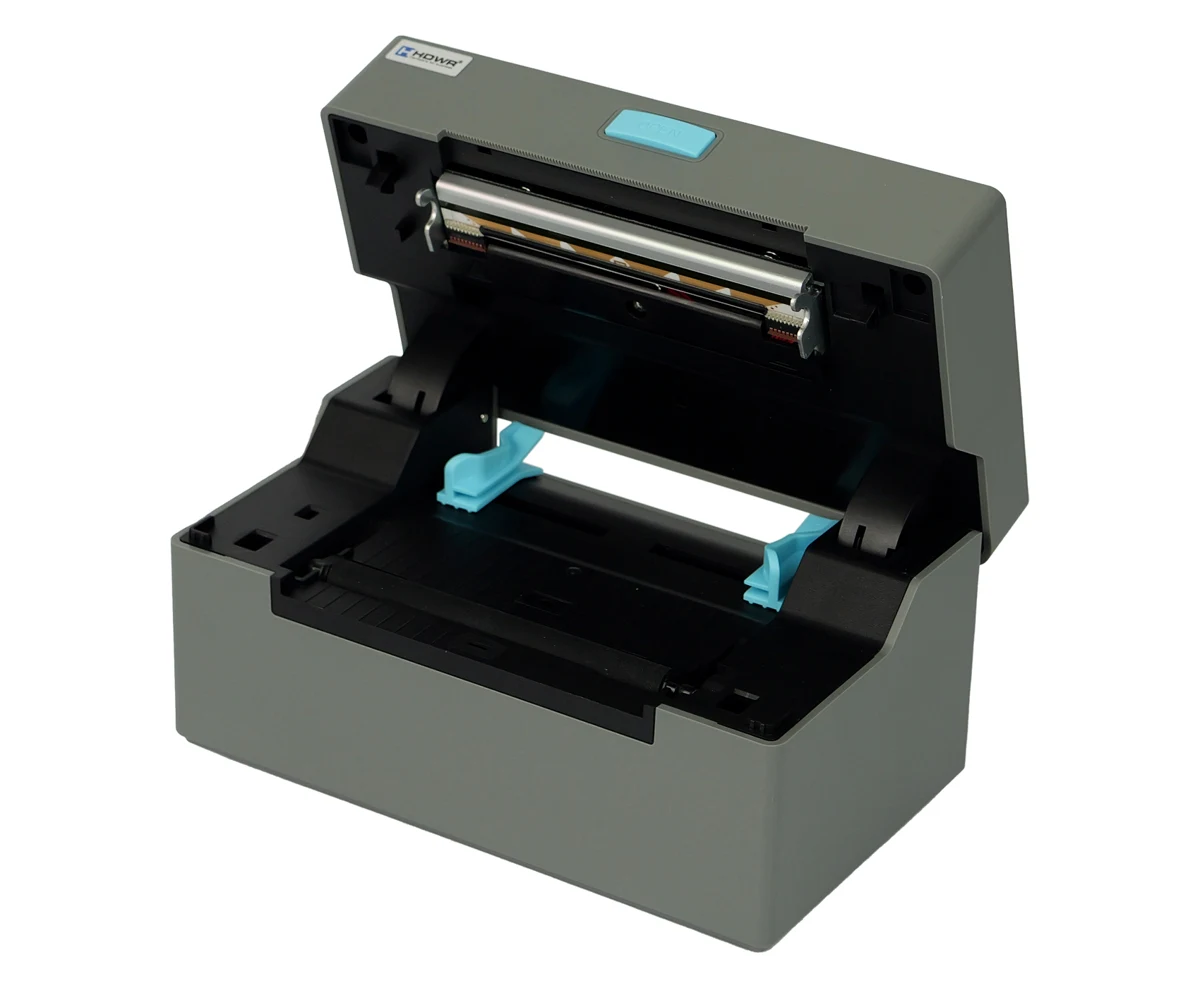
- Open the top cover of the printer.
- Adjust the paper guides to the width of the paper.
- Insert the thermal paper into the paper guide.
- Pull a short piece of paper out of the printer and close the cover.
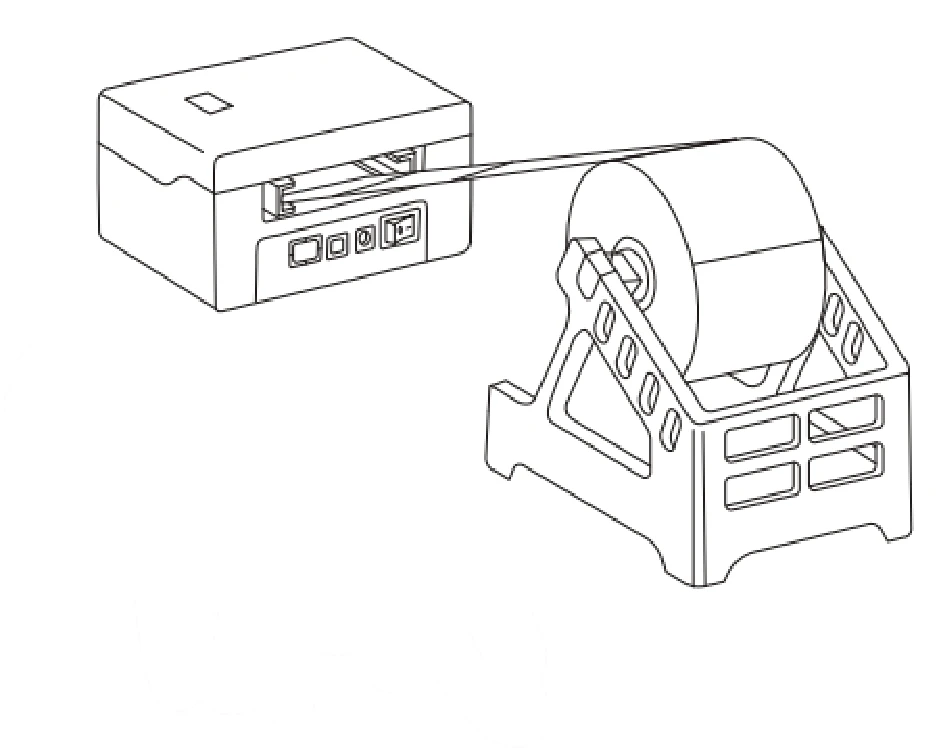
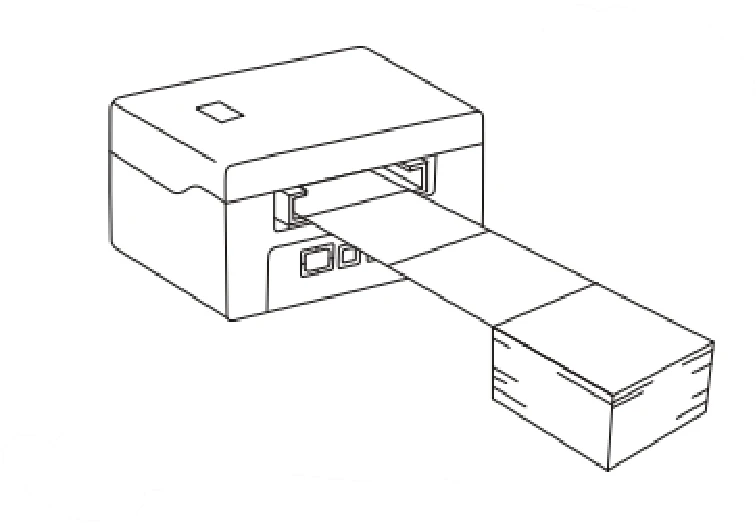
Paper rolls and fan-fold (stacked) paper are fed from outside the printer, through the paper inlet at the back:
LED indicators and buttons
| ERROR (red LED) | POWER (blue LED) | Printer status |
|---|---|---|
| Off | Off | The printer is switched off. |
| Off | On | The printer is switched on and has paper. |
| Blinking | On | The printer is switched on and has no paper. |
| Action | Function |
|---|---|
| Press the power button for about 3 seconds. | Switch the printer on or off. |
| When the printer is on, press the FEED button. | Paper feed / label position detection. |
| With the printer off, hold the FEED button, then press and hold the POWER button to switch the printer on. Release FEED when the red ERROR LED lights up. | Print the self-test page. |
| With the printer off, hold the FEED button, then press and hold the POWER button. Release FEED when the red ERROR LED lights up and goes off. | HEX mode (press FEED twice to leave HEX mode). |
| With the printer off, hold the FEED button, then press and hold the POWER button. Release FEED when the red ERROR LED goes on, off and on again. | Switch the command mode between TSPL, CPCL and ESC/POS. |
Driver installation
A label printing program is required to print with the driver.
Windows
- Run the Windows driver installer from the driver package (downloads below).
- Read the license terms and click Next to continue.
- If the printer is connected over USB, click Get USB Port to detect the port automatically. For other interfaces select the right option. Click Install Driver.
- When the installation is successful, the printer properties window opens automatically. Click Print Test Page — if the test page prints correctly, the installation is complete.
If the printer reports Printing Error, go back to the Port tab, select USB0001, USB0002 or USB0003 and try again.
macOS
- Open LABEL.dmg from the macOS folder of the driver package and double-click LABEL_V1.0_signed.pkg.
- Click Continue, then Install, and confirm with Touch ID or your password. Click Close to finish.
- Open System Preferences → Printers & Scanners and click + to add a new printer.
- Switch the printer on and select LABEL. In the Use menu choose Select Software, type LABEL, select LABEL and click Add. Confirm with Touch ID or your password.
Setting the label size on macOS: open any document, choose File → Print, select Manage Custom Sizes in the Paper Size menu, click + to define the label size (for example 100 × 190 mm) and click OK. Under Printer Features you can change the print speed, darkness and other settings.
Print head cleaning
Clean the print head when:
- the printout is not sharp although the thermal paper is fine,
- the printout is blurred or unreadable along the page,
- the printer is unusually loud when feeding paper or printing.
- Switch the printer off, open the paper compartment cover and remove the paper roll.
- If the printer has just finished printing, wait until the print head cools down.
- Gently clean the print head with a soft cotton cloth moistened with ethanol (not dripping) to remove dust and dirt.
- Wait until the ethanol has evaporated completely, put the paper back, close the cover and print a test page.
Make sure the printer is switched off during maintenance. Do not use metal tools (e.g. tweezers) that could scratch the print head. Do not use petrol, acetone or other organic solvents to clean the print head.
Label calibration and troubleshooting
Label calibration
Calibrate the printer when it has just been assembled (e.g. after the reflective sensor was replaced or the firmware was updated), when it skips labels after a label size change, or when it prints continuously without stopping at the label gap.
- Load the paper and switch the printer on.
- When the power LED lights up, hold the FEED button for 5–6 seconds until the LED blinks and the printer beeps.
- Release the button, restart the printer and print a test.
The calibration result may differ depending on the paper specification.
Errors after calibration
The printer reports an error although paper is loaded:
- Remove the paper.
- Switch the printer on and wait until the red LED blinks.
- Hold the FEED button until the red LED stops blinking and the printer beeps.
- Release the button, wait 2 seconds, restart the printer and print a test.
The printer does not report an error although there is no paper:
- Remove the paper and switch the printer off.
- Switch the printer on and hold the FEED button for 8–10 seconds.
- Wait until the red LED blinks and the printer beeps twice.
- Release the button, restart the printer and print a test.
The first blink and beep mean label calibration; the second blink and beep mean calibration of the reflective sensor.
If the problem persists after calibration, the reflective sensor needs to be replaced — contact the service.
Safety notes
Use only the power supply provided with the printer. Connecting an incorrect power source may cause fire, explosion or damage to the printer.
- Do not open the paper compartment cover during printing or right after printing. Do not touch the print head — its high temperature can cause burns.
- Do not store the printer in hot or humid places.
- Do not connect other devices to the same power outlet, to avoid voltage fluctuations.
- Avoid contact with water and conductive materials (e.g. metal). If water gets on the surface, switch the printer off immediately.
- Always keep paper in the printer to avoid damaging the platen roller and the print head.
- Have the printer serviced and repaired only by a qualified technician.
- Use only good-quality paper rolls for the best print quality and a long printer life.
Frequently asked questions
Does the OPrint-XA200 support barcode and QR code printing?
What types of paper does the OPrint-XA200 support?
What operating systems is the OPrint-XA200 compatible with?
What is the maximum printing speed of the OPrint-XA200?
Downloads
Original PDF manuals kept available as a legacy reference. Everything from them is already covered on this page — use the PDFs only if you need an offline copy.