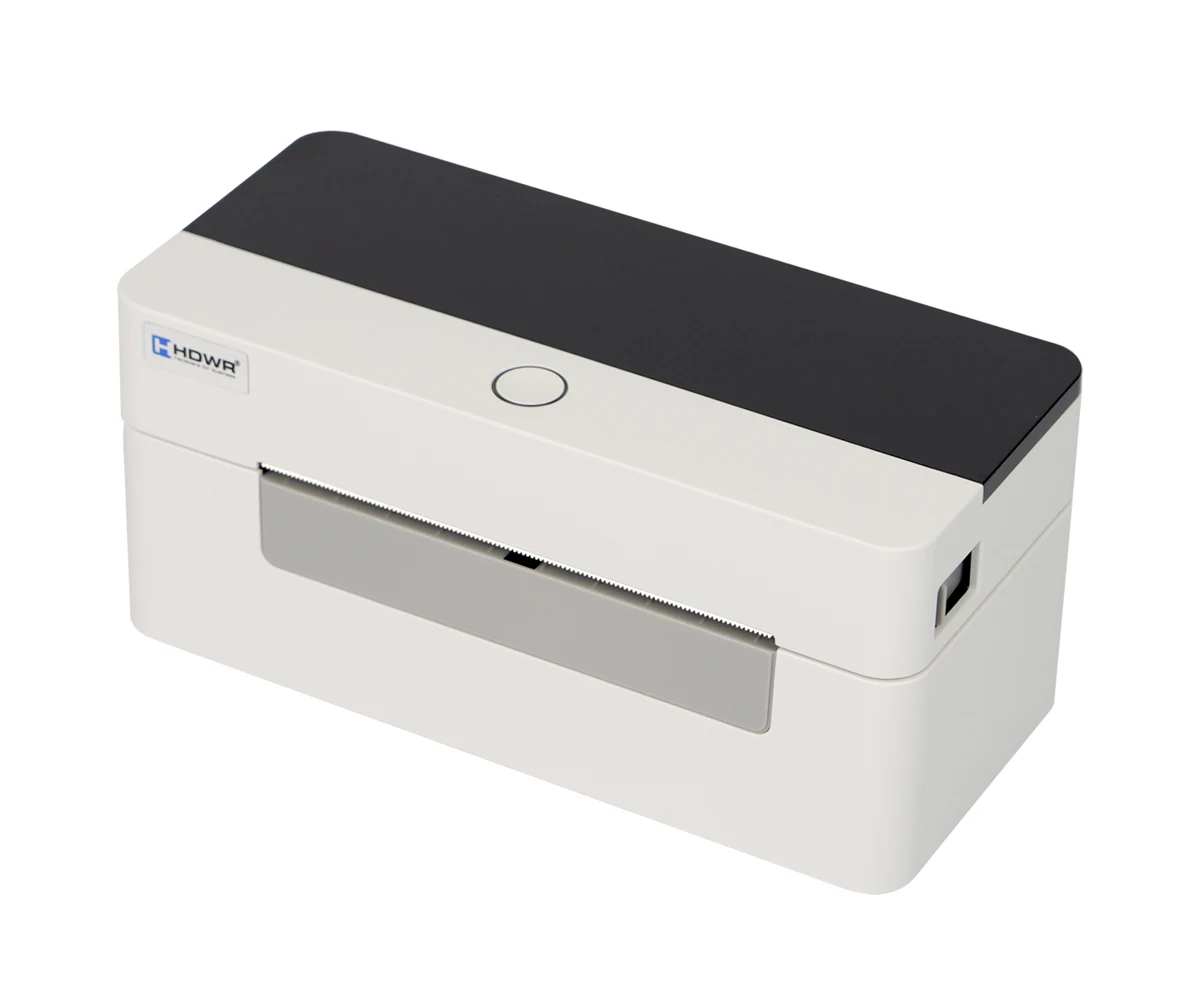
Label printer, direct thermal, 203 dpi, USB and Wi-Fi, HDWR OPrint-XC200W
GTIN: 5906935201527 · SKU: OPrint-XC200W
Table of contents
Introduction
The OPrint-XC200W is a compact direct thermal label printer for shipping, warehouse and barcode labels in warehouses, logistics centres, e-commerce and retail. It prints at 203 dpi, up to 160 mm/s and up to 108 mm wide, on label rolls, continuous paper, black mark media, gap labels, fan-fold and perforated media from 26 to 116 mm wide. The printer connects over USB and Wi-Fi, accepts TSPL, EPL, ZPL and DPL commands and has drivers for Windows, Linux and macOS. One button and a three-colour LED indicator are used to operate the printer.
Specifications
- Printing method: direct thermal
- Resolution: 203 dpi
- Maximum print speed: 160 mm/s
- Maximum print width: 108 mm (4.25")
- Maximum print length: 1,778 mm (70")
- Media types: label paper, continuous, black mark, gap, fan-fold and perforated
- Media width: 26–116 mm
- Media thickness: 0.06–0.2 mm
- Media length: 10–1,778 mm
- Print head life: 100 km
- Sensors: gap sensor, cover open sensor, black mark sensor, paper out sensor
- Rotation: 0°, 90°, 180°, 270°
- Interface: USB, Wi-Fi
- Command languages: TSPL, EPL, ZPL, DPL
- Drivers: Windows, Linux, macOS
- SDK: Windows, Android, iOS
- CPU: 32-bit processor
- Memory: 8 MB Flash / 8 MB SDRAM
- Power supply: AC 100–240 V, 50–60 Hz (external power adapter)
- Dimensions: 18.5 × 8.5 × 8.5 cm
- Package dimensions: 19.5 × 16.5 × 10.5 cm
- Weight: 0.75 kg
- Weight with packaging: 1.25 kg
- Operating temperature: +5°C – +40°C
- Storage temperature: −40°C – +60°C
- Operating humidity: 25% – 85% (non-condensing)
- Storage humidity: 10% – 90% (non-condensing)
- Printable 1D codes: Code 39, Code 93, Code 128UCC, Code 128 subsets A, B, C, Codabar, Interleaved 2 of 5, EAN-8, EAN-13, EAN-128, UPC-A, UPC-E, EAN and UPC 2 (5) digits add-on, MSI, Plessey, POSTNET, China Post
- Printable 2D codes: PDF417, MaxiCode, Data Matrix, QR Code
Set contents
- Label printer
- Power adapter
- USB cable
- User manual
Printer overview
Front view
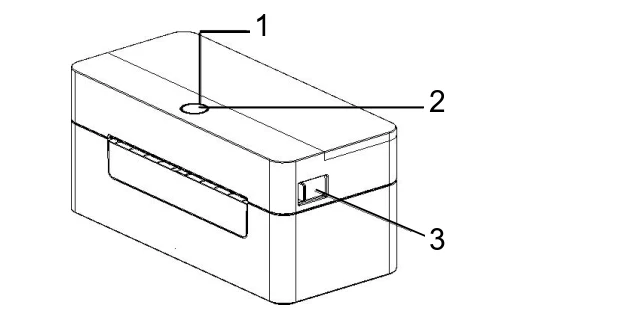
- Status light (LED indicator)
- Paper feed button
- Cover open button
Rear view
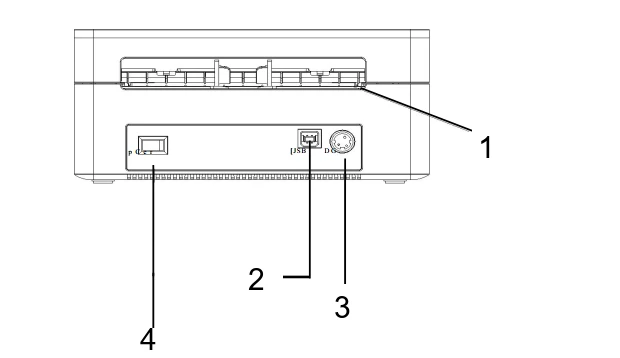
- Rear paper inlet (for fan-fold media and single sheets)
- USB port
- Power socket
- Power switch
Connecting the power
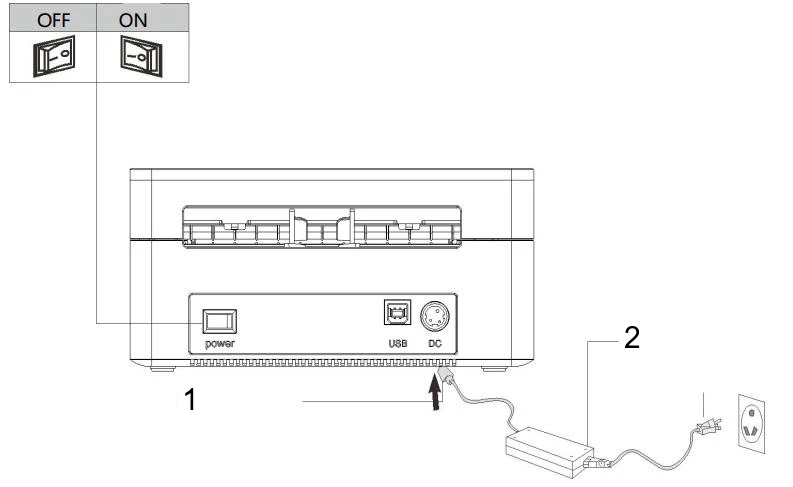
- Place the printer on a stable surface and make sure the power switch is off.
- Connect the USB cable to the printer and to the computer.
- Connect the power adapter to the power socket of the printer (1) and plug the power cord of the adapter (2) into a power outlet.
Make sure the printer is switched off before you connect it to the power supply.
Loading media
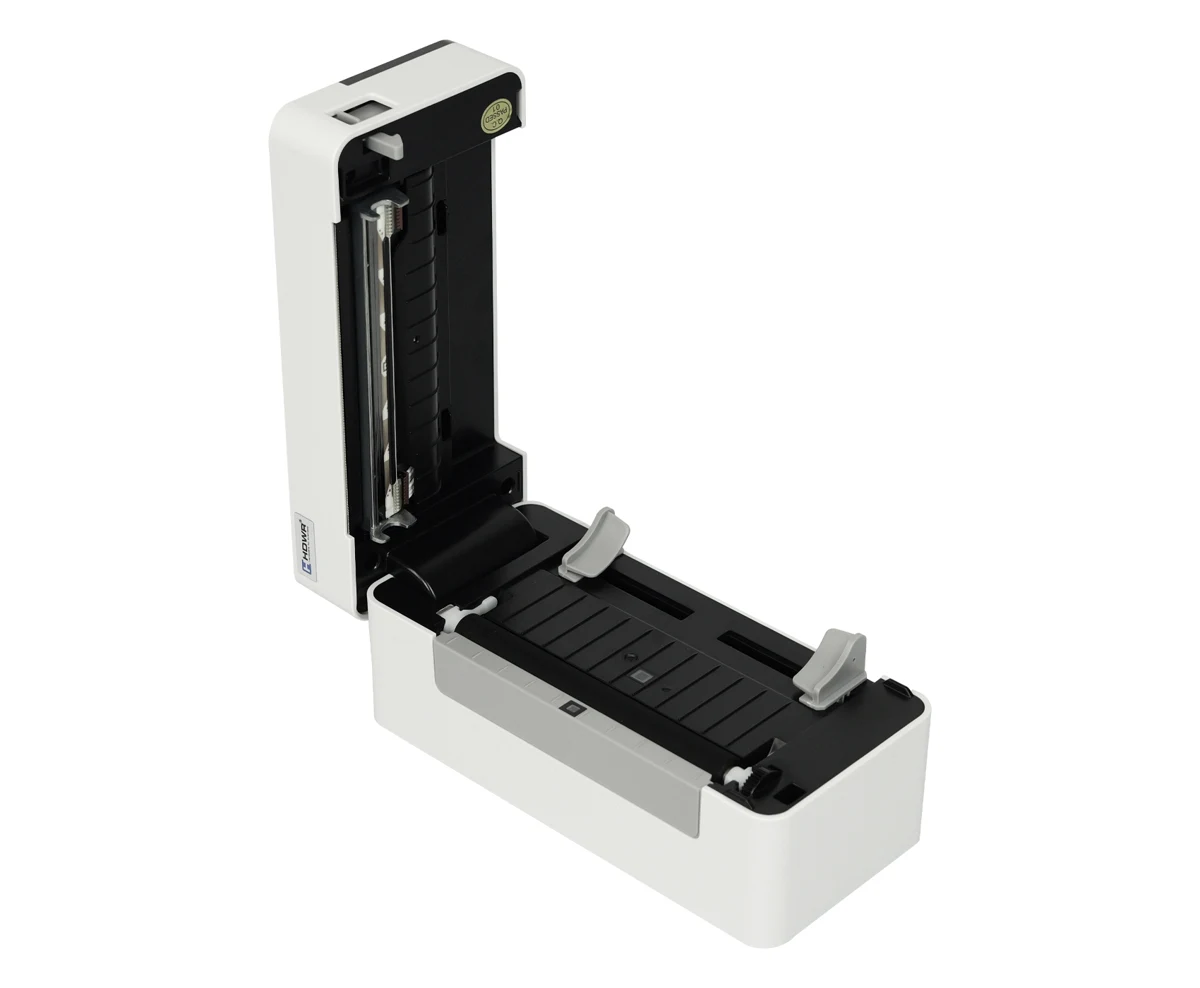
- Press the cover open button to open the cover.
- Place the media in the media compartment.
- Guide the media through the paper guide and pull it over the roller.
- Close the cover carefully and make sure it is firmly closed.
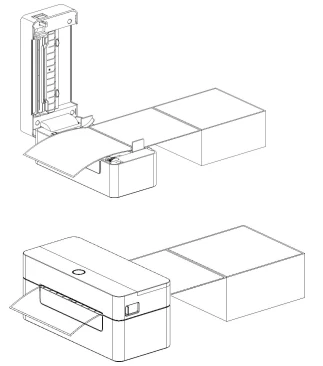
Single sheets — when the printer is ready, insert a single sheet into the paper inlet at the back of the printer; the printer loads it automatically.
LED indicator and button
The printer has one button and one LED indicator that shows three colours.
| LED colour | Description |
|---|---|
| Blue (steady) | The printer is switched on and ready to print. |
| Blue (blinking) | The printer is receiving data or printing is paused. |
| Purple | The printer is formatting the data. |
| Red (steady) | The print head is open or a cutter error occurred. |
| Red (blinking) | A printing error occurred, e.g. out of paper, paper jam or memory error. |
| Function | How |
|---|---|
| Paper feed | When the printer is ready (blue LED steady), press the button once — the media advances by one label. |
| Pause | While the printer is printing, press the button to pause the job. The indicator blinks blue. Press the button again to resume printing. |
Power-on functions
The printer has four power-on functions for setting up and testing the hardware:
- Switch the printer off.
- Hold the button and switch the printer on.
- The indicator changes colour in this cycle: purple → blue → red (blinks 5 times) → purple (blinks 5 times) → blue (blinks 5 times) → blue (steady). Release the button at the signal of the required function:
| Release the button when the indicator… | Function |
|---|---|
| blinks red | Gap / black mark sensor calibration. |
| blinks purple | Sensor calibration, self-test printout and debug mode. |
| blinks blue | Printer initialization (factory defaults). |
| is steady blue | Skip the AUTO.BAS program. |
Sensor calibration
Calibrate the media sensor after you load a new roll of a different type or after initializing the printer. The printer calibrates the gap or black mark sensor according to the last setting (the default setting is the gap sensor). Release the button when the indicator blinks red.
Self-test page and debug mode
Use the self-test to check that the printer works correctly before you connect it to a computer.
- Make sure the labels are loaded correctly.
- Switch the printer off, hold the button and switch the printer on.
- Release the button when the indicator blinks purple.
- The printer calibrates the sensor and prints the self-test page: model and firmware version, serial number, print head mileage, check code, serial port settings, character set, country code, print speed and density, paper size, gap or black mark size, sensor strength, stored files and a print head test pattern.
- The printer then enters debug mode, in which all received data is printed as ASCII characters with their hexadecimal values. To leave debug mode, switch the printer off and on again, or press the button.
To print all debug mode data, use labels 4" (100 mm) wide.
Printer initialization
Initialization clears the files downloaded to the memory (DRAM) and restores the factory settings. Release the button when the indicator blinks blue; the indicator then blinks purple once and turns steady blue.
| Parameter | Factory setting |
|---|---|
| Speed | 152 mm/s (6 ips) |
| Density | 8 |
| Label width | 4" (100 mm) |
| Label height | 7.9" (180 mm) |
| Sensor type | Gap sensor |
| Gap setting | 0.16" (4.0 mm) |
| Print direction | 0 |
| Reference point | 0,0 (upper left corner) |
| Offset | 0 |
| Tear-off mode | On |
| Peel-off mode | Off |
| Code page | 850 |
| Country code | 001 |
| Clear Flash | No |
| IP address | DHCP |
Skipping AUTO.BAS
The TSPL2 language lets you load an auto-execute file (AUTO.BAS) into the Flash memory; the printer runs it at every power-on. To skip it once, release the button when the indicator is steady blue.
Driver installation
Windows (USB)
A label design program is required to print with the driver.
- Unpack the driver package from the downloads and run the 4BARCODE installer. Select I accept the terms in the license agreement and click Next.
- Leave the default installation directory and click Next.
- Select Run Driver Wizard after unpacking drivers and click Next.
- Select Install printer drivers and click Next.
- Select Other (such as a parallel or serial), click Next, select the model 4BARCODE 4B-2054N and click Next. Click Next on the following screen without changing anything.
- The default printer name is 4BARCODE 4B-2054N. Select Use this printer as the default printer, click Next and then Finish.
- When the driver installation is complete, click Close.
- Open Printer properties and click Print a test page — the printer prints a test page.
macOS (USB)
- Run the 4Barcode.pkg installer from the macOS folder of the driver package and click Continue.
- Click Install and enter your Mac password.
- When the installation is complete, click Close.
- Open System Preferences → Printers & Scanners and click + to add the printer. When the printer is connected to the Mac, the driver model (4B-2054N) is selected automatically.
Diagnostic Tool
The Diagnostic Tool is a Windows utility for checking the printer status and settings, downloading graphics, programs and fonts, updating the firmware and sending commands or files to the printer. The default connection is USB, so with a USB cable no interface settings need to be changed.
The Printer settings page includes: sensor calibration, network settings, setting the printer clock (RTC), restoring factory defaults and rebooting, restarting the printer, printing a test page or a self-test page, entering debug mode, ignoring the AUTO.BAS file and setting the Diagnostic Tool password.
Calibrating the paper sensor:
- Make sure the paper is loaded correctly and the cover is closed.
- Switch the printer on and start the Diagnostic Tool.
- Click Sensor Calibration, select the paper type and click Calibration. The printer feeds the paper and calibrates the sensor automatically.
Troubleshooting
| Problem | Possible cause | Solution |
|---|---|---|
| The power indicator is off | The power adapter is not connected properly, or the printer is switched off. | Check the power adapter and the power cord connections and switch the printer on. |
| The Diagnostic Tool shows "Head open" | The printer cover is not closed. | Close the printer cover. |
| The Diagnostic Tool shows "Paper end" | The labels have run out, the labels are loaded incorrectly or the sensor setting is wrong. | Load new labels, reload them following the loading steps and calibrate the sensor. |
| The Diagnostic Tool shows "Paper Jam" | The sensor setting or the label size is wrong, or a label is stuck in the mechanism. | Calibrate the label sensor, set the correct label size and clean the inside of the mechanism. |
| Unable to print | The cable is not connected properly. | Reconnect or replace the cable. |
| The memory is full (Flash / DRAM) | The Flash or DRAM memory is full. | Delete unnecessary files. DRAM and Flash can each store up to 256 files; up to 256 KB can be stored in DRAM and up to 2,560 KB in Flash. |
| Poor print quality | Dust or adhesive on the print head, wrong print density, or a damaged print head. | Reload the consumables, clean the print head and the rubber roller, adjust the print density and speed, and print a self-test page to check the print head. Make sure the print head holder is fully closed. |
| Labels are skipped | The label size is set incorrectly or incompletely, the labels were changed without calibrating the sensor, or the sensor is dusty. | Check the label size, calibrate the label sensor and blow the dust off the sensor. |
| Wrong print position on small labels | The sensor setting, the label size or the vertical offset in the driver is wrong. | Calibrate the label sensor, set the correct label and gap size, and set the vertical offset in the printer driver if needed. |
| Print missing on the left and right side | The label size is set incorrectly. | Set the correct label size. |
| Wrinkles | The labels are loaded or fed incorrectly, or the print density is wrong. | Set a suitable print density and adjust the label guide to the label width. |
| Grey lines on black mark paper | The print head or the rubber roller is dirty. | Clean the print head and the rubber roller. |
| Irregular printing | The printer is in hex dump (debug) mode. | Switch the printer off and on again to leave debug mode. |
Maintenance and cleaning
Clean the printer with a cotton swab, a cotton cloth, a vacuum cleaner or an air brush, and medical alcohol.
| Part | Method | How often |
|---|---|---|
| Print head | Switch the printer off, let the print head cool for at least one minute and wipe its surface with a cotton swab dipped in medical alcohol. | When you load a new label roll |
| Rubber roller | Switch the printer off, turn the rubber roller and carefully wipe it with a cotton cloth or swab dipped in medical alcohol. | When you load a new label roll |
| Tear-off bar | Wipe with a cotton cloth dipped in medical alcohol. | When needed |
| Sensor | Blow off the dust with an air brush or a vacuum cleaner. | Monthly |
| Exterior | Wipe with a damp cotton cloth. | When needed |
| Interior | Remove the dust with an air brush or a vacuum cleaner. | When needed |
Do not touch the print head with your fingers; if you do, wipe it with a cotton swab dipped in medical alcohol. Do not use industrial alcohol, which may damage the print head. If the printer reports errors frequently, clean the sensor regularly.
Safety notes
Use only the power supply provided with the printer. Connecting an incorrect power source may cause fire, explosion or damage to the printer.
- Do not open the media cover during printing or right after printing. Do not touch the hot print head — it can cause burns.
- When opening the cover, keep your fingers away from the paper exit to avoid crushing.
- Do not store the printer in hot or humid places.
- Do not connect other devices to the same power outlet, to avoid voltage fluctuations.
- Avoid contact with water and conductive materials (e.g. metal). If water gets on the surface, switch the printer off immediately.
- Always keep the media roll correctly loaded to avoid damaging the platen roller and the print head.
- Have maintenance and repairs carried out by a qualified technician.
- Use only good-quality media for the best print quality and a long printer life.
Frequently asked questions
Does the OPrint-XC200W support wireless printing?
What types of labels does the OPrint-XC200W support?
What is the print speed and resolution of the OPrint-XC200W?
Downloads
Original PDF manuals kept available as a legacy reference. Everything from them is already covered on this page — use the PDFs only if you need an offline copy.