Mobile computer / courier terminal, Android 15, HDWR AndroSavvy-200-26
GTIN: 5906935203613 · SKU: AndroSavvy-200-26
Table of contents
Specifications
- Color: black
- Operating system: Android 15
- Processor: MTK6761 quad-core 2 GHz
- Memory: 4 GB RAM / 64 GB storage
- Display: 5-inch IPS 16:9, 1280 × 720
- Display type: 5-point GFF capacitive touchscreen, Gorilla Glass 3
- LED indicators: charging, scanning and system status
- Camera: 8 MP autofocus with LED flash
- Speaker: minimum 90 dB at 10 cm / 1 kHz
- Microphone: noise-cancelling
- Keyboard and keys: on-screen keyboard + 3 side function keys
- Key lifecycle: 300,000 presses
- Sensors: proximity, light, gravity, 3D accelerometer
- Communication: Wi-Fi 802.11 a/b/g/n/ac (2.4 GHz + 5 GHz), Bluetooth 4.2
- Mobile network: TDD-LTE, FDD-LTE, WCDMA, GSM
- Computer connection: USB 2.0 OTG Type-C (supports Type-C input headphones)
- Code scanner: built-in 2D scan engine
- Software language: Polish / English
- Interface: USB Type-C
- Storage expansion: microSD, SDHC up to 128 GB
- Battery: removable 3900 mAh
- Charging time: 3 hours
- Working time: 12 hours
- Device dimensions: 16.5 × 7.8 × 2.3 cm
- Package dimensions: 20.5 × 11 × 5.5 cm
- Device weight: 330 g
- Weight with packaging: 450 g
- Operating temperature: −20 to 50 °C
- Storage temperature: −30 to 70 °C
- Operating humidity: 5 to 95%
- Drop resistance: multiple drops to concrete from 1.5 m in the reinforced protector, per MIL-STD 810G
- Ingress protection: IP65, MIL-STD 810G
- ESD: ±8 kV contact discharge, ±15 kV air discharge
- Readable 1D codes: UPC/EAN, Code 128, Code 39, Code 93, Code 11, Interleaved 2 of 5, Discrete 2 of 5, Chinese 2 of 5, Codabar, MSI, RSS and others
- Readable 2D codes: PDF417, MicroPDF417, Composite, RSS, TLC-39, Data Matrix, QR Code, Micro QR, Aztec, MaxiCode, postal codes (US PostNet, US Planet, UK Postal, Australian Postal, Japan Postal, Dutch Postal KIX) and others
Set contents
- Mobile terminal
- Power adapter
- USB cable
- Manual
Function buttons
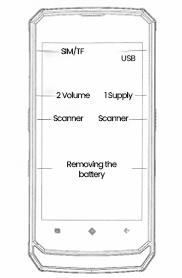
Power button
- Press and hold the power button to turn the device on.
- After powering on it takes a moment to complete initial settings such as language, time zone and Wi-Fi.
- On any screen, press the power button for one second to lock or unlock the device.
- Press and hold the power button to choose shut down, restart, screenshot or to force-stop a crashed app.
Volume button
- Press the volume button to adjust the playback volume for music, radio or video.
- Use the volume bar to adjust the volume for media, calls, ringtone and alarm.
Barcode scan button
- There are two orange barcode scan buttons, on the left and right sides of the device.
- When the device is on, press and hold either scan button for 3 seconds to activate the scanner.
- Short-press a scan button to read a code.
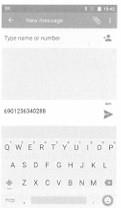
Note: before scanning, open an input field and set the cursor to a writing area — the scanned data is inserted there, as shown below.
Touch buttons (left to right)
- Back — return to the previously running application.
- Home — return to the main screen; long-press to launch Google Assistant.
- Recents / Close — go back to the previous screen or close the running program.
Install the SIM card and TF card
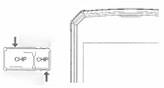
Turn the device off before installing or removing a SIM or TF card. Open the SIM card cover, pull out the tray and insert the SIM card as shown, with the chip facing the device display, then slide the tray back in. The device supports SD expansion — the second slot accepts either an SD card or a second SIM (SIM2).
Battery
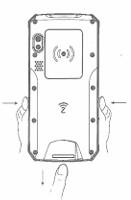
Press the right and left release buttons at the same time to remove the battery. When installing the battery, make sure the "front" side faces the display.
Status icons
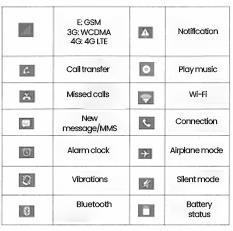
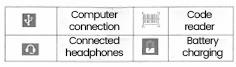
Apps and notifications
Applications — on the home screen, tap the app tab and swipe up to find all installed apps; tap the tab icon at the bottom to return to the home screen. In Settings → Apps & notifications you can review recently opened and default apps and configure app permissions (location, microphone, camera and so on).
Notifications — notifications include new messages, calendar events and ongoing events such as call forwarding or call status. Swipe down to open a notification, then tap it to open the related app.
Unknown sources — in Settings → Apps & notifications → special app access → install unknown apps you decide whether the device may install apps from outside the official store. Allowing unknown sources exposes the device and your data to risk, so enable it only for trusted apps.
Home screen management
The home screen can extend beyond the screen width to give you more space for shortcuts and widgets; swipe left or right to move between home-screen panels.
- Add a widget or shortcut — choose a widget to place it in an empty area, or press and hold an app icon and drag it to an empty spot.
- Move an icon — press and hold the icon until the device vibrates, then drag it to the desired position.
- Remove an icon — press and hold the icon until the device vibrates, then drag it to "Delete". When the last icon or widget is removed from a panel, that panel disappears automatically.
Wireless and network
- SIM cards — turn SIM1 / SIM2 on or off in Settings → Network & internet → SIM cards. In dual-SIM standby, choose the preferred operator under SIM cards → preferred SIM.
- SIM toolkit — find the SIM Toolkit menu in the app list for operator services.
- Wi-Fi — Settings → Network & internet → Wi-Fi → enable, select a network and enter the password.
- Bluetooth — Settings → Connected devices → Connection preferences → Bluetooth, then select an available device to pair.
- Airplane mode — disables all wireless connectivity when enabled.
- Hotspot and tethering — share the device's mobile connection with other wireless devices.
- Cellular — check data usage, turn 4G/3G on or off, change the network mode and the access point name (APN).
- Display — set brightness, wallpaper, auto-rotate, sleep timeout, font size and other display options.
Frequently asked questions
Which Android version does the AndroSavvy-200-26 run?
What barcodes can the AndroSavvy-200-26 read?
How do I scan a code into a field?
Can I use a SIM card and a memory card at the same time?
Is the battery replaceable?
Is the terminal suitable for tough environments?
Downloads
Original manufacturer PDF manuals kept available as a legacy reference. Everything from them is already covered on this page — use the PDFs only if you need an offline copy.