Price checker with QR scanner, 8-inch LED touchscreen, Android 11, HDWR quickCHECK-A100
GTIN: 5907614663834 · SKU: quickCHECK-A100
The quickCHECK-A100 is a price checker for supermarkets, retail stores and warehouses. The customer holds a product barcode in front of the scanning window and the device immediately shows the product name, description and price on its 8-inch LED touchscreen. It runs on Android 11, connects to the store network over WiFi or an RJ45 cable and is mounted on a wall or a pillar.
Table of contents
Specifications
- Display type: LED, 8 inches, backlit
- Touchscreen: yes
- Light source: 650 nm laser
- Image sensor: 752 × 480 CMOS
- Illumination: red LED, 625 nm
- Minimum code resolution: 3 mil
- Operating system: Android 11
- Processor: RK3288
- Memory: 2 GB RAM, 16 GB storage
- Wireless modules: WiFi
- Interface: 2 × USB, RJ45
- Ethernet: 100 Mb/s
- Communication: PoE (Power over Ethernet)
- Housing: plastic
- Power supply: 100–240 V, 50/60 Hz
- Operating humidity: 15–80%
- Operating temperature: 0–40 °C
- Device dimensions: 20 × 26 × 8 cm
- Package dimensions: 40.5 × 25.5 × 15 cm
- Device weight: 1.5 kg
- Weight with packaging: 1.8 kg
- 1D codes read: Code 128, EAN-13, EAN-8, Code 39, UPC-A, UPC-E, Codabar, Interleaved 2 of 5, ITF-6, ITF-14, ISBN, Code 11, UCC/EAN-128, GS1 DataBar, Matrix 2 of 5, Industrial 2 of 5, Standard 2 of 5, Plessey, MSI-Plessey
- 2D codes read: PDF417, Data Matrix (ECC200, ECC000, 050, 080, 100, 140), QR Code, Han Xin Code
Kit contents
- quickCHECK-A100 price checker
- Power cord
- Wall plugs, screws and mounting washers
Device overview
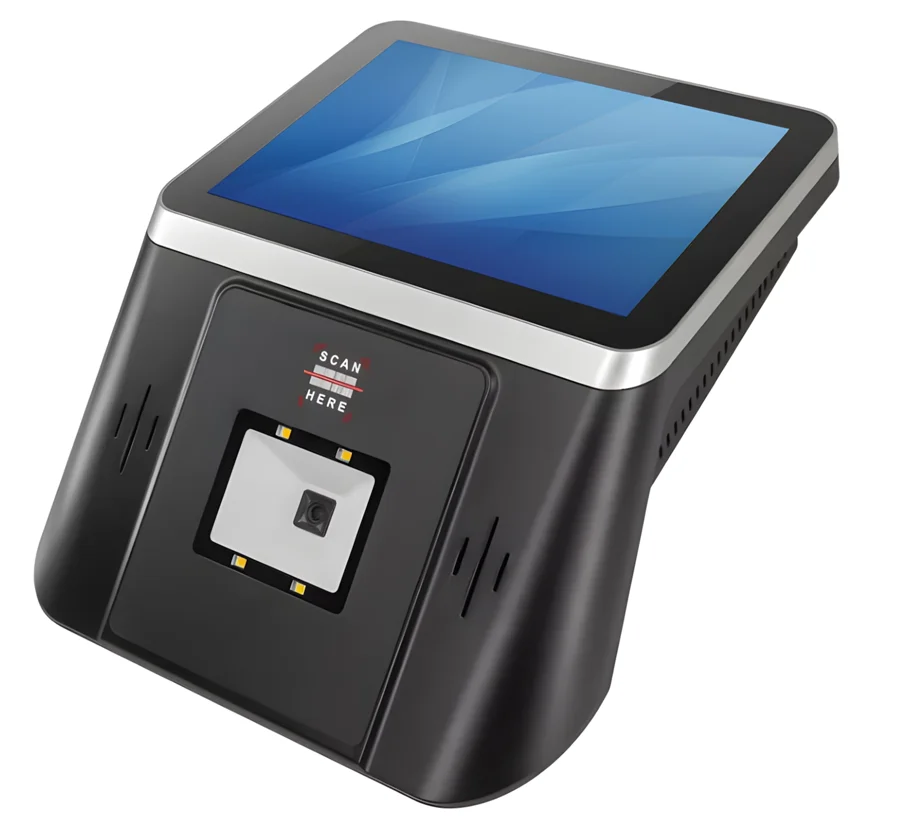
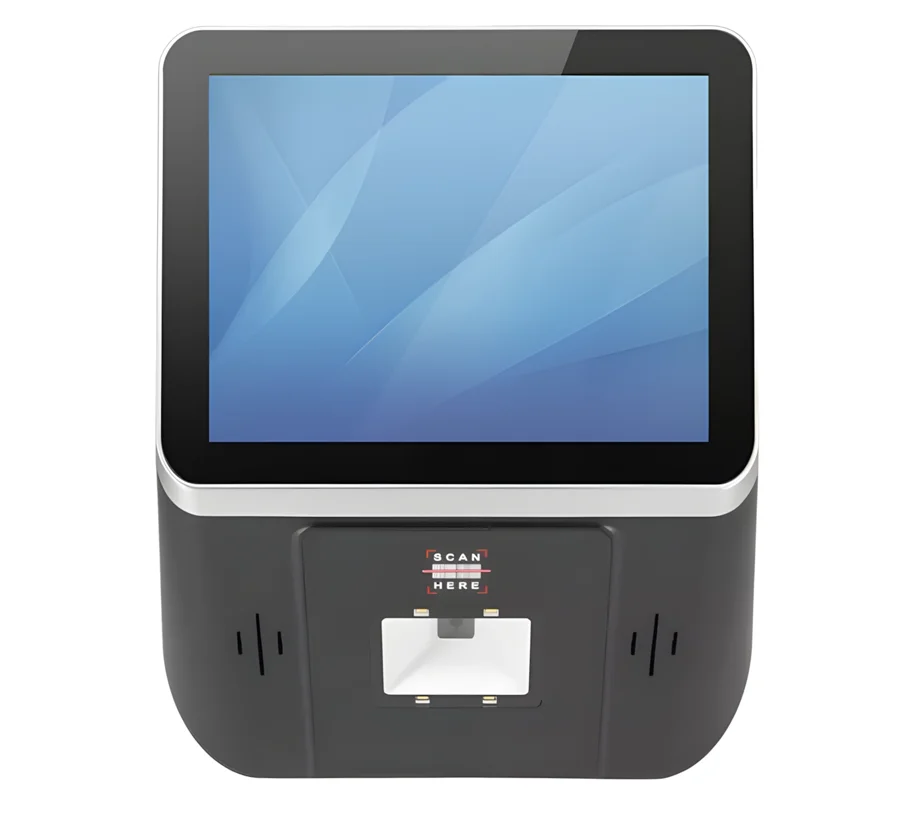
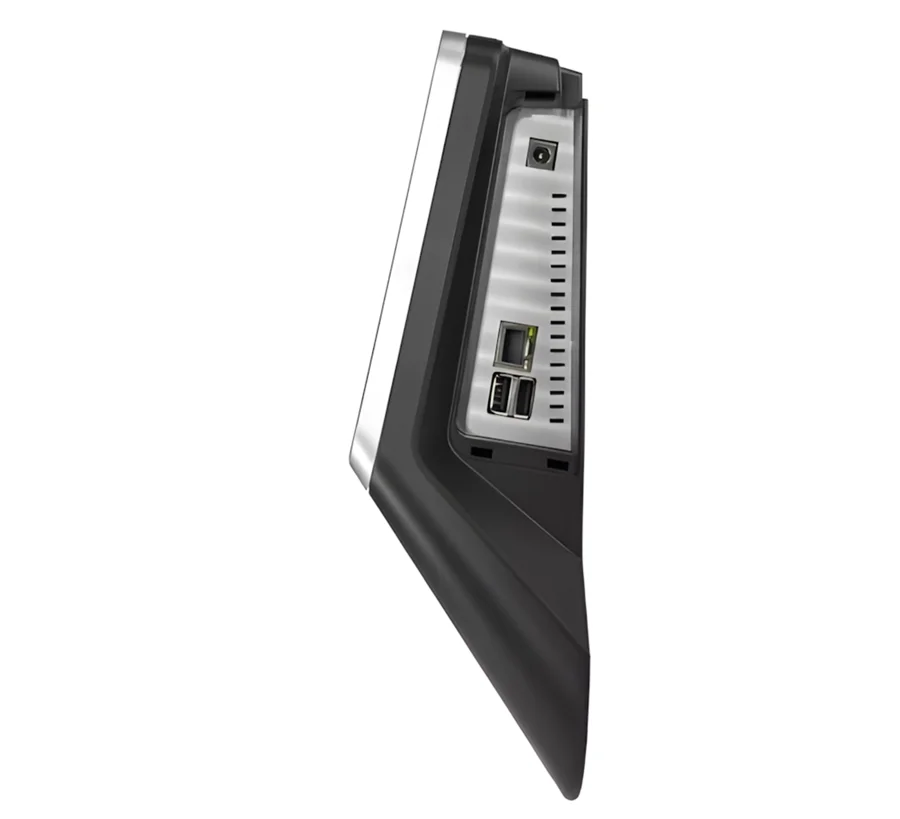
The 8-inch touchscreen sits at the top of the housing and the wide scanning window below it, marked SCAN HERE. The window takes products of various sizes, so the customer does not have to aim — it is enough to hold the product with its code towards the window. The scanner reads barcodes and QR codes printed on paper labels as well as codes shown on phone and LCD screens.
Mounting
The quickCHECK-A100 is mounted on a wall or a pillar. A recess in the back of the housing and the wall plugs, screws and washers supplied in the kit let you install the device at any height.
Starting the device
To start the device, connect the power cord supplied in the kit to a power source, then press the silver button on the side of the housing. The price checker is ready to work immediately after starting.
Network connection
The price checker needs a connection to the store network to read prices from your sales or ERP system:
- WiFi — the device has a built-in WiFi module.
- Ethernet — connect a network cable to the RJ45 port for a stable wired connection.
Price-checking software
The device runs a price-checking app that reads the scanned code, looks the product up in your system and shows its name, description and price. A price-checking plugin can be installed for any sales or ERP system. HDWR provides its own software that communicates with Comarch ERP Optima and over a REST API; other communication methods or a dedicated app can be prepared on request.
Small Business integration
The price-checking app can read prices from the Small Business program:
- When you open the app for the first time, a window appears with an option to go to the settings. If it does not appear, scan the settings barcode, which you can generate on the HDWR "setting" page.
- In the settings, choose Small Business as the data source.
- Enter the path to the data file shared over SMB, and the login and password for the connection.
The data file is exported from Small Business as an EDI file with the list of goods. SMB is the folder-sharing protocol built into Windows — share the folder that holds the file on a computer in the store network.
Advertising mode
Besides showing the price after a scan, the display can show promotional graphics while no product is being scanned and the device is in standby. The price checker then also works as an additional advertising display in the aisle.
Getting around Android
The quickCHECK-A100 is operated on its touchscreen. Android offers three navigation modes: gestures, two buttons and three buttons.
Going back
Going back returns you to the screen you used before. You can go back several times, up to the home screen.
- Gesture navigation: swipe in from the left or right edge of the screen.
- Two-button navigation: tap Back.
- Three-button navigation: tap Back.
Going to the home screen
- Gesture navigation: swipe up from the bottom of the screen.
- Two-button navigation: tap Home.
- Three-button navigation: tap Home.
Finding all open apps
- Gesture navigation: swipe up, hold, then release.
- Two-button navigation: swipe up from the bottom to the middle of the screen.
- Three-button navigation: tap Overview.
In this view you can:
- Close an app — swipe its image up.
- Open an app — tap its image.
Switching between apps
- Gesture navigation: at the very bottom of the screen, swipe from left to right.
- Two-button navigation: to switch between the two most recently used apps, swipe right on the Home button.
- Three-button navigation: tap Overview, swipe right until the app you want appears, then tap it.
Selecting and moving items
- To select or open an item, tap it.
- To type text, tap where the text should go. The keyboard appears on the screen automatically.
- To drag an item, touch and hold it, then — without lifting your finger — move it to the new place. This is how you move apps.
- To scroll, swipe quickly across the screen without stopping.
Changing the size of items
- To zoom in on an item, double-tap the screen.
- To zoom in or out, use two fingers: place them on the screen and spread them apart to zoom in, or pinch them together to zoom out.
Frequently asked questions
Does the quickCHECK-A100 have a touchscreen?
What does the quickCHECK-A100 display after scanning?
Can the display show advertisements when idle?
How is the device connected to the store system?
What is the difference between the quickCHECK-A100 and the quickCHECK-T100?
How do I mount the price checker?
Downloads
The manuals and datasheets as PDF, in case an offline copy is needed. Everything in them is also on this page.