App settings
The settings have two tabs: General (screen layout and the access code) and Source (the program the app takes prices from). Everything is stored in the price checker's memory.
How to open the settings
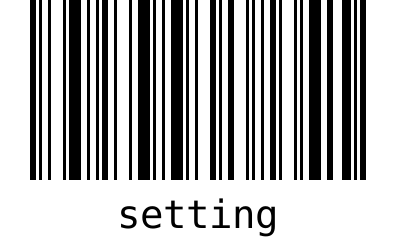
The settings open when you scan the settings access code. By default it is the text setting — below is a ready barcode (Code 128) to scan from the screen or a printout:
Other ways:
- USB keyboard — type the code (e.g.
setting) and press Enter. No more than 2 seconds may pass between characters, otherwise the app starts reading again. - First start — on an unconfigured price checker the app shows a window with a Settings button by itself.
The app has no separate password or PIN for the settings — only the access code protects them. The default code setting is widely known and this page is public. After the configuration, set your own code on the General tab, print it as a barcode and keep it in the back office.
You can print your own code with any barcode generator (e.g. as Code 128). Choose a text that no product has — otherwise scanning that product would open the settings instead of showing its price.
If you forget the code, the only way out is to clear the app data in the Android settings (app info for Price checker → storage → clear data). This deletes all settings, so you will have to enter them again.
General tab
| Field | What it means | Default |
|---|---|---|
| Show information for (seconds) | How long the price or the “Product not found” message stays on the screen before “Scan the code” returns. Slider from 5 to 120 s. | 5 |
| Price format | The pattern used to display the price. %.2f is the price with two decimal places, the rest of the text is shown as is. A preview is shown below the field, e.g. Preview: 12.99 zł. | %.2f zł |
| Settings access code | The code that opens the settings when scanned. It cannot be empty. | setting |
| Show EAN code below the price | A line below the price with the product code: EAN …, or — if the program does not know the EAN — the scanned code (Code …). | on |
The bottom of the tab shows the installed app version.
Price format examples:
| Pattern | Result |
|---|---|
%.2f zł | 12.99 zł |
%.2f PLN | 12.99 PLN |
%.2f € | 12.99 € |
€ %.2f | € 12.99 |
Price: %.2f EUR | Price: 12.99 EUR |
The decimal separator (comma or point) depends on the language of the Android system. A pattern without %.2f (e.g. just “zł”) is invalid — the app shows Invalid price pattern. Use e.g. %.2f zł and does not save the settings.
Source tab
- Choose the program from the list at the top: ERP Optima, Rest API, Subiekt GT, Subiekt Nexo, Navireo, Small Business, Wapro Mag or JTL-Wawi.
- Fill in the fields that appear below the list. What to enter is described on the page of each program: Subiekt GT, Subiekt nexo, Navireo, Comarch ERP Optima, WAPRO Mag, Small Business, JTL-Wawi, REST API.
- Press Connection test.
The app stores the settings of only one source — the one selected when you save. If you switch to another program and save, the previous connection details are gone.
Connection test
The test uses the values typed in the form — you do not have to save them first. A Connecting window appears, followed by the result:
- Success — Connected — the app connected to the program; for SQL Server programs it also checked that the chosen database belongs to this program and that the given price list or price level exists.
- Error — a message with a hint on what to fix and, below it, a collapsible Technical details ▸ section with the original error. The details are useful for the service team. The list of messages is in Troubleshooting.
The test does not look up any particular product. After saving the settings, scan a few products, including one with an additional barcode and one on promotion.
Saving the settings
- Press the back button (on a USB keyboard usually Esc).
- To the question Save settings? answer Yes. No closes the settings without changes.
- The app connects to the source (Loading) and then shows Scan the code. If the connection fails, No connection to the data source appears — go back to the settings and run the connection test.
If there is an error on the General tab (wrong price format, empty access code), the app switches to that tab and marks the field instead of saving.