Online recorders — TimeLok series
TimeLok is HDWR's family of networked working time recorders. Every model in the line connects to a network (LAN, WiFi or 4G depending on the SKU) and pairs with the BeepClock cloud application for real-time reporting and centralised configuration.
Models in the range
- TimeLok 200 (NWEPI) — built-in WiFi, full BeepClock integration
- TimeLok 300 (NWEPBI) — built-in WiFi plus an internal battery (3–4 h of wireless operation as a backup during power outages)
- TimeLok 400 (NWEPBI4G) — built-in WiFi, battery and an additional 4G modem slot (insert a SIM and the recorder keeps reporting to BeepClock even if the local network is down)
All three models support RFID (125 kHz and 13.56 MHz), the BeepClock cloud app, the Wiegand 26/34 protocols and an electric door-lock output.
Setup checklist
- Power on the device and complete the on-device first-run wizard (date, time, language)
- Connect to your WiFi network (see FAQ below) or plug in a LAN cable
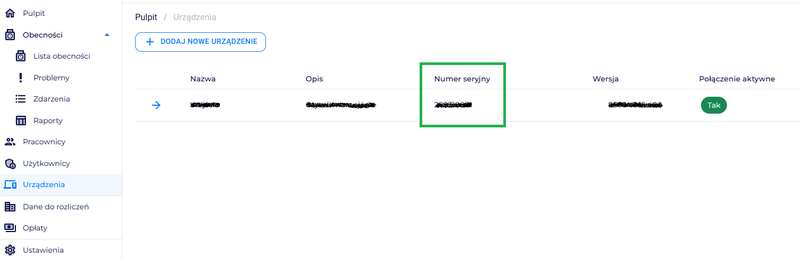
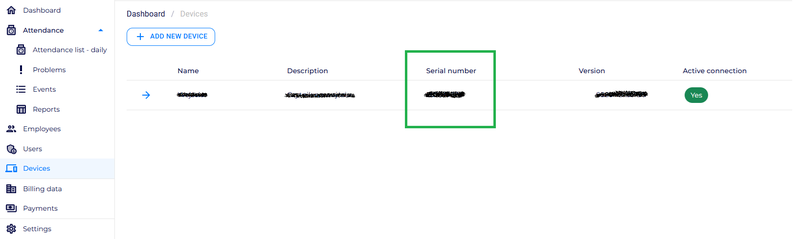
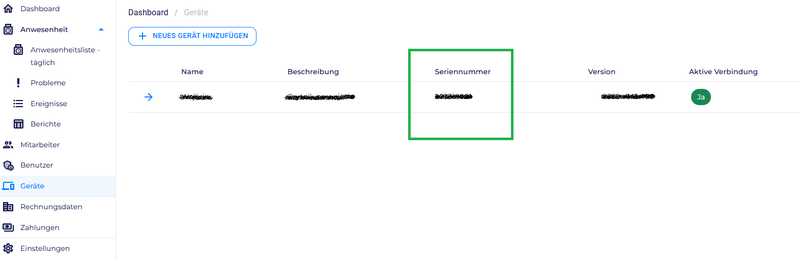
- Note the serial number from the sticker on the back of the recorder
- Create a BeepClock account and add the device using the serial number
- Start adding employees in BeepClock — they sync to the device automatically
TimeLok FAQ
What sets the TimeLok series apart from the offline CTR / FTR recorders?
TimeLok devices are networked: they connect over LAN, WiFi or 4G and pair with the BeepClock cloud app for real-time reporting and centralised configuration. Offline CTR / FTR devices are standalone — they store data locally and you export it to USB. Pick TimeLok if you have multiple sites, want remote configuration, or want employees and admins to see live attendance data; pick CTR / FTR if you want a simple plug-and-go device with no cloud or IT setup.
Do TimeLok recorders work wirelessly without mains power?
In standard configuration: no. The TimeLok 300 (NWEPBI) and TimeLok 400 (NWEPBI4G) variants ship with an internal battery that provides about 3–4 hours of wireless operation. The battery is designed as a backup power source during outages — it is not a full off-grid power solution. After the battery drains the device must be reconnected to mains.
Where do I download the application for TimeLok recorders?
TimeLok devices use the BeepClock web application — there is no software to download or install. Open app.beepclock.com in any modern browser, create an account, and add your device using its serial number. The app works on Windows, macOS, Linux, Android and iOS through the browser.
How does an employee log in with a PIN on the device?
On the recorder keypad, first press '0' to open the ID-entry field (the employee number matches the app). Type the ID and confirm with OK. A PIN-entry field opens; type the PIN and confirm with OK. A successful login is shown on the screen with the employee's details, the login time and a green check mark.
How do I connect a TimeLok recorder to a WiFi network?
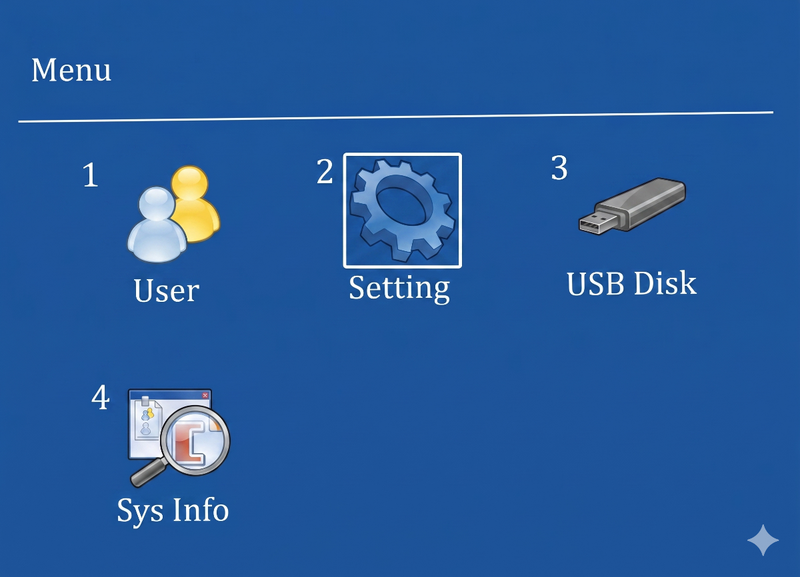
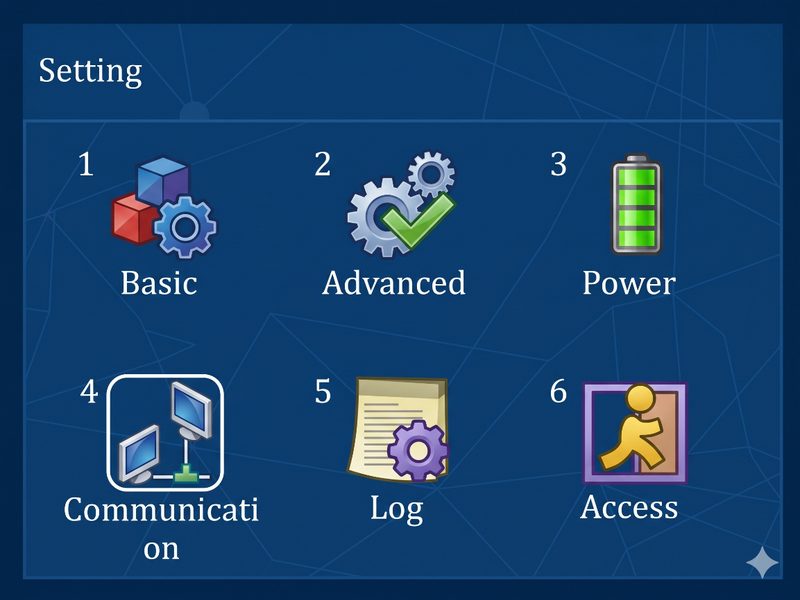
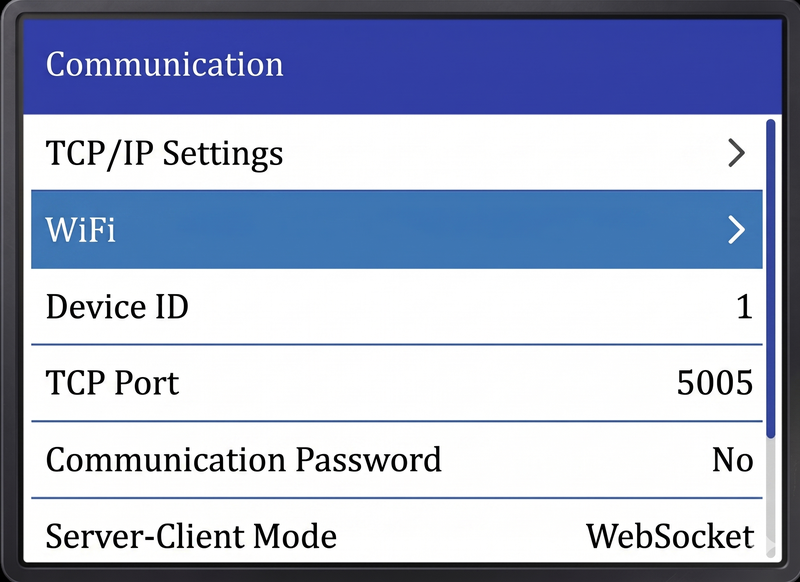
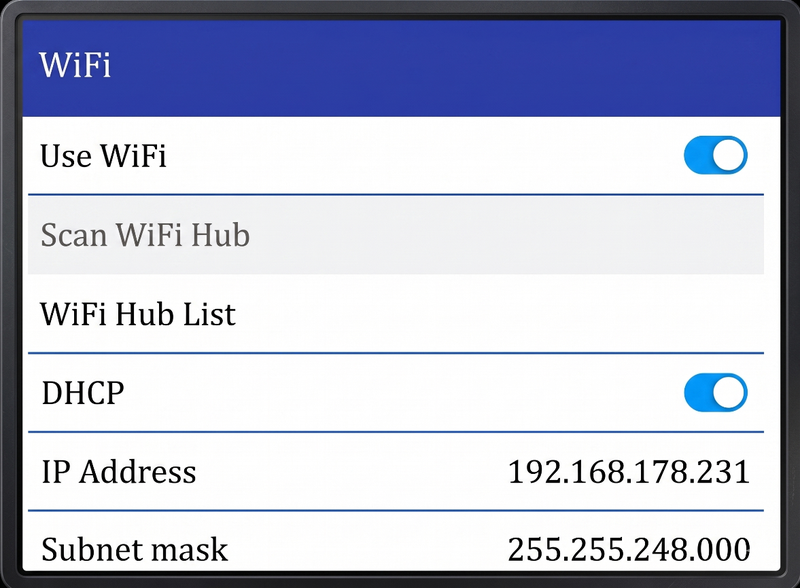
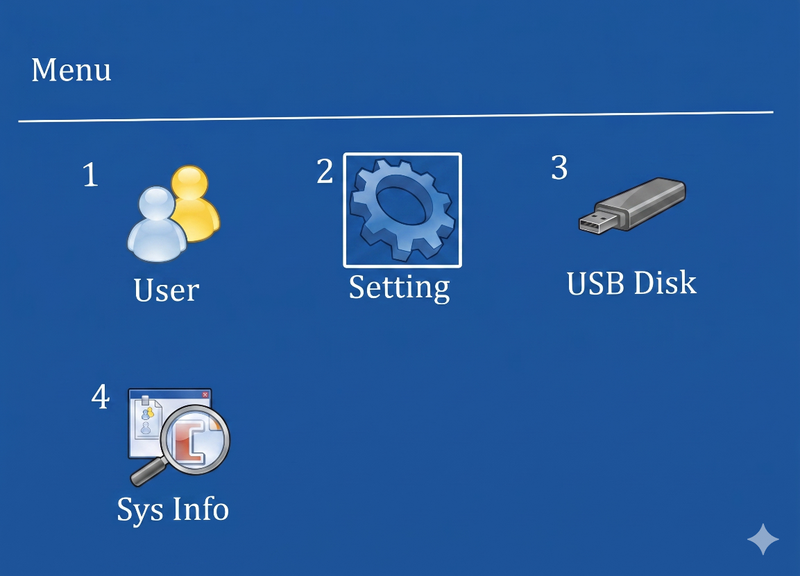
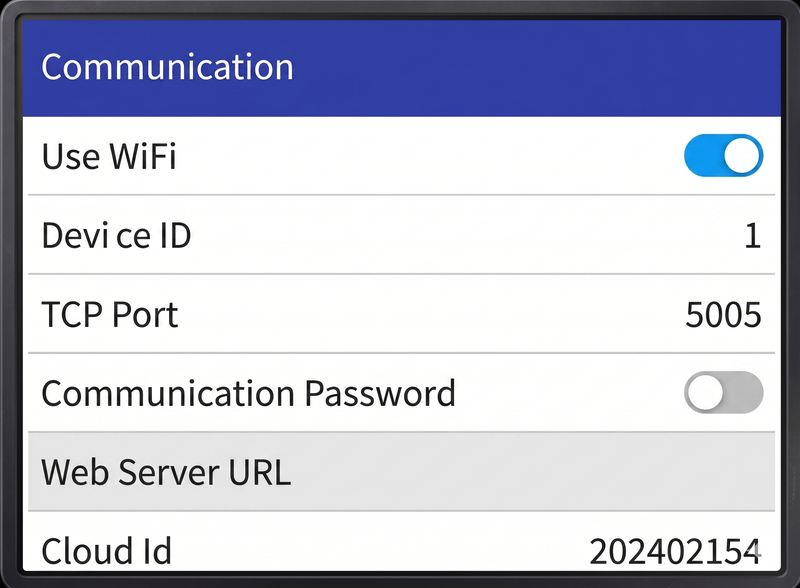
On-device: Main menu → Setting (key 2) → Communication (key 4) → WiFi → OK. Then choose 'Scan WiFi Hub' to list available networks, pick your network, enter the password and confirm with OK. The device will join the network and indicate connectivity on the home screen.
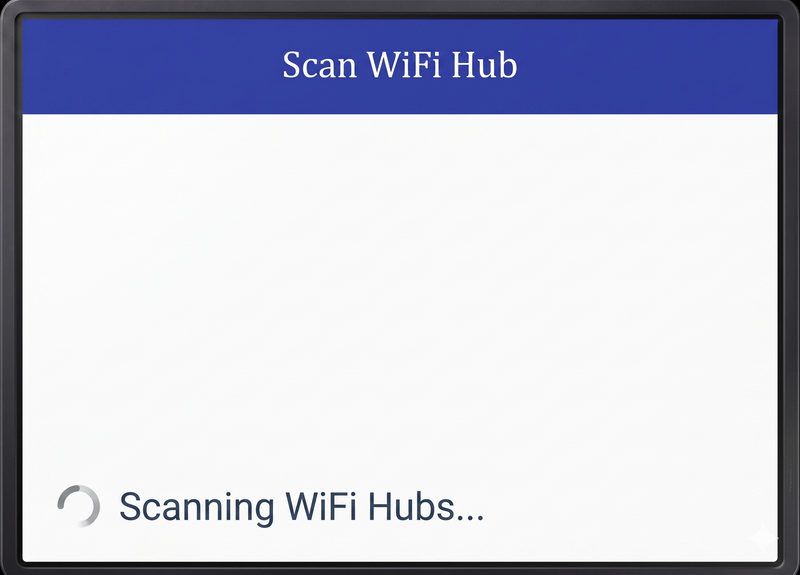
My WiFi password contains uppercase letters and special characters — how do I enter them?
On TimeLok devices, uppercase letters are entered by pressing '0' on the keypad before the desired letter key. Special characters are reached by switching input mode — press the POWER / PWR button to cycle modes. Once you are in special-characters mode, each numeric key inputs the symbol associated with it.
The recorder is connected to the network but BeepClock shows 'Connection: NO' — what should I check?
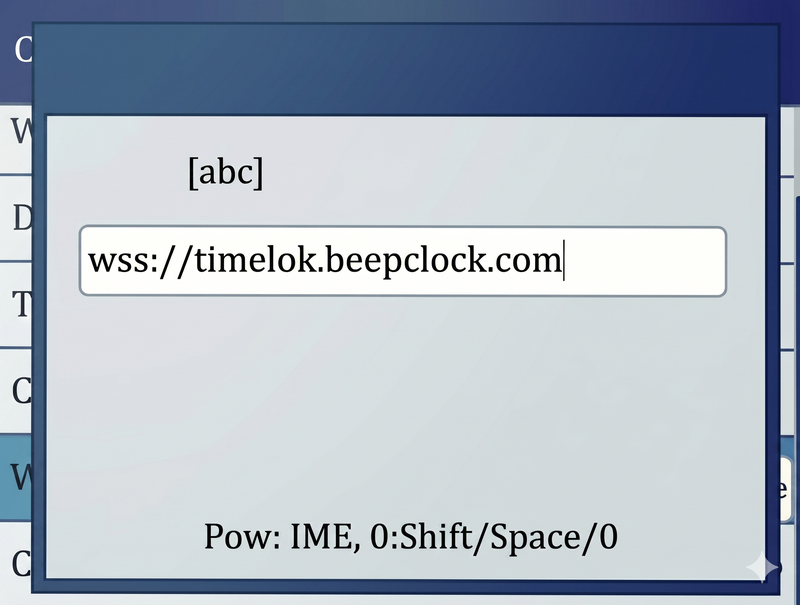
Two things to verify: (1) the server URL is correct — go to MENU → Setting → Communication → Web Server URL and confirm it reads exactly wss://timelok.beepclock.com; (2) the serial number you entered in BeepClock when adding the device matches the sticker on the back of the recorder (or on its box). If both are correct and the issue persists, contact HDWR support.
How do I block menu access for unauthorised people?
Give one employee admin rights — only admin-level users can open the menu. On-device: MENU → User (key 1) → Edit (key 3) → pick the employee → OK → set Level to 'Administrator' → OK. Once an admin exists, regular User-level employees cannot open settings. The BeepClock app is the source of truth: setting an admin role in BeepClock pushes those rights to the device automatically.